How to Run a YouTube Giveaway (Step by Step, Within YouTube’s Rules)
Last updated on November 16th, 2026 at 05:16 pm
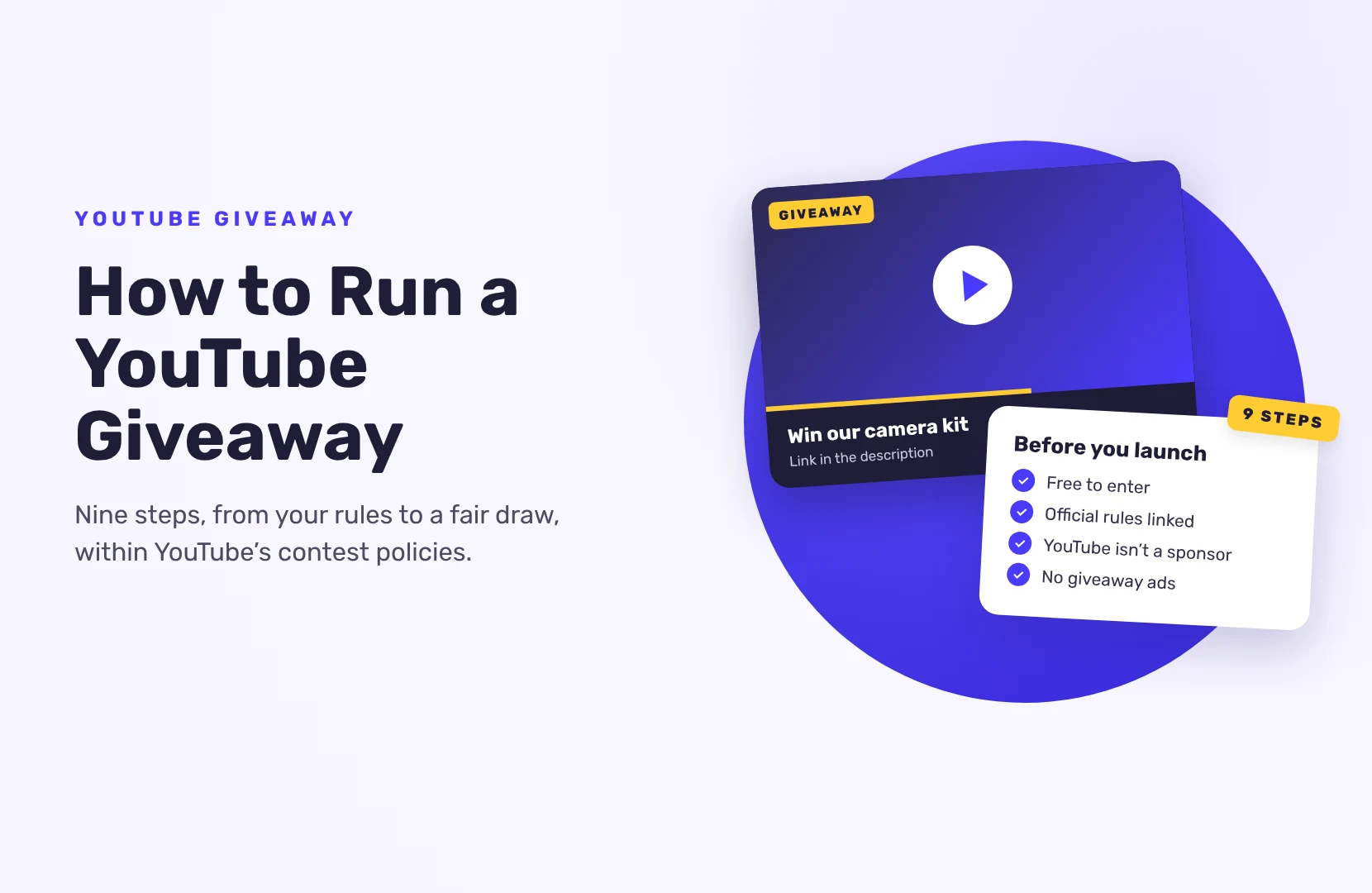
To do a YouTube giveaway, pick a prize your viewers want, write official rules that follow YouTube’s contest policies, announce it in a video with a link to the entry page, collect entries for one to two weeks, then draw a winner at random and contact them before you announce. YouTube’s rules are stricter than most platforms’, so the step most people skip, reading them, comes second below.
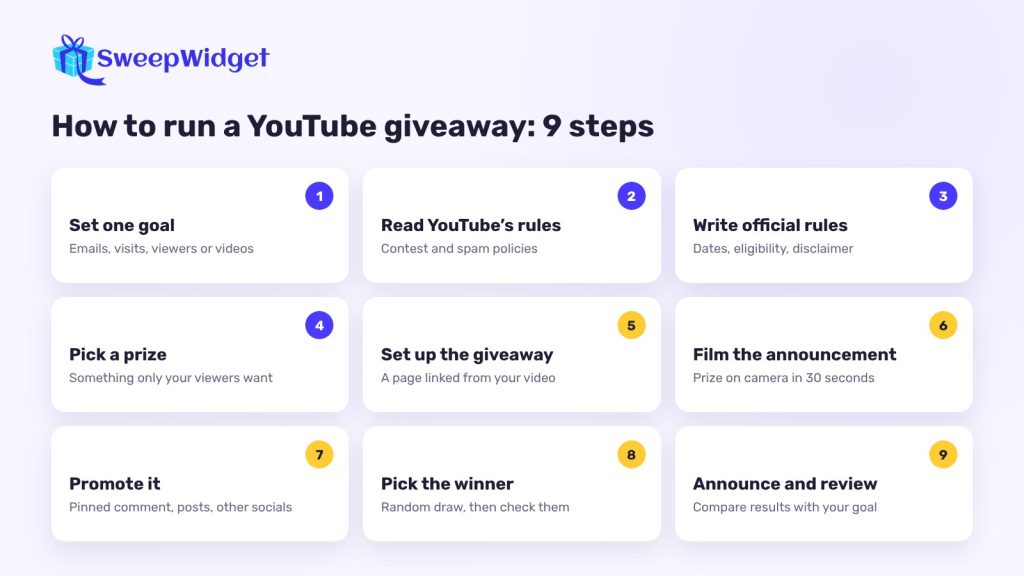
1. Set one goal
Decide what the giveaway is for before anything else. Common goals:
- More engaged viewers on a new video or series
- More subscribers
- Visits to your website or store
- An email list, so you can reach viewers outside YouTube
- Videos made by your audience
Make it measurable: “500 new email subscribers in three weeks” tells you whether it worked. “More engagement” doesn’t.
2. Read YouTube’s contest policies
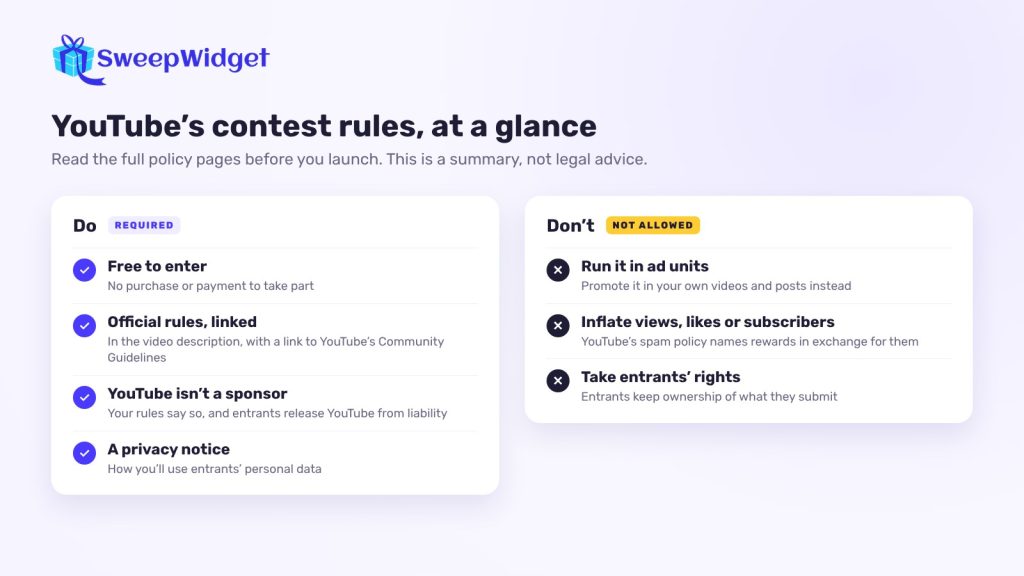
YouTube publishes contest policies that every channel must follow. The main points:
- You’re responsible for your contest, its rules and running it.
- It must be free to enter and follow the laws where you and your entrants are.
- You need official rules that link to YouTube’s Community Guidelines and say that entries breaking them are disqualified. The rules also need a privacy notice explaining how you use entrants’ personal data.
- YouTube must be disassociated. Your rules have to say YouTube isn’t a sponsor and release YouTube from liability.
- No contests in ad units.
- No metric manipulation. You can’t run a contest in a way that artificially inflates views, likes or subscribers. YouTube’s Spam Policy goes further and lists “offering rewards in exchange for likes, views, or subscribers” as engagement manipulation.
- Entrants keep their rights. You can’t ask entrants to hand over all rights or ownership of their entry.
Because of these two rules, the safest setup gives no entries for subscribing, liking or watching. Put the entries on actions away from YouTube’s numbers, like visiting your site, joining your newsletter or referring a friend, and ask viewers to subscribe in your video, which YouTube allows. Read the full policy page before you launch: YouTube contest policies.
3. Write your official rules
Your rules should cover, in plain language:
- How and where to enter, and what makes an entry invalid
- Start and end dates with time zone
- Who can enter (age and location)
- The prize, its value and how the winner is picked and contacted
- Any brand partner involved
- The YouTube disclaimer, a link to the Community Guidelines and a line saying entries that break them are disqualified
- How you’ll use entrants’ personal data
SweepWidget’s giveaway rules generator gives you a starting template to adapt. You’re still responsible for checking it fits your contest and your local laws.
4. Pick a prize that fits your channel
The best prize is something only your viewers would want: gear you use in your videos, your own merch, or a product from a sponsor your audience trusts. A prize that’s too generic attracts people who enter giveaways all day, not people who’ll keep watching. If a brand supplied the prize or paid you, turn on the paid promotion setting in the video’s details in YouTube Studio, and name the brand in your rules.
5. Set up the giveaway
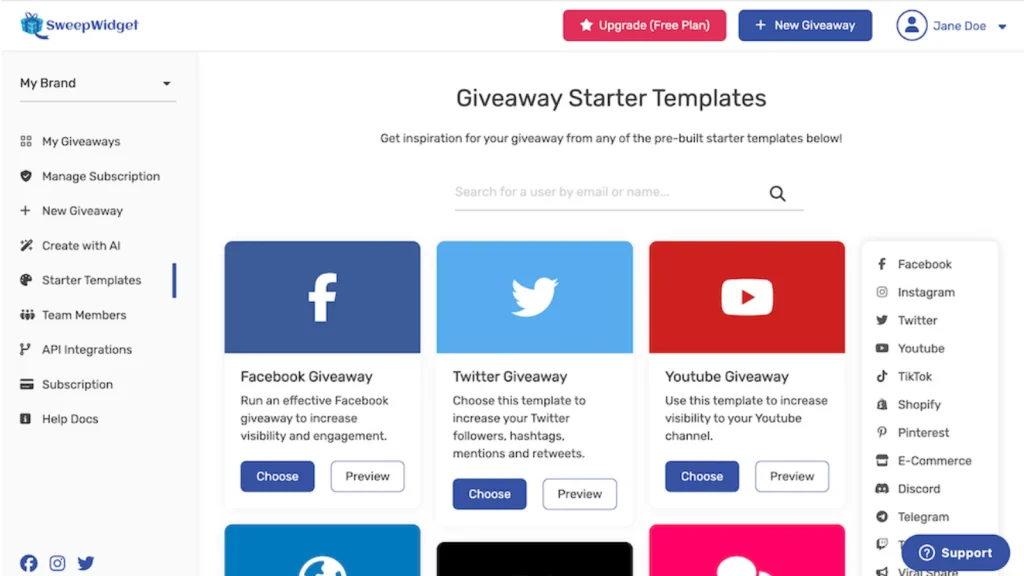
The easiest way is to run entries on a giveaway page and link to it from your video. With SweepWidget, open Starter Templates and choose one from the YouTube category, or click New Sweepstakes and build it yourself. Add the title, dates, prize and number of winners.
Then choose how people earn entries. SweepWidget’s YouTube actions, on the Pro plan and above, are:
- Watch a video. The video plays inside the giveaway, and the entry is only confirmed once it finishes. It’s the one YouTube action checked through the player. A watch is a view, so the step 2 caution applies here too.
- Subscribe, comment or like. The entrant types the username they used. YouTube doesn’t let outside tools confirm these, so they’re taken on trust and you check the winner by hand. Because of the spam policy in step 2, the safest choice is to leave subscribe and like out.
- Submit a video. Entrants send a link to their own video, which is useful for creative contests.
- Featured video (a design setting, not a way to enter). Under Style & Design › YouTube Video Feature, show your announcement video at the top of the giveaway instead of an image.
Add one or two actions beyond YouTube:
- Refer a friend. Each entrant gets a share link and earns extra entries when friends enter. (Pro and above)
- Daily bonus entry. Gives people a reason to come back while the giveaway runs. (Pro and above)
- Join your newsletter. So you can reach viewers when YouTube doesn’t show them your next upload. (Pro and above)
Make one action mandatory and the rest optional, and, as step 2 explains, don’t give entries for subscribing, liking or watching.
6. Film the announcement video
The video is where most entries start. Keep it focused:
- Show the prize on camera in the first 30 seconds.
- Walk through how to enter, on screen.
- Say the end date and who can enter, and point to the rules.
- Put the word “giveaway” and the prize in the title and thumbnail.
In the description, add the giveaway link near the top, a short summary of how to enter, the end date and a link to the full rules.
7. Promote it
YouTube doesn’t allow contests in ad units, so promote it on your own channels:
- Pin a comment with the link under the announcement video.
- Add a card or end screen to your popular videos, and take them down when it ends.
- Mention it in every video you publish while it runs.
- Post it in your Posts tab (formerly the Community tab) and on your other social accounts.
- Email your list, and partner with a creator your audience trusts.
- Post a reminder on the last day.
8. Pick and contact the winner
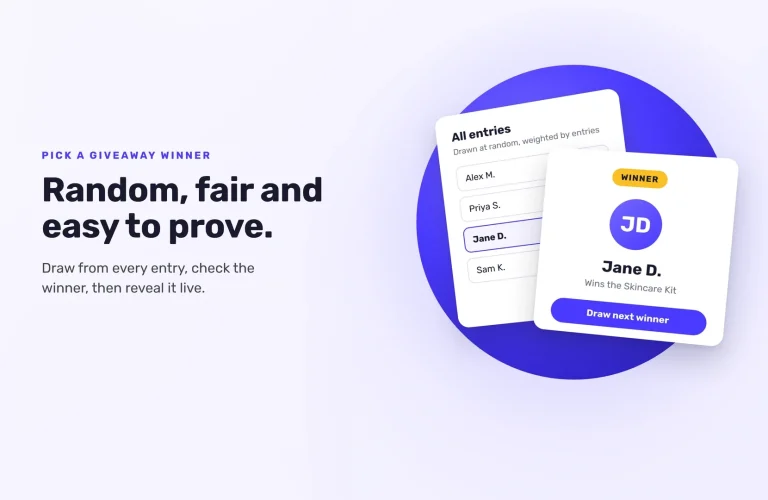
When the giveaway ends, go to Manage Entries, click Pick A Winner and choose Randomize the Selection. You can set a minimum number of entries to be eligible, and draw several winners at once: 1 on the Free plan, up to 50 on Pro, 250 on Business and 1,000 on Premium.
Drawing live? Live Draw (every paid plan, from Pro) reveals the winner with a countdown or spin wheel and keeps email addresses off screen, so you can share your screen in a stream or video.
Before announcing, check the winner did what your rules asked. If they didn’t, disqualify them and draw again. Then contact them yourself with a deadline to reply. For prizes like gift card codes, SweepWidget can email winners a unique redemption code. For how to check the winner and show the draw was fair, see how to pick a giveaway winner fairly.
9. Announce the winner and review the results
Announce the winner in a video or a post in your Posts tab once they’ve replied, with their permission. A short clip of the winner receiving the prize makes your next giveaway more believable.
Then check the numbers against your goal. Open the giveaway’s Analytics tab for visits, conversion rate and which entry methods people completed, and compare it with your YouTube Studio figures for the same weeks.
Want to see a finished one? See an example YouTube giveaway.
Ready to run your first giveaway?
Start free on SweepWidget and move to Pro when you want to view and download all your entrants’ emails and get fraud controls. Or compare SweepWidget’s plans and features first.
No credit card required
FAQ
Yes, as long as you follow YouTube’s contest policies: free to enter, official rules, YouTube disassociated, no ad units and no metric manipulation.
YouTube’s policies forbid artificially inflating subscribers, likes and views. Its Spam Policy also names rewards in exchange for likes, views or subscribers, so the safest choice is not to give entries for subscribing. You can still ask viewers to subscribe in your video.
Draw at random from all eligible comments with a comment picker (see how to pick a winner from YouTube comments), then check the winner met your rules. Running entries on a giveaway page instead gives you an email for every entrant.
One to two weeks is usually enough. It gives viewers who watch later time to enter.
Yes. YouTube’s contest policies require official rules that link to the Community Guidelines, say YouTube isn’t a sponsor and explain how you use entrants’ data.