How to Pick a Winner From YouTube Comments (Fairly, With a Comment Picker)
Last updated on November 16th, 2026 at 05:03 pm
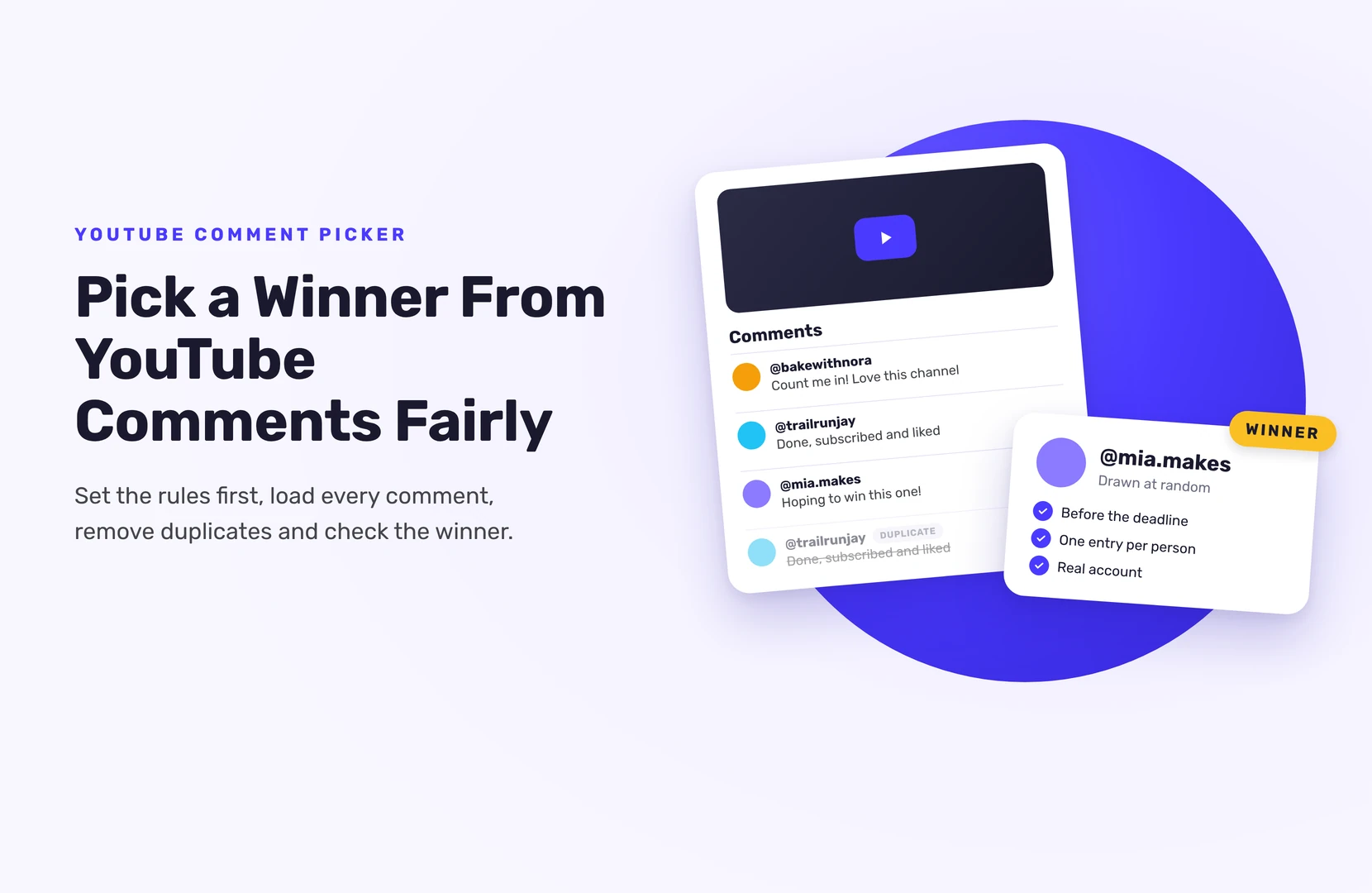
pick a winner from YouTube comments, paste your video’s link into a YouTube comment picker, turn on “remove duplicate users” and any keyword or date filter your rules need, and draw at random. Then open the winning comment, check it follows your rules, and tell the winner how to claim the prize.
That takes a few minutes. Getting the rules right before you post the video is what makes the result easy to defend.
Set the rules before the video goes live
A comment picker can only apply rules you’ve already written. Put these in the video description and say them in the video:
- What counts as an entry. Any comment, or a comment that answers a question or includes a keyword?
- How many entries per person. One is standard. Say that extra comments don’t add chances.
- Whether replies count. Most giveaways count top-level comments only.
- The deadline, with time zone. Comments after it don’t count.
- Who can enter. For example, age and country.
- How you’ll contact the winner. This matters more on YouTube than anywhere else (see below).
If you also ask people to subscribe or like the video, know that most comment pickers can’t check either. You’ll have to check the winner by hand, or not make it a requirement.
How to pick a winner from YouTube comments, step by step
- Wait until the deadline passes. Drawing early leaves out people who still had time to comment.
- Open a YouTube comment picker and paste the video or Shorts link.
- Load all comments. Free plans on some tools stop at a few hundred comments. If your video has more, make sure the tool loads every one, or the draw isn’t complete.
- Apply your filters. Remove duplicate users. Exclude replies if your rules do. Add the keyword or the cutoff date if you set one. Exclude your own channel and team accounts.
- Choose the number of winners, plus one or two backups, and the order you’ll use them in.
- Draw. Record your screen, or use a tool that gives you a shareable results page.
- Check the winning comment against your rules: posted before the deadline, keyword included, account looks real.
- Contact the winner and set a deadline to reply. If they miss it, go to your first backup.
Which YouTube comment picker should you use?
Plenty of free and low-cost pickers do the job, for example Commentpicker, vidIQ’s YouTube Comment Picker and AppSorteos (formerly Rafflys). Limits and prices change often, so check the current plan before you rely on one.
Look for:
- Duplicate removal by user, not just by identical text
- Reply handling, so you can include or exclude replies to match your rules
- Keyword and date filters
- A comment limit high enough for your video
- Multiple winners in one draw, with no repeats
- A results page or certificate you can share as proof
- Support for Shorts and live streams, if that’s where the giveaway runs
How do you contact a YouTube comment winner?
YouTube brought back direct messages in 2026, but only in the mobile app, for adults, and only once the other person accepts your invite. So you can’t count on messaging a winner privately. Common options:
- Reply to the winning comment and pin a comment announcing the winner’s channel name.
- Ask the winner to email you from an address listed in your channel’s About section or video description.
- Ask them to confirm with a code word you only share in that reply, so you know you’re talking to the real winner.
Warn your audience about scams. Giveaway videos attract fake accounts that copy your channel name and reply “You won, message me on Telegram”. Say in the video and description: “We’ll only contact winners from this channel, and we’ll never ask you to pay to claim a prize.”
When a comment picker isn’t enough
Comment giveaways are quick, but they have limits. You get a channel name and nothing else, you can’t confirm who subscribed, and contacting the winner is clumsy.
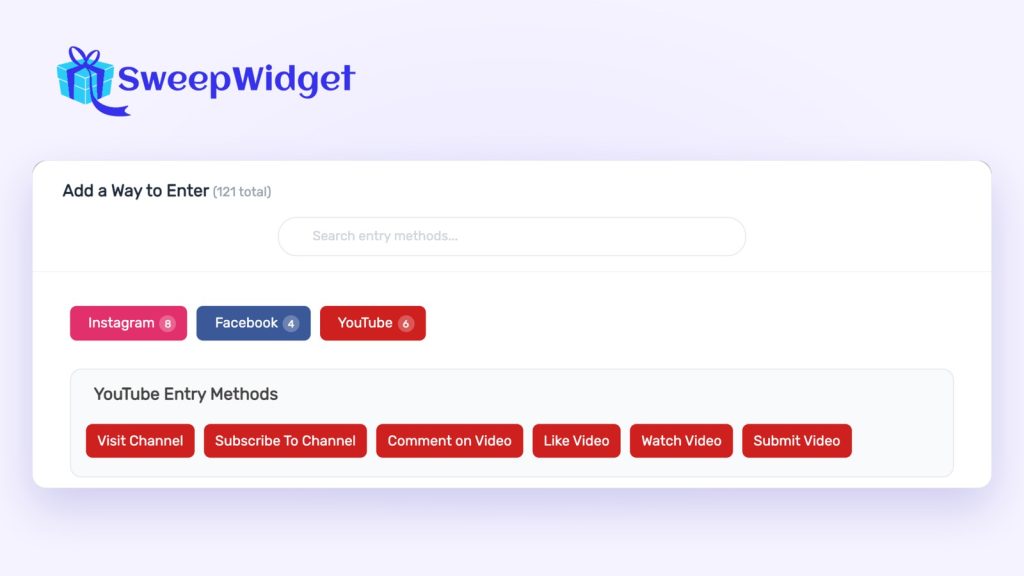
A hosted giveaway fixes those. With SweepWidget, entrants enter on a giveaway page with their name and email, and earn entries for YouTube actions:
- Visit your channel
- Subscribe to your channel
- Comment on a video
- Like a video
- Watch a video
- Submit a video of their own
Visit Channel works on every plan, including the free plan. The other five need Pro or higher.
For subscribe, comment and like, entrants confirm the username they used, and you check the winner’s channel before you announce them. SweepWidget doesn’t read your video’s comments; it records the username each entrant gives. Watch Video is the one action that’s checked: the video plays inside the giveaway, fast-forwarding is turned off, and the entrant can’t claim the entry until it ends.
You can also show a YouTube video at the top of the giveaway instead of an image, add actions on other platforms, and give extra entries for referring friends.
Because every entrant leaves an email, contacting the winner is a normal email, not a hunt through replies. On the free plan, you can run unlimited giveaways with unlimited entries and view or download up to 10 entrants’ emails. To draw, go to Manage Entries > Pick A Winner > Randomize the Selection. The draw is weighted by entries and never picks the same person twice. If you stream, Live Draw (every paid plan, from Pro) shows only the winner’s name and prize on screen, with a countdown or spin wheel reveal.
Mistakes that make a YouTube draw look rigged
- Drawing before the deadline, or leaving it open-ended.
- Loading only part of the comments because of a free-tier limit.
- Re-drawing because you didn’t like the first result.
- Picking a winner who commented after the deadline.
- Announcing without checking, then having to take it back.
If you picked the wrong person by mistake in SweepWidget, unpick them, which keeps them eligible, and draw again.
For more on drawing and checking winners on every platform, see how to pick a giveaway winner fairly.
Want a YouTube giveaway that collects emails and counts more than comments? See how a YouTube giveaway works in SweepWidget.
Ready to run your first giveaway?
Start free on SweepWidget and move to Pro when you want to view and download all your entrants’ emails and get fraud controls. Or compare SweepWidget’s plans and features first.
No credit card required
FAQ
Yes, several. Most have a free tier with a comment limit, so check that it loads every comment on your video before you draw.
Usually not. Ask the winner to confirm, or check their channel if their subscriptions are public. Simpler: don’t make subscribing a requirement for a comment giveaway.
Many comment pickers support Shorts and some support live stream chat. Check the tool before you announce the giveaway.
Only if your rules say so. Most giveaways allow one entry per person, so remove duplicate users before the draw.
Set a deadline in your rules, often a few days. If they don’t reply in time, contact your backup winner.