
SweepWidget Giveaway Security Settings
SweepWidget provides comprehensive security settings to protect your giveaways from fraud, spam, and abuse. This guide covers all available security options, from anti-spam measures to email verification.
Table of Contents
- Anti-Spam Settings (Security Levels)
- Geo-Targeting (Country & State Restrictions)
- Block Duplicate IP Addresses
- Set Maximum Number of People Who Can Enter
- Set Maximum Number of Allowed Entries
- Block VPNs
- Block High Risk Email Providers
- Only Allow Specific Emails to Enter (Email Whitelist)
- Only Allow Specific IP Addresses to Enter (IP Whitelist)
- Show Cookies Consent Form
- Remove SweepWidget Google Analytics Tracking
- Email/Text Verification (2FA)
- Security Features by Plan
- Recommended Security Configuration
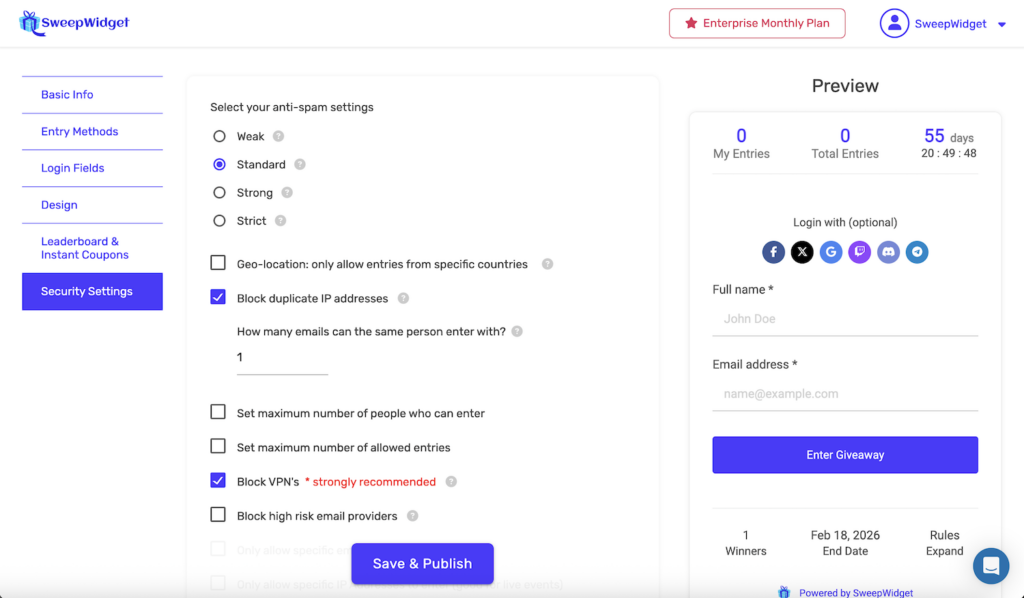
Anti-Spam Settings (Security Levels)
Choose from four security levels that determine how strictly SweepWidget validates entries. Higher levels use advanced device fingerprinting technology to detect and prevent fraudulent entries.
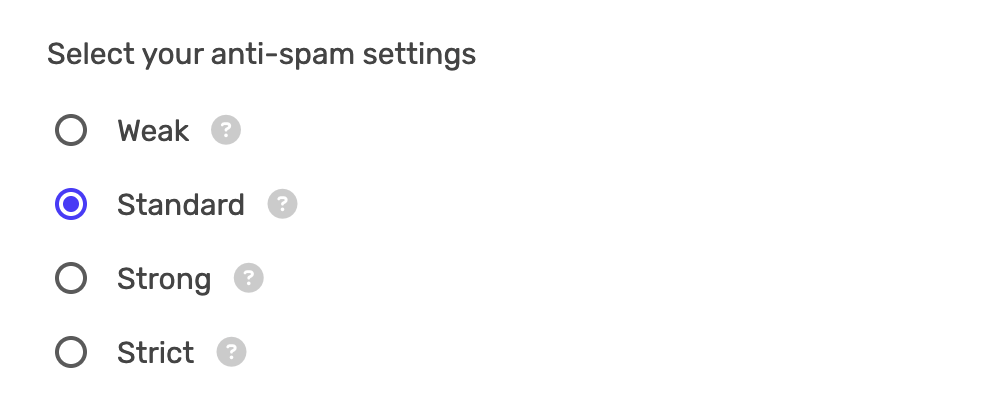
| Level | Description | Best For |
|---|---|---|
| Weak | Minimum validation checks. No device fingerprinting. | Internal contests, trusted audiences |
| Standard | Advanced device fingerprint technology verifying 50+ data points. This is the default setting. | Most giveaways |
| Strong | Elevated security checks with enhanced device fingerprinting. | High-value prizes, larger audiences |
| Strict | Maximum device fingerprinting security settings. | Premium prizes, public viral campaigns |
Recommendation: Start with Standard for most giveaways. If you notice suspicious activity, increase to Strong or Strict.
Geo-Targeting (Country & State Restrictions)
Plan Required: Premium
Control which countries and states/provinces can enter your giveaway. You can either allow only specific locations or block specific locations from entering.
[SCREENSHOT – add updated screenshot of the new geo-targeting UI showing the Enable geo-targeting checkbox, allow/block radios, country search, and selected country pills]
To enable geo-targeting:
- Check “Enable geo-targeting”
- Choose a mode: “Only allow these locations” or “Block these locations”
- Search for countries using the search field and click to add them
- For supported countries (US, Canada, UK, Australia, Brazil, India, Germany), you can also select specific states or provinces
Selected countries appear as removable pill badges. Participants from restricted locations will see a message indicating they cannot enter. Location is enforced both when the widget loads and on the server when a user submits an entry.
For full details, see Geo-Targeting: Restrict Entries by Country and State.
Block Duplicate IP Addresses
Plan Required: All plans
Prevent the same person from entering multiple times with different email addresses from the same IP address.
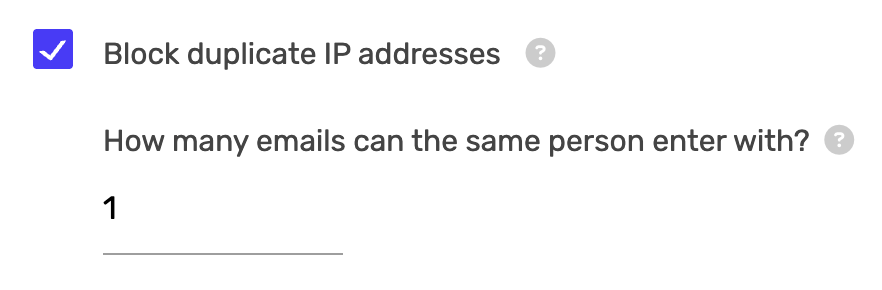
To enable:
- Check Block duplicate IP addresses
- Set How many emails can the same person enter with? (1-99)
Setting this to 1 means each IP address can only submit one entry. Setting it higher allows households or offices with shared IPs to have multiple legitimate entries.
Set Maximum Number of People Who Can Enter
Plan Required: Business
Limit the total number of unique participants in your giveaway. Once the limit is reached, no new users can enter. Note: if the checkbox is un-ticked, it will allow unlimited users to enter.
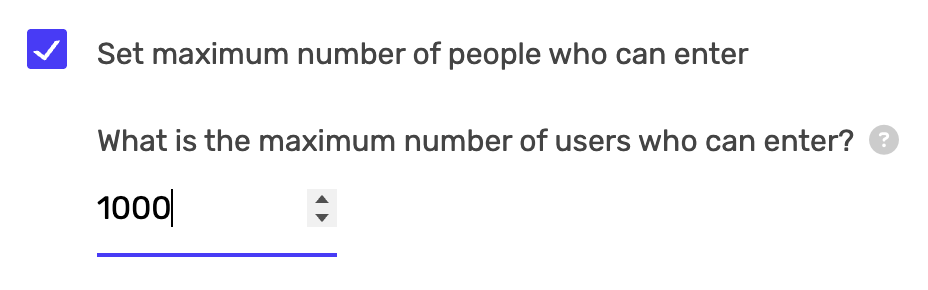
To enable:
- Check Set maximum number of people who can enter
- Enter the maximum number of users (1-999,999)
Use cases:
- Limited inventory giveaways (e.g., first 100 customers)
- Exclusive contests for select audiences
- Testing giveaways before wider release
Set Maximum Number of Allowed Entries
Plan Required: Business
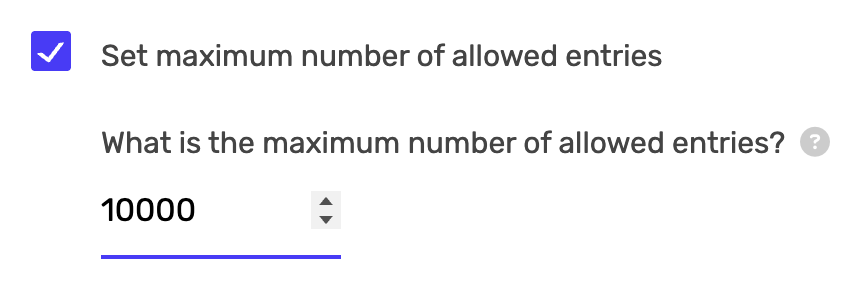
Limit the total number of entries (not users) in your giveaway. This counts all entries including bonus entries from referrals or completing multiple entry methods. Note: if the checkbox is un-ticked, it will allow unlimited entries.
To enable:
- Check Set maximum number of allowed entries
- Enter the maximum number of entries (1-999,999)
Note: This is different from maximum users. If you set 1,000 max entries and each user can earn up to 10 entries, you might have only 100 users but 1,000 total entries.
Block VPNs
Plan Required: All plans
Block entries from users connecting through VPN services. This is strongly recommended as fraudsters commonly use VPNs to mask their identity and submit multiple entries.
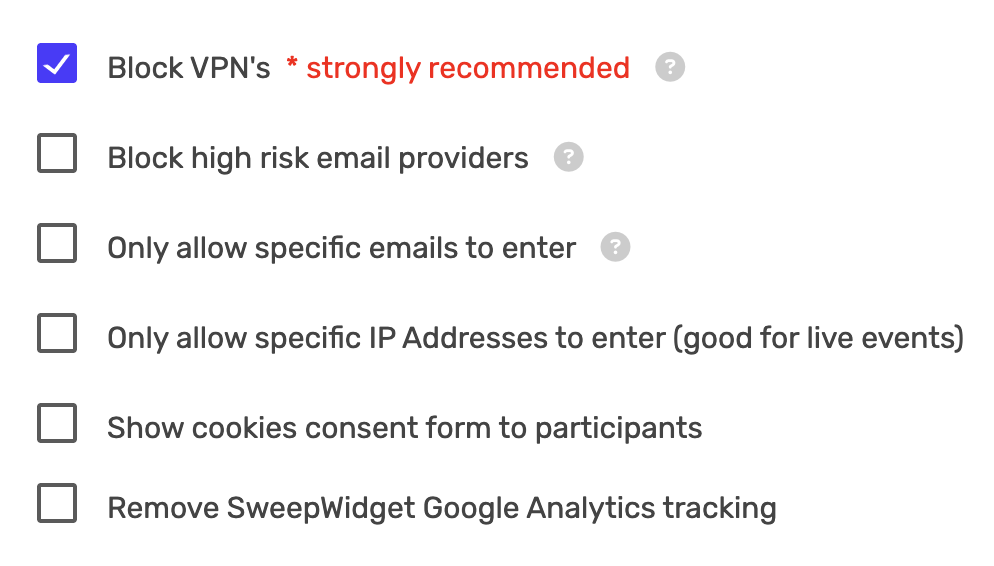
To enable: Check Block VPN’s
When enabled, users connecting through known VPN services will be blocked from entering your giveaway.
Block High Risk Email Providers
Plan Required: Business
Automatically block entries from disposable and temporary email services commonly used for fraud. This includes providers like Guerrilla Mail, 10 Minute Mail, and similar services.
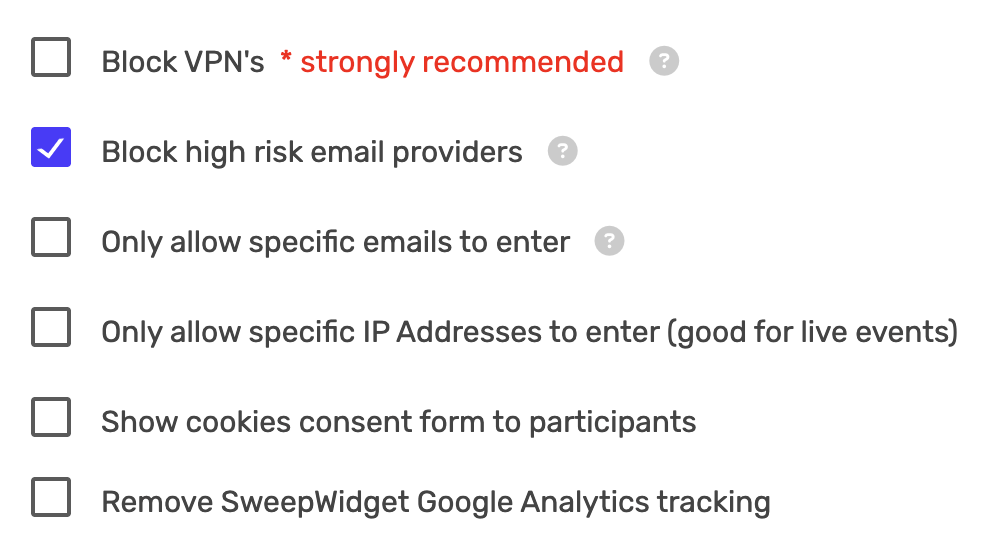
To enable: Check Block high risk email providers
Legitimate users with standard email providers (Gmail, Yahoo, Outlook, etc.) will not be affected.
Only Allow Specific Emails to Enter (Email Whitelist)
Plan Required: Premium
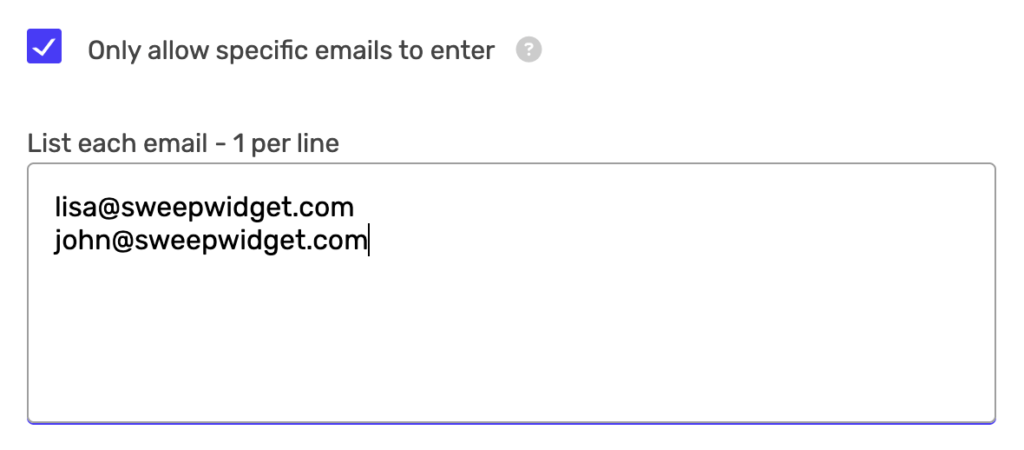
Create an exclusive giveaway by only allowing specific email addresses to participate. Only the email addresses you specify can enter.
To enable:
- Check Only allow specific emails to enter
- In the text area, enter each allowed email address on a separate line
Use cases:
- VIP customer giveaways
- Employee-only contests
- Existing subscriber rewards
- Event attendee exclusive draws
Only Allow Specific IP Addresses to Enter (IP Whitelist)
Plan Required: Premium
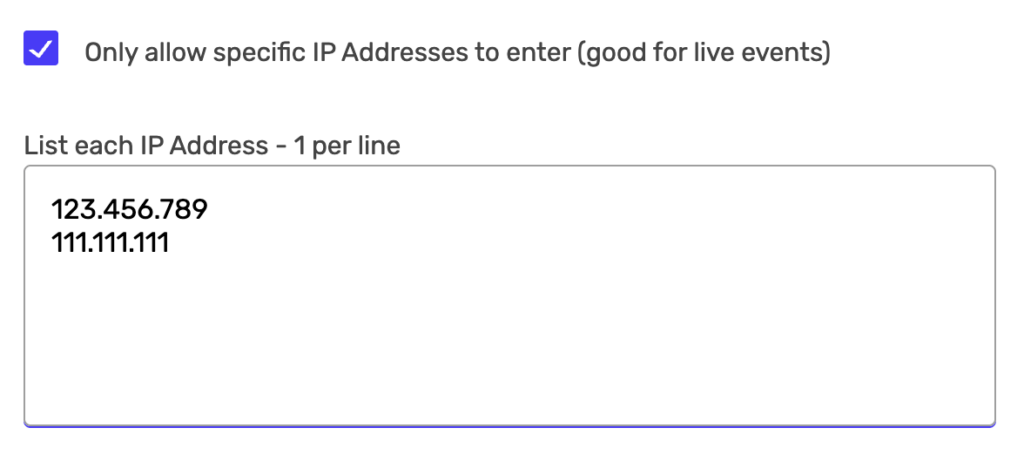
Restrict entries to specific IP addresses. This is particularly useful for live events where participants are on the same network.
To enable:
- Check Only allow specific IP Addresses to enter (good for live events)
- In the text area, enter each allowed IP address on a separate line
Use cases:
- Conference or tradeshow giveaways
- In-store promotions
- Office-only contests
- Venue-specific events
Show Cookies Consent Form
Plan Required: Premium
Display a cookies consent form to participants before they enter. This helps with GDPR compliance and privacy regulations.

To enable: Check Show cookies consent form to participants
Participants will need to accept cookies before they can enter your giveaway.
Remove SweepWidget Google Analytics Tracking
Plan Required: Premium
Remove SweepWidget’s Google Analytics tracking from your giveaway widget. This gives you complete control over tracking and reduces external scripts.

To enable: Check Remove SweepWidget Google Analytics tracking
Email/Text Verification (2FA)
Add an extra layer of security by requiring participants to verify their identity through email or SMS before their entry is confirmed.
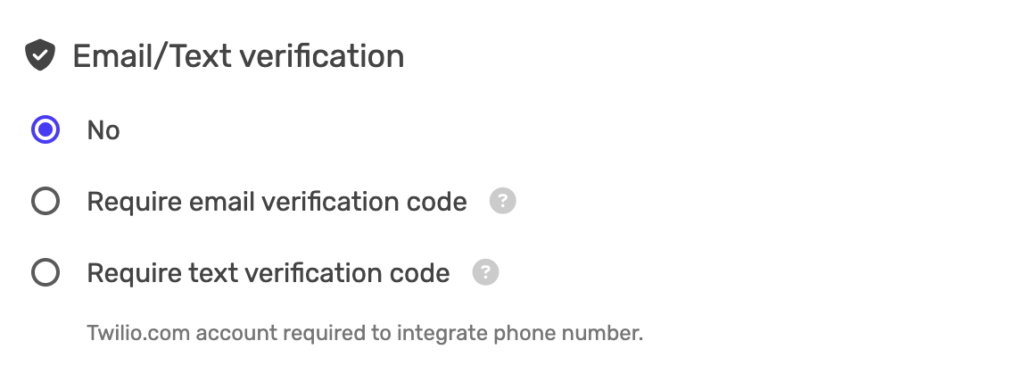
No Verification (Default)
Participants can enter without additional verification. Their entry is counted immediately.
Require Email Verification Code
Plan Required: Premium
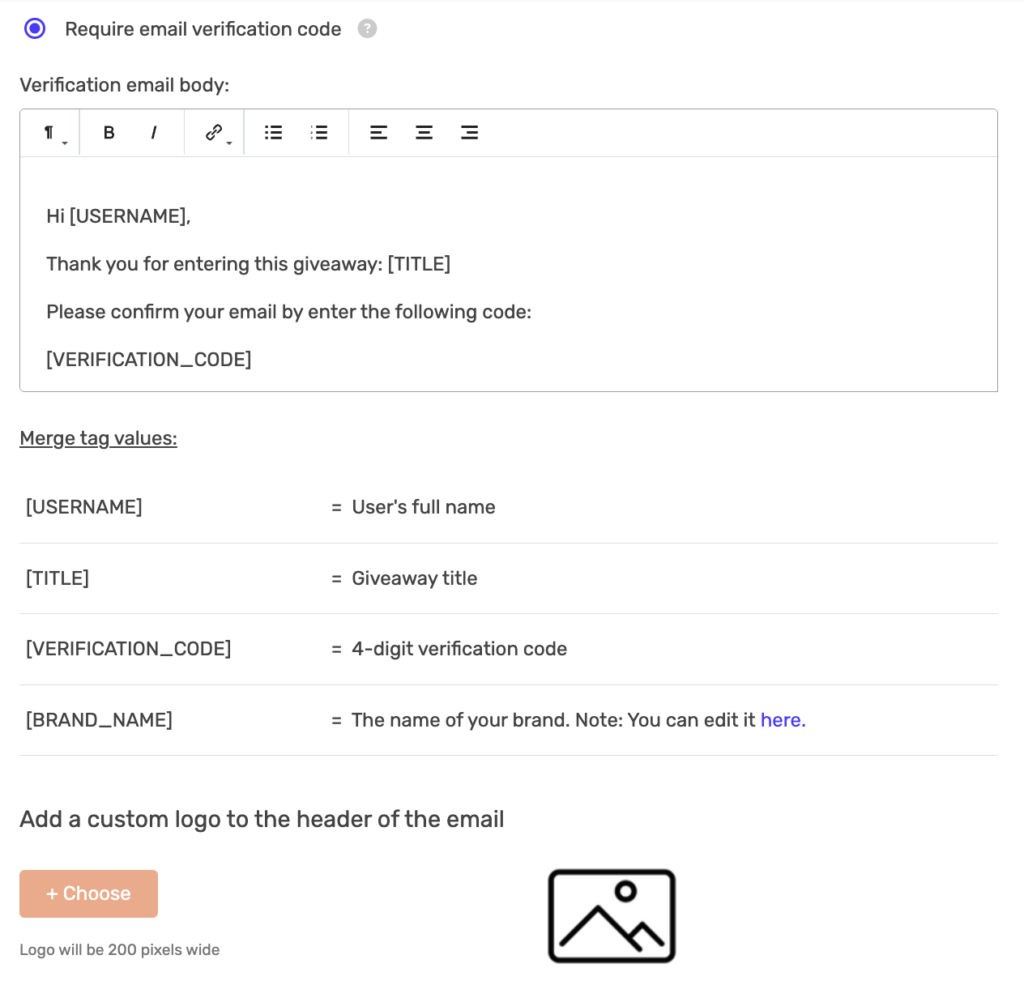
Participants must enter a 4-digit verification code sent to their email address before their entry is confirmed.
To enable:
- Select Require email verification code
- Customize the verification email body using the rich text editor
- Optionally add a custom logo (200 pixels wide)
Available merge tags for the email:
| Merge Tag | Description |
|---|---|
[USERNAME] |
User’s full name |
[TITLE] |
Giveaway title |
[VERIFICATION_CODE] |
4-digit verification code |
[BRAND_NAME] |
Your brand name (editable in account settings) |
Default email template:
Hi [USERNAME],

Thank you for entering this giveaway: [TITLE]

Please confirm your email by enter the following code:

[VERIFICATION_CODE]
Require Text (SMS) Verification Code
Plan Required: Enterprise
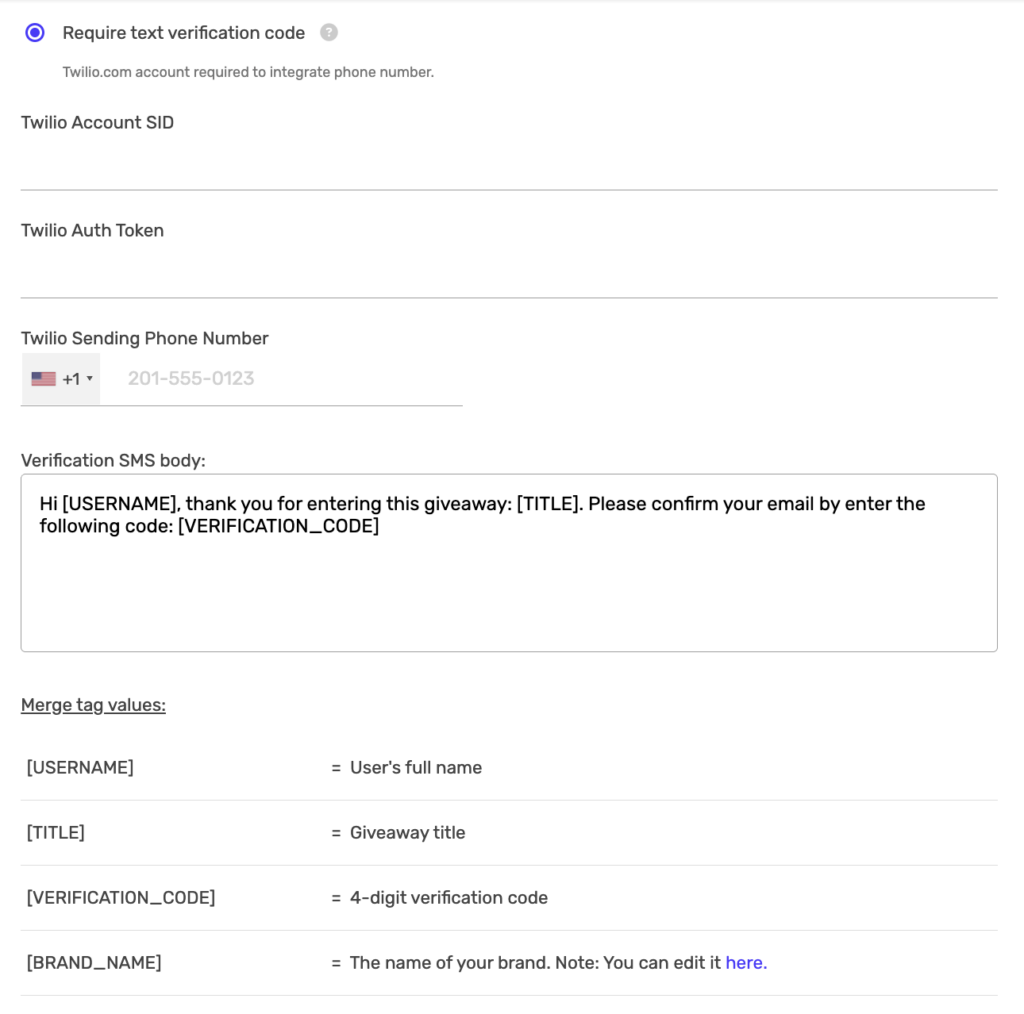
Participants must enter a 4-digit verification code sent via SMS to their phone number. This requires a Twilio account integration.
To enable:
- Select Require text verification code
- Enter your Twilio Account SID
- Enter your Twilio Auth Token
- Enter your Twilio Sending Phone Number
- Customize the SMS verification message
You can find your Twilio credentials in your Twilio Console.
Default SMS template:
Hi [USERNAME], thank you for entering this giveaway: [TITLE]. Please confirm your email by enter the following code: [VERIFICATION_CODE]Security Features by Plan
Here’s a quick reference of which security features are available on each plan:
| Feature | Free | Pro | Business | Premium | Enterprise |
|---|---|---|---|---|---|
| Anti-Spam Security Levels | Yes | Yes | Yes | Yes | Yes |
| Block Duplicate IP Addresses | Yes | Yes | Yes | Yes | Yes |
| Block VPNs | Yes | Yes | Yes | Yes | Yes |
| Set Max Users | – | – | Yes | Yes | Yes |
| Set Max Entries | – | – | Yes | Yes | Yes |
| Block High Risk Emails | – | – | Yes | Yes | Yes |
| Geo-Targeting | – | – | – | Yes | Yes |
| Email Whitelist | – | – | – | Yes | Yes |
| IP Whitelist | – | – | – | Yes | Yes |
| Cookies Consent Form | – | – | – | Yes | Yes |
| Remove SW Analytics | – | – | – | Yes | Yes |
| Email Verification | – | – | – | Yes | Yes |
| SMS Verification | – | – | – | – | Yes |
Recommended Security Configuration
For most giveaways, we recommend the following security settings:
- Anti-spam level: Standard (default)
- Block VPNs: Enabled (strongly recommended)
- Block duplicate IP addresses: Enabled with 1-2 emails per IP
- Block high risk email providers: Enabled (if on Business plan or higher)
For high-value prizes or viral campaigns, consider adding:
- Anti-spam level: Strong or Strict
- Email verification: Required
- Geo-location restrictions: If shipping is limited to certain countries