How to Run a Giveaway on Shopify (Step by Step)
Last updated on November 16th, 2026 at 05:25 pm
To run a giveaway on Shopify, install a giveaway app from the Shopify App Store, create the giveaway (prize, dates, rules and the actions people take to enter), then add it to a page in your store and share the link. If you want the giveaway to bring in orders, add an entry action that gives customers entries for every dollar they spend.
Here’s the whole process with SweepWidget’s Shopify app, from install to contacting the winner.
Before you start: what’s the giveaway for?
Decide this first, because it changes the entry actions:
- More sales: reward purchases with entries.
- More email subscribers: make a newsletter signup the main action.
- More followers: use follow actions on the platforms you care about.
You can mix them, but one goal should lead.
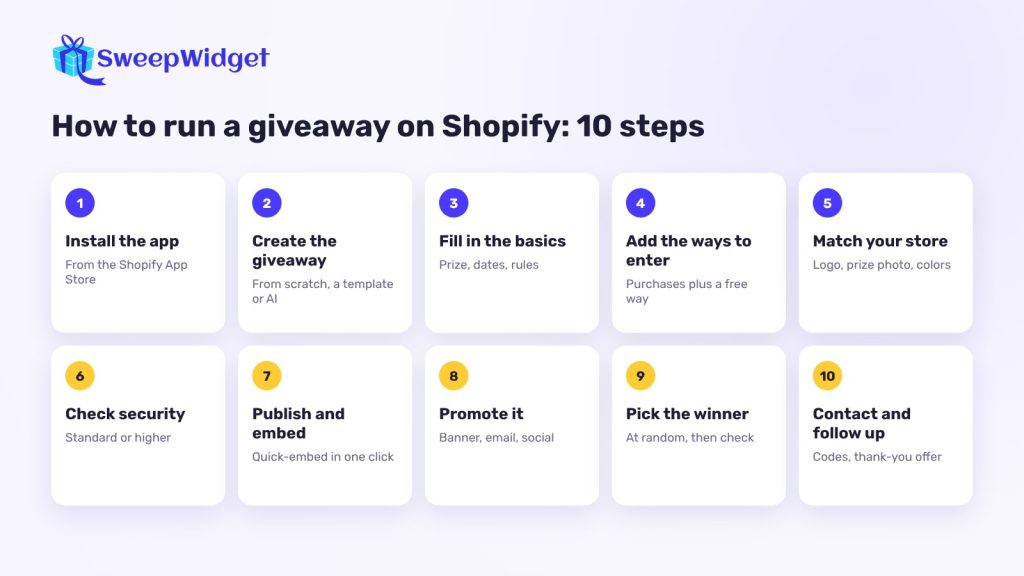
Step 1: Install the app
- Open the Shopify App Store and search for SweepWidget.
- Click Install and authorize the app to connect to your store. That connection is what lets it read your orders to give entries for purchases. You can remove it any time.
- Open SweepWidget from your Shopify admin.
Install it from the App Store, not only by signing up on the website. That’s what lets your store connect later.
Step 2: Create the giveaway
Click + New Sweepstakes. You have three ways to start:
- From scratch, with every setting under your control.
- From a starter template. There are Shopify templates with the entry actions already filled in.
- With AI. Describe the giveaway (“a summer giveaway for my candle shop, prize is a $100 gift card”) and edit what it builds.
Step 3: Fill in the basics
In Basic Info, add:
- A title that names the prize, like “Win a $100 gift card to our shop”.
- Start and end date and time, with your time zone.
- Prizes and number of winners. You can add several prizes, each with its own number of winners.
- Rules. Click Update terms and conditions to paste your own or use the generator. Check the result against the rules where you and your entrants live.
- Country restrictions, if you can only ship to some countries (Premium plan and up).
- Language, if your customers don’t read English.
Step 4: Add the ways to enter
Open Entry Methods. If your goal is sales, start with the purchase action.
Reward purchases (Pro plan and up)
- Click + Add Entry Method, then Purchase Products, then Earn Entries For Every $1 Spent.
- Choose Shopify and click Connect Shopify Store. If you installed from the App Store, it connects on its own.
- Choose which products count: all current and future products, or specific ones.
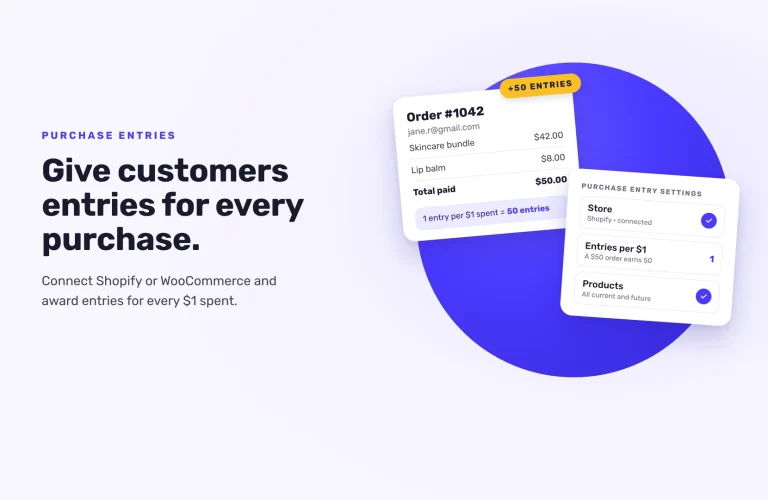
- Set how many entries each dollar earns. At 1, a $50 order earns 50 entries.
- Add your store link, so entrants get a button to your shop.
- Write short instructions. The [X_ENTRIES] tag fills in the entries per dollar.
- Optional: email customers each time they earn entries for a purchase, and turn on Automatically enter all people who made a purchase so buyers are entered even if they never open the giveaway.
Orders sync every 30 minutes, and each plan tracks a set number of orders per giveaway (100 on Pro up to 100,000 on Enterprise).
Keep a free way to enter
When you add a purchase action, SweepWidget adds a Refer-A-Friend action automatically. Leave it in. It gives people a way to earn entries without buying, and each referral brings a new visitor. People need an equal chance of winning whether they buy or not, so keep the free route real. More in our guide to alternative methods of entry.
Add one or two more actions
A newsletter signup (Pro plan and up) or an Instagram follow works well alongside purchases. Three to five actions in total is plenty.
Step 5: Make it look like your store
In Design, add your logo, a photo of the prize, and your colors and fonts. Keep it simple: the prize photo matters more than decoration.
Step 6: Check the security settings
Leave the security level at Standard or higher. From Standard up, SweepWidget uses device fingerprinting to catch bots and repeat entries, and disposable email addresses are blocked on every giveaway. On paid plans you can also block VPNs.
Step 7: Publish and add it to your store
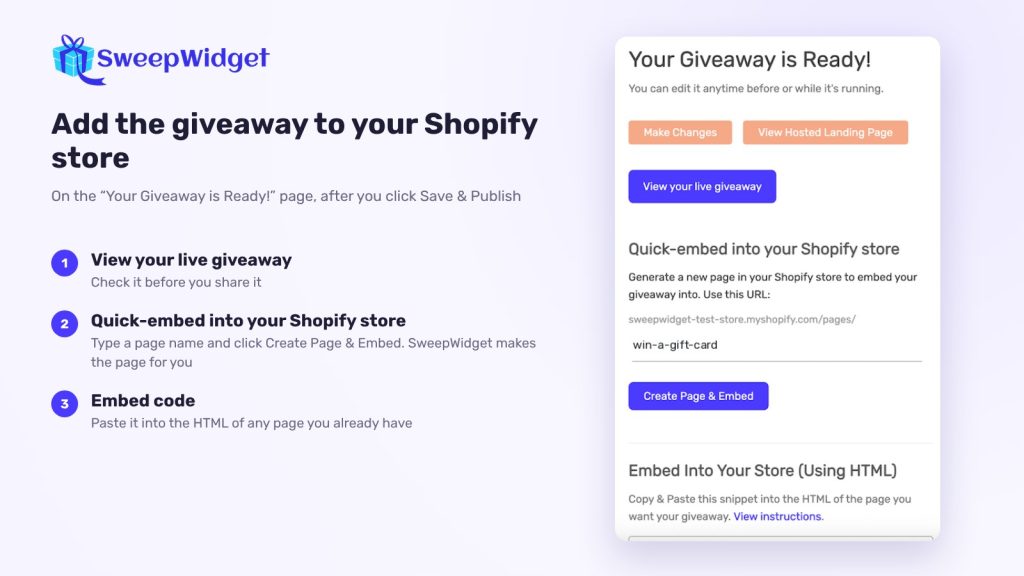
Click Save & Publish. On the “Your Giveaway is Ready!” page, choose how to show it:
- Quick-embed (easiest). Type a page name, like win-a-gift-card, and click Create Page & Embed. SweepWidget creates a new page in your Shopify store with the giveaway on it.
- Embed code. Copy the code, then in Shopify go to Online Store > Pages, open a page, switch to HTML and paste it.
- Pop-up. Tick Turn giveaway into a popup and set a delay. If you turn it on after embedding, copy the updated embed code and paste it into your store page again.
- Hosted page. Share the free hosted link on social media and in emails, if you don’t want it in your store.
Step 8: Promote it
Link the giveaway page from your homepage banner or announcement bar, email your customers, and post it on social media. Mention it on product pages if you’re rewarding purchases. Remind people a day or two before it ends.
Step 9: Pick the winner
When the giveaway ends:
- Go to Manage Entries and click Pick A Winner.
- Choose Randomize the Selection. You can draw up to 250 winners at a time and set a minimum or maximum number of entries. The total number of winners depends on your plan: up to 50 on Pro, 250 on Business and 1,000 on Premium. For how to check winners and show the draw was fair, see how to pick a giveaway winner fairly.
- Check each winner before you announce them. If they won through purchase entries, look up their order.
Step 10: Contact winners and follow up
If the prize is a code (a gift card or discount code), set it up as a redemption code prize and tick Email winners the prize redemption instructions. After the draw, go to Manage Entries > Winners > Contact Winners to send each winner their code. For other prizes, contact the winners yourself by email.
Then email everyone who entered. A thank-you with a small discount turns “I didn’t win” into an order.
Why aren’t purchases showing up?
- Different emails. Customers need to use the same email for the giveaway and the order.
- Not synced yet. Wait up to 30 minutes.
- The product isn’t selected in the purchase action.
- The app was disconnected. Check it in your Shopify admin, or reinstall it from the App Store.
Ready to set yours up? Follow the full Shopify giveaway guide. To turn the giveaway into orders, read how to run a Shopify giveaway that drives sales.
Ready to run your first giveaway?
Start free on SweepWidget and move to Pro when you want to view and download all your entrants’ emails and get fraud controls. Or compare SweepWidget’s plans and features first.
No credit card required
FAQ
No. You run a giveaway on Shopify with an app from the Shopify App Store, such as SweepWidget.
You can start on the Free plan, with unlimited entries. Rewarding purchases with entries needs the Pro plan or higher, and on Free you can see the name and email of only 10 entrants.
No, and they shouldn’t have to. Keep a free way to enter, like the Refer-A-Friend action SweepWidget adds automatically.
One to two weeks suits most stores. It’s long enough to promote and short enough to feel urgent.
Can I put the giveaway on an existing page in my store?