How to Give Customers Giveaway Entries for Purchases
To give customers giveaway entries for purchases, connect your store to your giveaway so each order adds entries automatically, usually a set number of entries for every dollar spent. In SweepWidget this works on Shopify and WooCommerce. On other platforms, or for in-store sales, you add purchase entries by hand or upload a list.
The thing that makes it work is that customers enter the giveaway with the same email they use at checkout. This guide covers setup, the settings that need some thought, and the problems that come up most.
What are your options?
- Automatic entries per dollar spent (Shopify or WooCommerce). The giveaway reads your store’s orders and adds entries. You don’t have to check anything. Purchase entries start on the Pro plan.
- A purchase step you check by hand (any other store). Customers say they bought something, and you confirm it before you announce a winner.
- A code from the order. Put a code on the receipt, packing slip or order email. Customers enter it in the giveaway.
- Upload buyers yourself. Add entries from a CSV file, for example after an in-store event.
Use the first one if you can. It takes the least work and is the hardest to game.
How to give entries for Shopify purchases
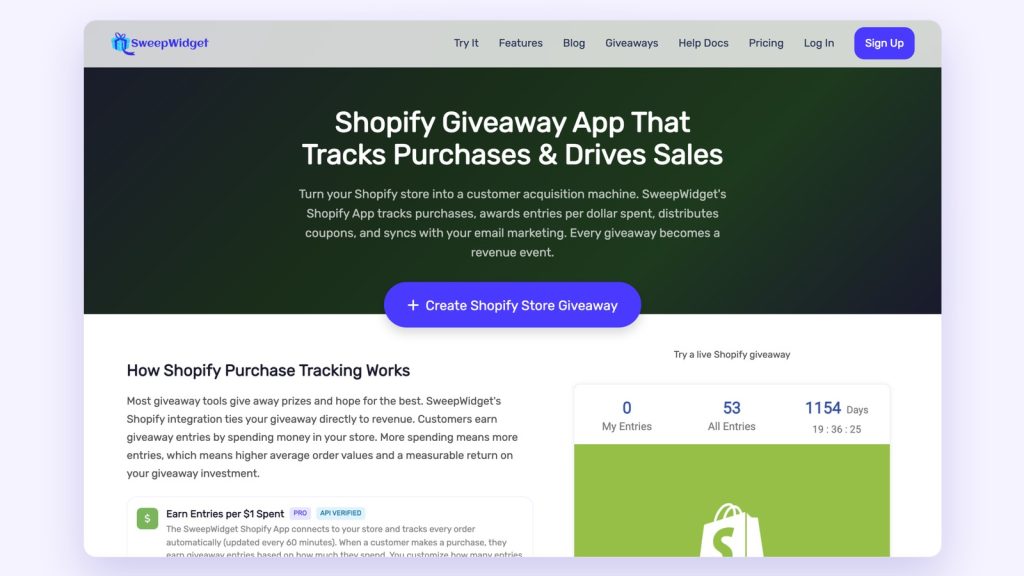
- Install the SweepWidget app from the Shopify App Store and approve the permissions. It needs to read orders and customer data so it can add entries.
- Create a giveaway, or open one you already have.
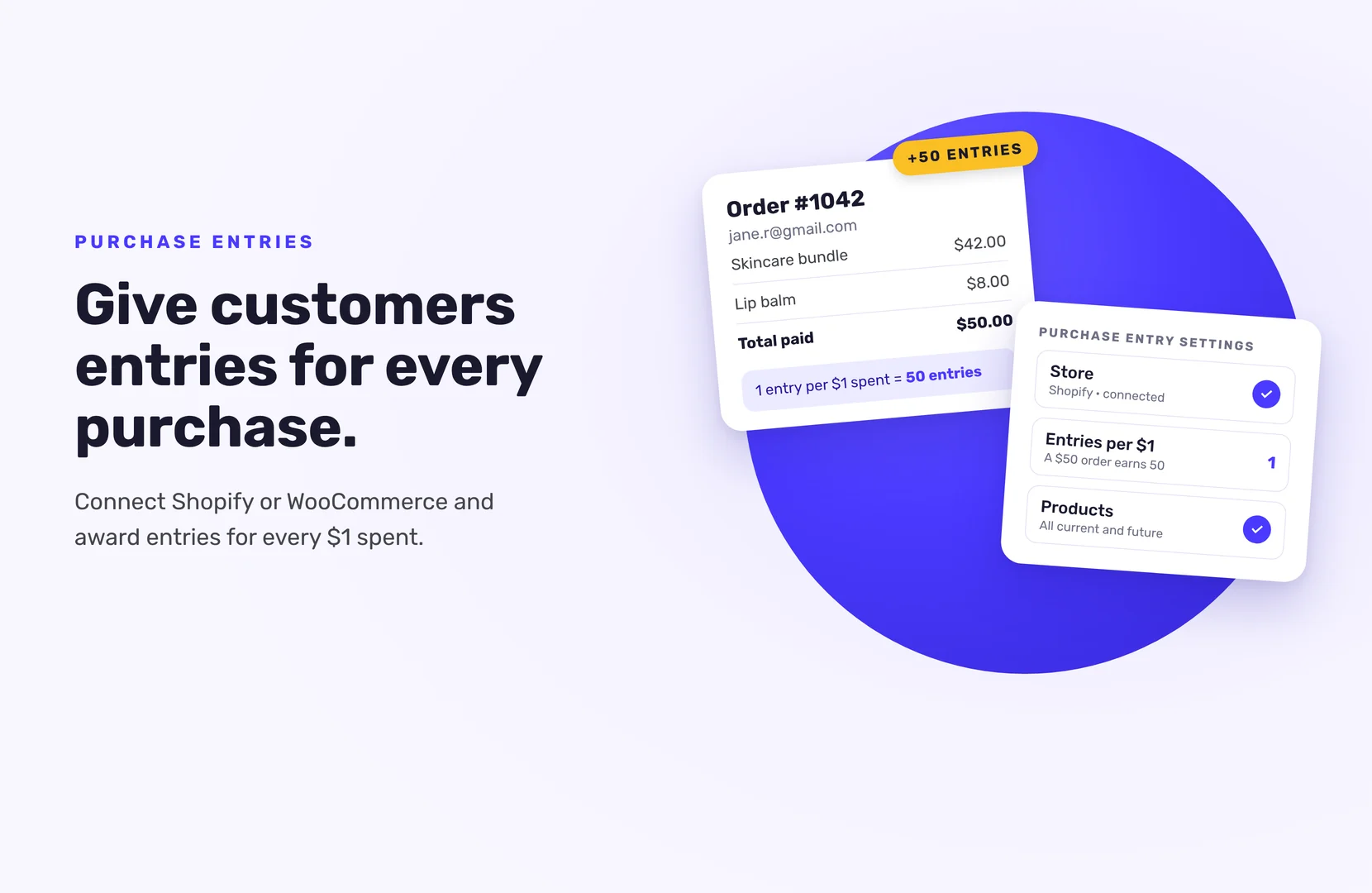
- In Entry Methods, click + Add Entry Method, then Purchase Products, and choose Earn Entries For Every $1 Spent.
- Select Shopify and click Connect Shopify Store. If you installed through the App Store, it connects on its own.
- Choose which products count. Track every current and future product, or pick specific ones.
- Set entries per dollar. At 1, a $50 order earns 50 entries.
- Add your store link. Entrants get a button that takes them to your shop.
- Write short instructions. The [X_ENTRIES] tag fills in the number of entries per dollar for you.
- Publish, then put the giveaway in your store. Quick-embed creates a new Shopify page with the giveaway on it. You can also paste the embed code into a page, or share the hosted landing page.
What happens after a customer buys?
- Entries arrive within about 30 minutes. Purchases sync through the Shopify API every 30 minutes.
- Only completed purchases count. Entries come after a purchase goes through, not before.
- Earlier orders still count. If someone bought while the giveaway was running and enters later, they get entries for that order when they enter.
- Buyers can be entered automatically. Turn on Automatically enter all people who made a purchase to include buyers who never open the giveaway.
- Customers can get an email every time they earn entries for a purchase, if you turn that on. It shows them it’s working.
How to give entries for WooCommerce purchases
The setup is almost the same. Add the Earn Entries For Every $1 Spent entry method, then enter your WordPress site URL (including https://) and your WooCommerce consumer key and consumer secret. Click Connect WooCommerce Store, choose your products, and set entries per dollar.
As with Shopify, purchases are checked through the store’s API, so you don’t need to check orders yourself.
What about other stores, receipts and in-store sales?
If your store isn’t on Shopify or WooCommerce, choose Other when you add the purchase entry method. It works for any e-commerce platform, but entries are checked by hand.
There are three other ways to reward buyers:
- Receipt upload. The Upload A File entry method lets entrants upload a file, such as a photo of their receipt. You choose which file types are allowed. Check the winner’s receipt before you announce them.
- A code from the order. Print a code on the receipt or packing slip, or add it to the order email. The Secret Code entry method can require the code to be correct before it gives credit.
- Your own list. On Premium and above, upload a CSV of buyers with an Entry Amount for each one, for example from in-store sales. To add entries for someone who has already entered, open their record and use Add Entries.
Manual methods work, but they take more of your time. If most of your sales happen online, connecting your store saves the most work.
How many entries per dollar should you give?
Keep it simple. One entry per dollar is easy to explain and easy to match against an order.
Some things to think about:
- Big orders get much better odds. A $500 order earns ten times the entries of a $50 one. If that feels lopsided, run a second draw for entrants with fewer entries. SweepWidget’s random draw lets you set a maximum entry count, so smaller buyers get their own chance.
- Choose the products that count. You might reward a new product line, or leave out gift cards and low-margin items.
- Mix in other entry actions. Purchases bring sales. A newsletter signup or an Instagram follow brings in people who aren’t ready to buy yet.
- Check your plan’s tracking cap. Each plan tracks a set number of orders per giveaway: 100 on Pro, 1,000 on Business and 5,000 on Premium, with more on Enterprise. Make sure it covers the orders you expect.
Keep a free way to enter
When you add a purchase entry method, SweepWidget automatically adds a Refer-A-Friend entry method. That way people can earn entries by sharing the giveaway instead of buying. Keep it in.
If you require a purchase, check the rules where you run the giveaway.
Why aren’t purchases showing up?
It’s usually one of four things:
- Different emails. The customer entered with one email and checked out with another. Ask entrants to use the same one, both in your instructions and next to the store button.
- Not synced yet. Wait up to 30 minutes.
- The product isn’t selected. Check the product list in the entry method.
- The app was disconnected. Check that SweepWidget is still connected in your Shopify admin, or reinstall it from the Shopify App Store.
Want to see how one looks before you build your own? See an example Shopify giveaway. Purchase entries start on Pro, so compare plans to find the order cap that fits your store.
FAQ
No. Orders placed while the giveaway is running are credited when the customer enters, as long as they use the same email. You can also enter buyers automatically.
Yes. Track every product in your store, or pick specific ones when you connect it.
On Shopify and WooCommerce, purchases sync every 30 minutes. If entries are missing after that, check that the customer used the same email for the giveaway and the order.
Yes, but you check them by hand. Use the Other purchase option, a receipt upload or a secret code, and check the winner’s purchase before you announce them.
Yes. SweepWidget adds a Refer-A-Friend entry method automatically when you add a purchase entry method, so people can earn entries by sharing instead.