Add Locked Prizes, Tiered Rewards & Instant Coupons
Add locked prizes, tiered rewards or instant coupons. As users earn more entries, they unlock prizes and coupons.
Note: This feature requires a Business plan or higher.
Getting started
Go to the Leaderboard & Coupons tab and tick Add locked prizes, tiered rewards, or instant coupon codes.
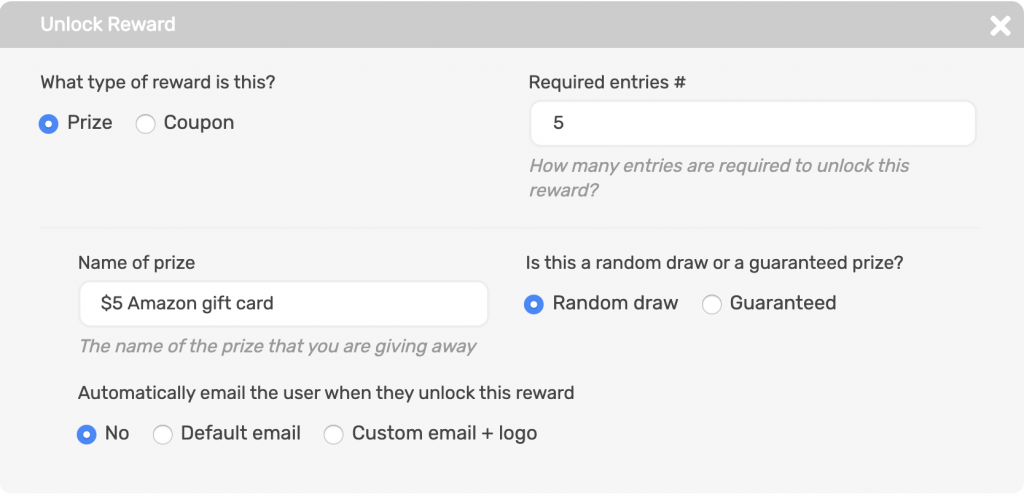
For each reward, choose Prize or Coupon under What type of reward is this?

Unlock prizes setup
- Tick Prize under What type of reward is this?
- Enter the number of entries needed under Required entries # (a whole number from 1 to 9999)
- Enter the prize name under Name of prize
- Choose Random draw or Guaranteed under Is this a random draw or a guaranteed prize?
Public view
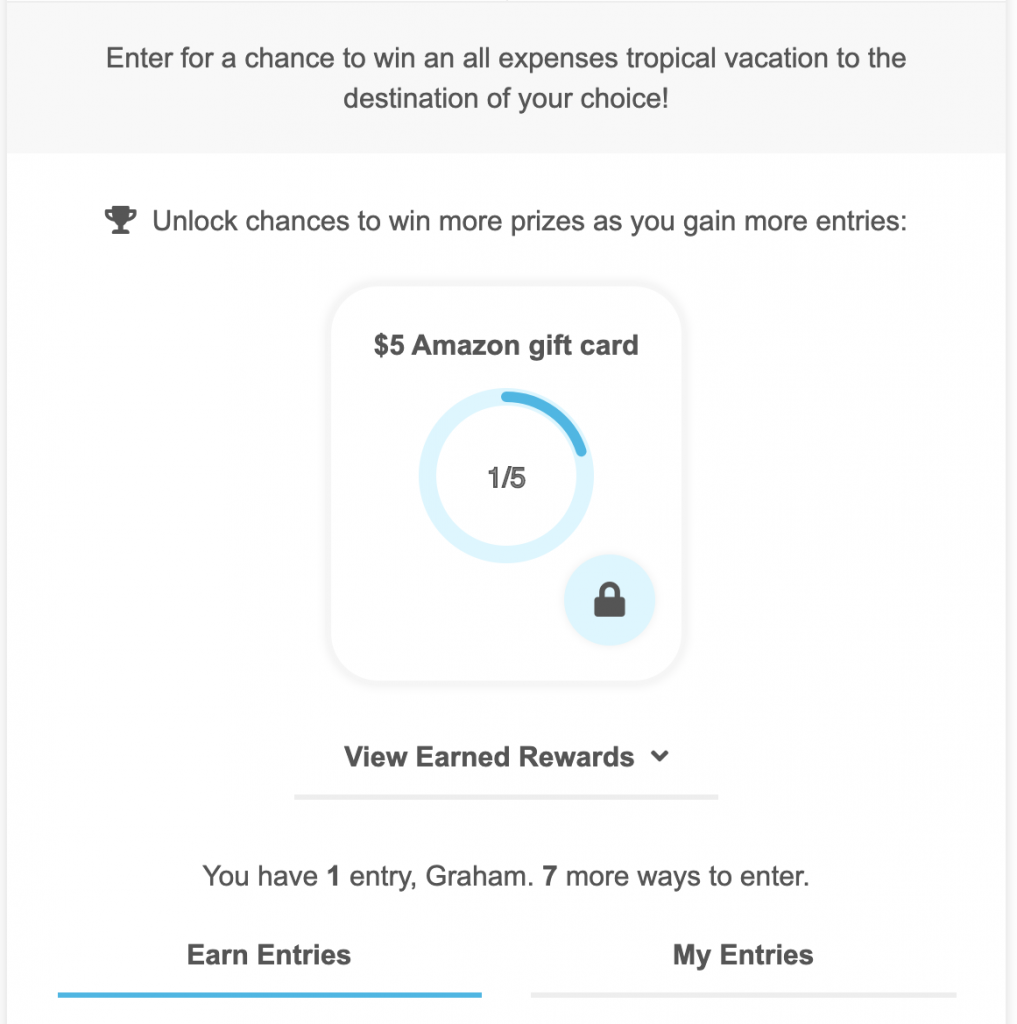
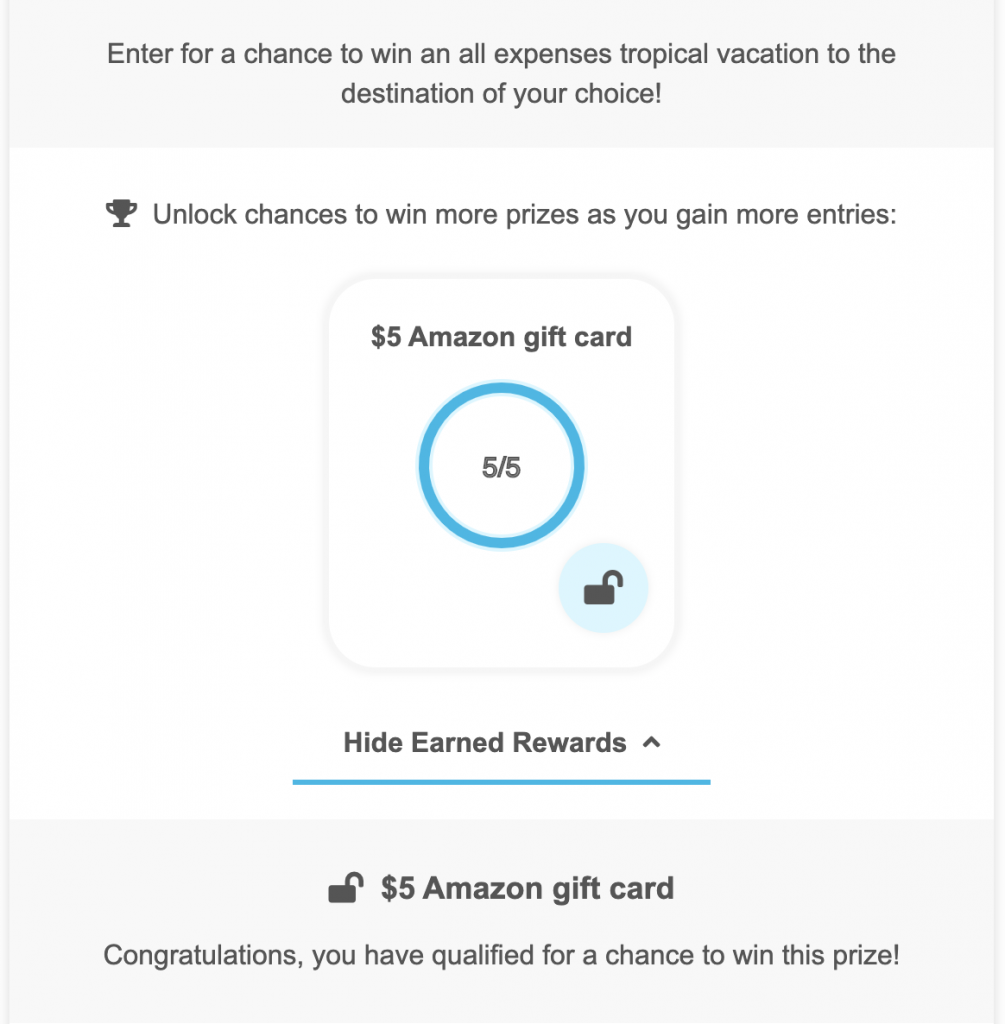
Before the user qualifies, the widget shows their progress. After they qualify, the reward shows as unlocked.
Unlock prizes email
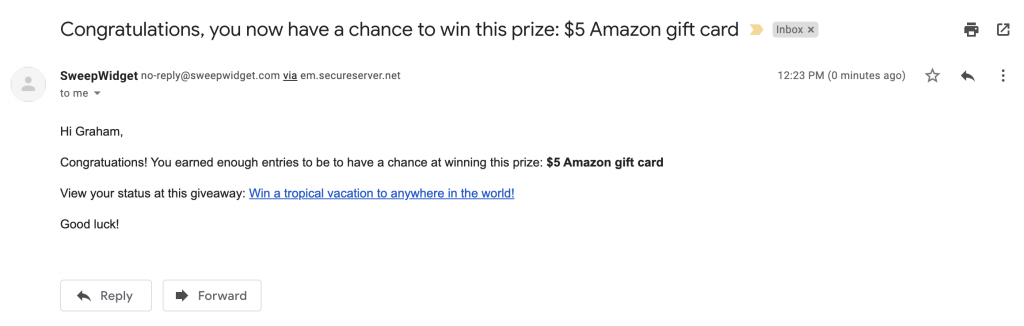
Prize rewards do not send an automatic email. Automatic emails are only sent when a coupon code is given out (see below). To tell people they unlocked a prize, contact them yourself.
Instant coupons setup
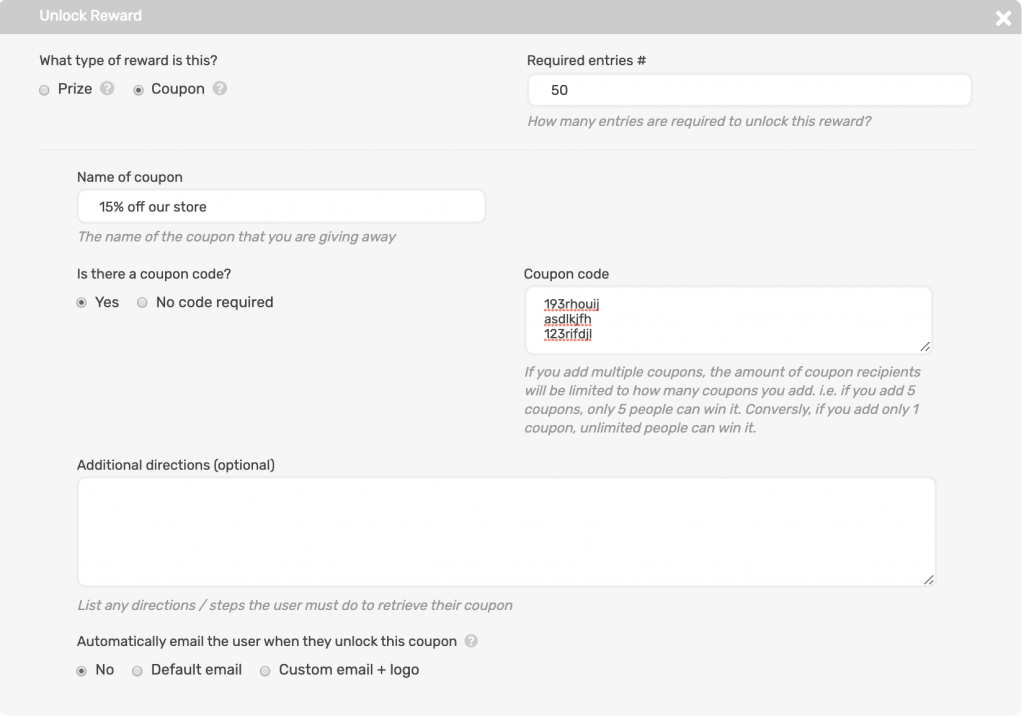
- Tick Coupon under What type of reward is this?
- Enter the number of entries needed under Required entries # (1 to 9999)
- Enter the coupon name under Name of coupon
- Under Is there a coupon code?, choose Yes and enter your codes in Coupon code/s (1 per line), or choose No code required
- Optional: add instructions under Additional directions (optional)
- Optional: tick Hide progress bar? to hide the progress bar for this coupon
Adding multiple coupons vs 1 coupon
If you add several codes, only that many people can get the coupon (5 codes = 5 people). If you add only 1 code, everyone who qualifies gets that same code.
Codes are split on spaces and line breaks, so a code can’t contain spaces.
Public view
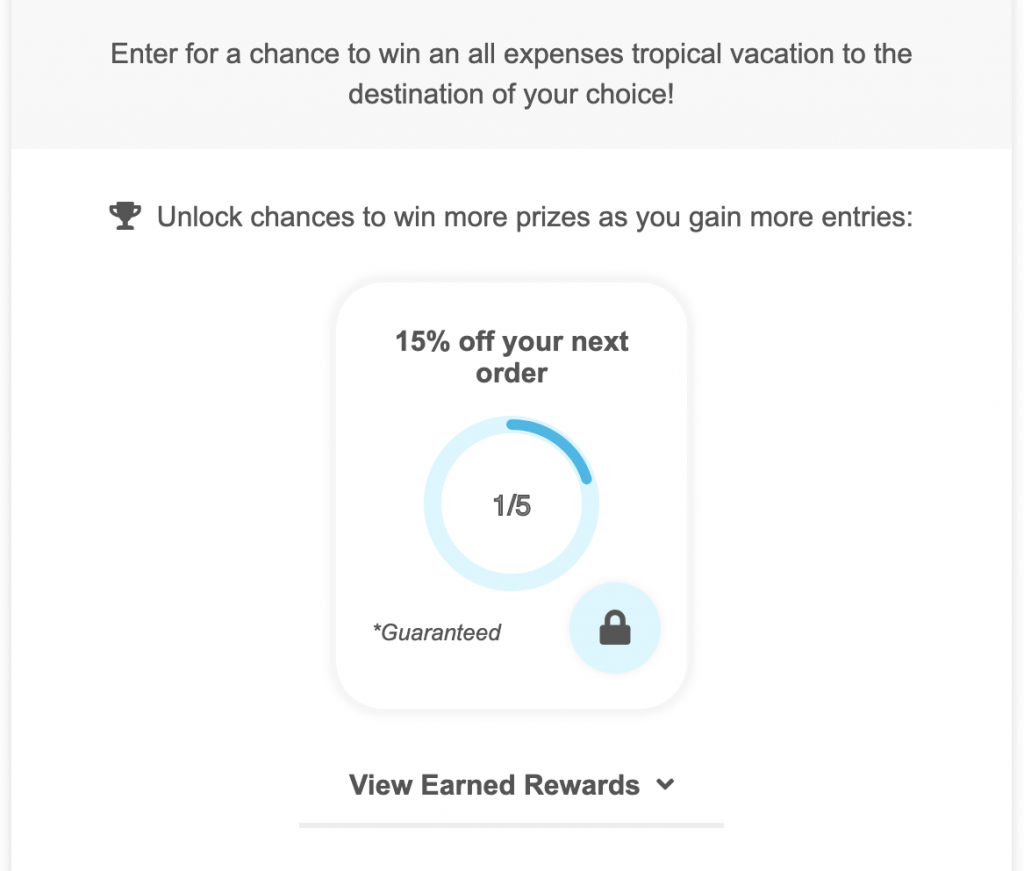
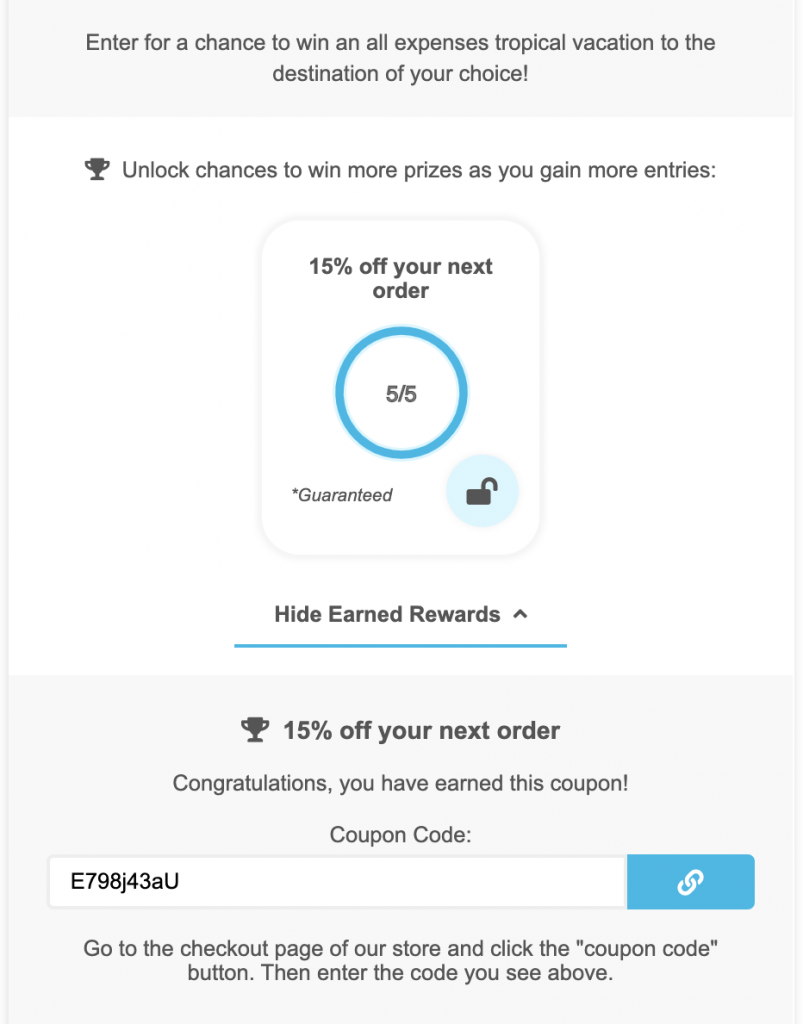
Before the user qualifies, the widget shows their progress. After they qualify, the coupon code appears and they can copy it.
Instant coupons automatic email
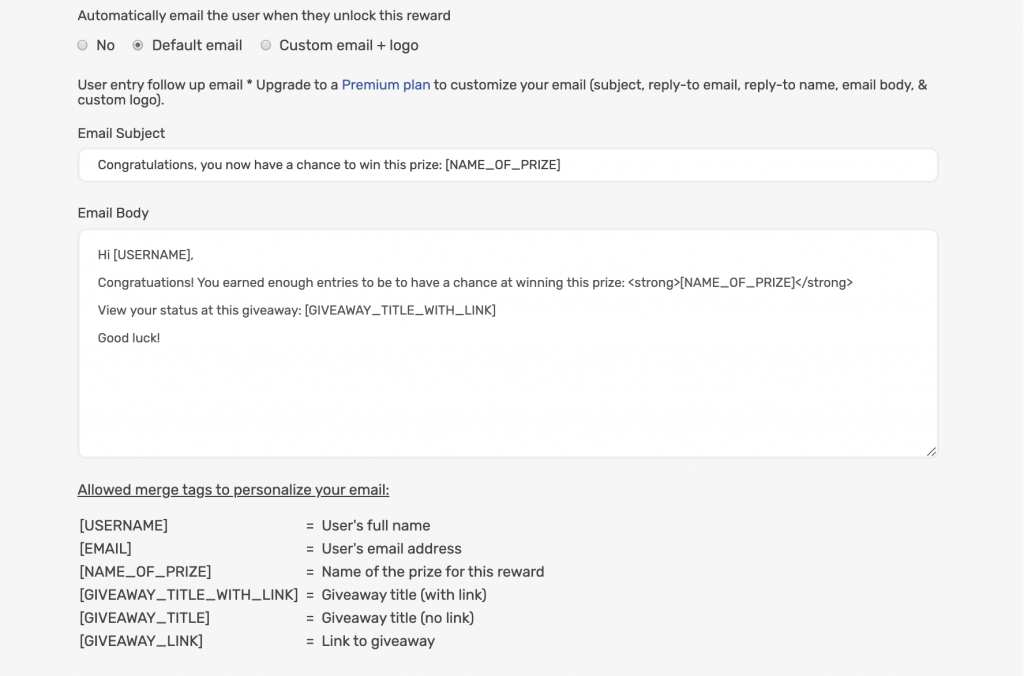
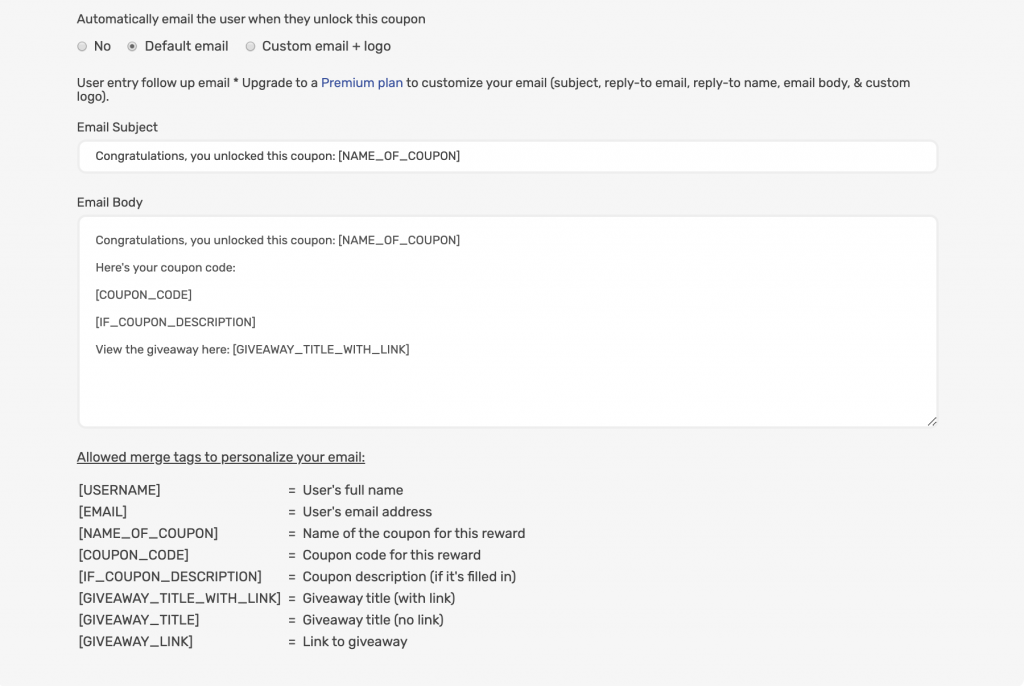
Under Automatically email the user when they unlock this coupon, choose:
- No – no email
- Default email (Business plan) – a fixed subject and body
- Custom email + logo (Premium plan) – your own subject and body
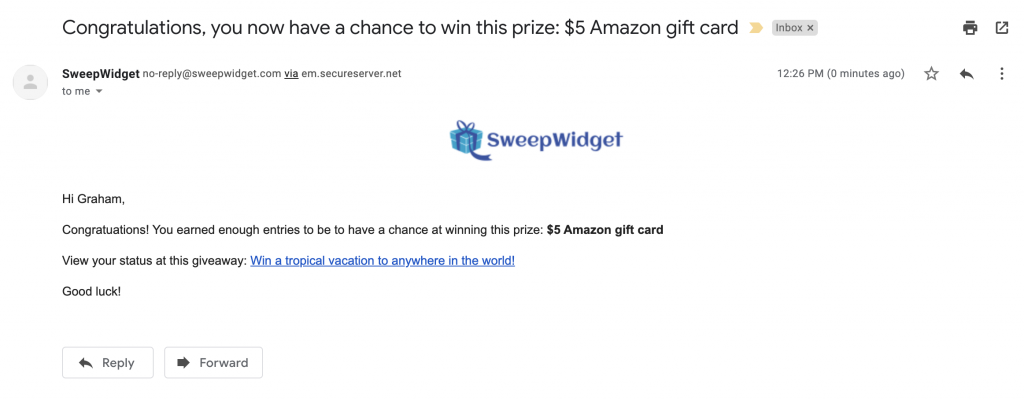
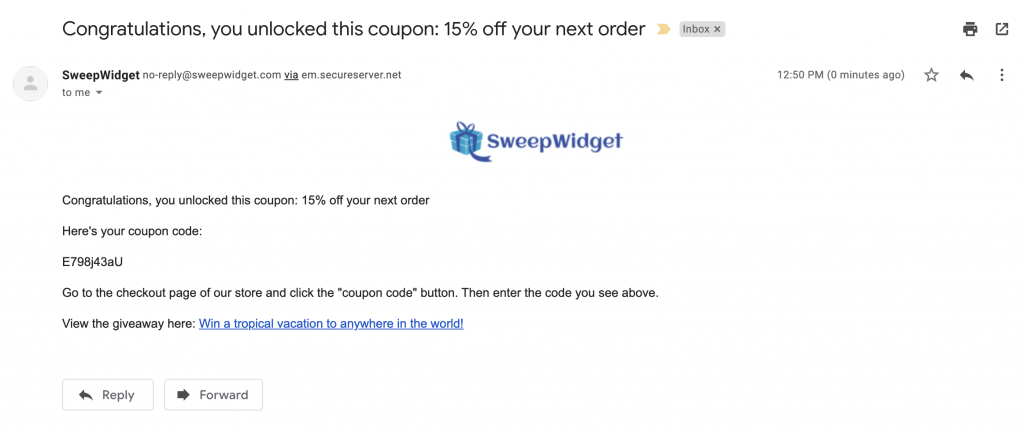
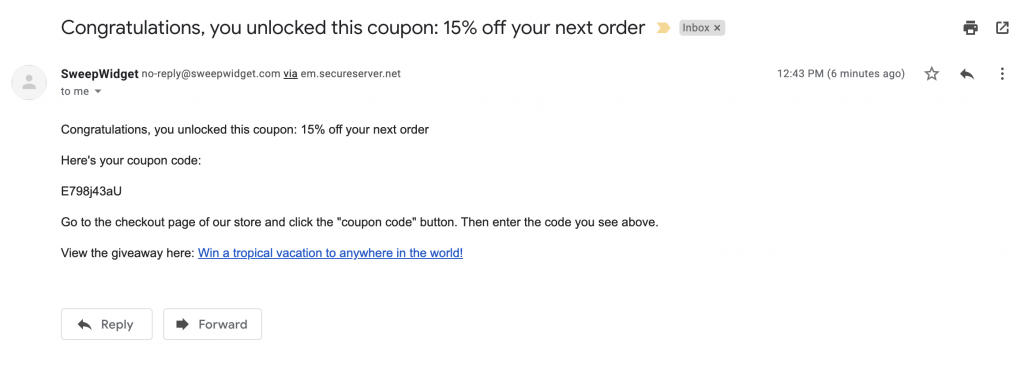
The email is sent automatically when a user unlocks the coupon and a code is given to them. If you chose No code required, or all codes are used up, no email is sent.
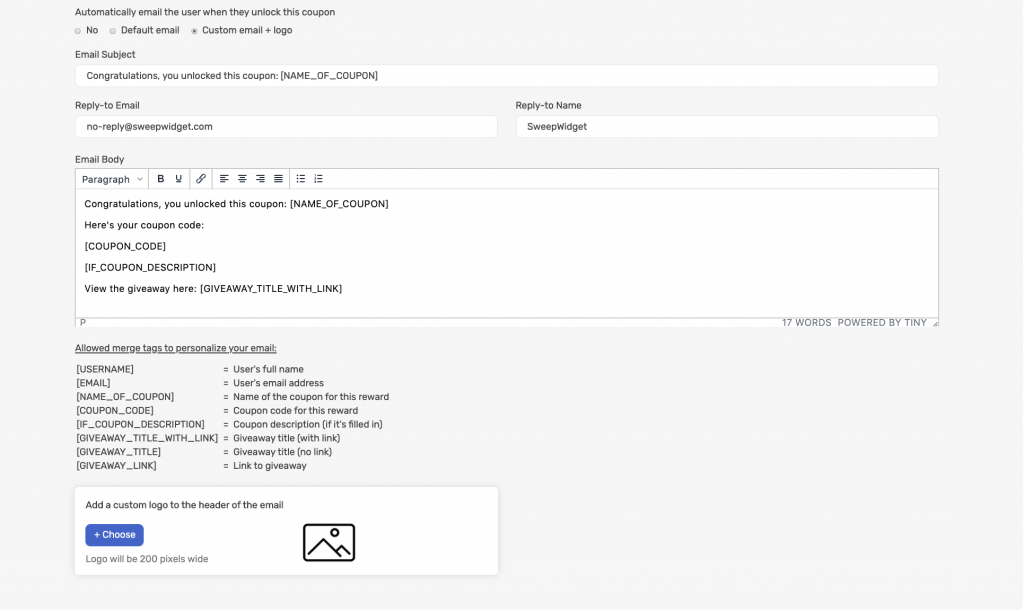
Custom email + logo
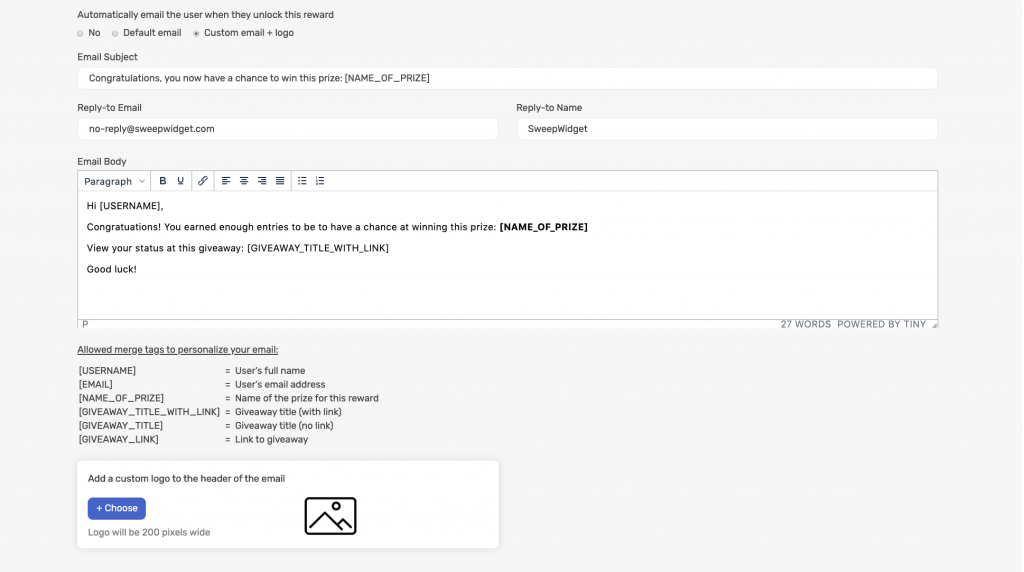
You can edit:
- Email Subject
- Reply-to Email (e.g. [email protected])
- Reply-to Name (e.g. John Doe)
- Email Body
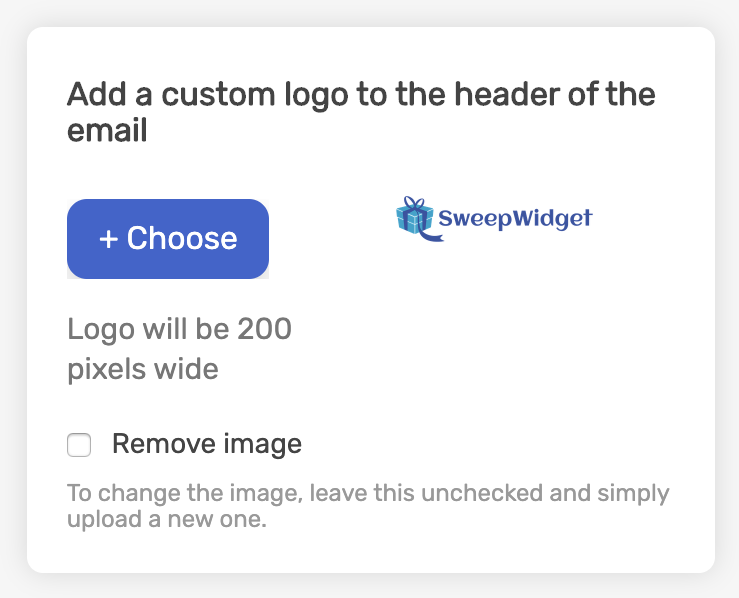
- A custom logo for the email header (resized to 200 px wide). Click + Choose to upload it.
Merge tags you can use in the subject and body:
| Tag | Inserts |
|---|---|
| [EMAIL] | User’s email address |
| [NAME_OF_COUPON] | Name of the coupon for this reward |
| [NAME_OF_PRIZE] | Name of the reward |
| [COUPON_CODE] | The code given to this user |
| [IF_COUPON_DESCRIPTION] | Your additional directions (if filled in) |
| [GIVEAWAY_TITLE_WITH_LINK] | Giveaway title (with link) |
| [GIVEAWAY_TITLE] | Giveaway title (no link) |
| [GIVEAWAY_LINK] | Link to giveaway |
Note: [USERNAME] currently inserts nothing. Don’t use it.
Add multiple rewards/coupons
On the Leaderboard & Coupons tab, click + Add another reward. You can add as many rewards as you like.
Prize pool mode
Tick Prize pool mode to give each user one random coupon from all your coupon rewards, weighted by how many codes each has left. Each user can win only once.
Instant Win
Instant win shows a result card when a user reaches the required entries: they either win a coupon code or see a “Thanks for entering!” message.
How to set it up
- Turn on Add locked prizes, tiered rewards, or instant coupon codes
- Add a Coupon reward with codes (1 per line). Instant win needs codes: a Prize reward, or a coupon with No code required, always shows the “didn’t win” message.
- Set Required entries # (use 1 to trigger as soon as someone enters)
- Under Instant win chance, choose:
- No instant win popup – standard behaviour (default)
- Everyone wins – every user gets a code while codes last
- 1 in 2 chance (50%), 1 in 3 chance (33%), 1 in 4 chance (25%), 1 in 5 chance (20%), 1 in 10 chance (10%), 1 in 20 chance (5%), 1 in 100 chance (1%)
- Custom – any percentage from 1 to 100
- Optional: set up the automatic email to send winners their code
- Save your giveaway
What the user sees
- If they win: a congratulations card in the widget with the reward name and a code they can copy
- If they don’t win: a “Thanks for entering!” message
Important notes
- The draw happens once per user per reward, when they cross the entry threshold
- If all codes are used up, users who win the draw see the “didn’t win” message instead
- See who won which code in Manage Entries > View Earned Coupons
- Export winners and codes with Export To CSV on that page
- The result appears inside the widget, so it also works on embedded giveaways