
How To Embed A Giveaway Into Your Website
Embed your SweepWidget giveaway into any web page. The embed code is a small HTML snippet that works on WordPress, Shopify, Wix, Squarespace, Webflow and any custom HTML site.
How to get the embed code
Option 1: From the “Your Giveaway is Ready!” page
This page opens every time you click Publish or Save Changes in the builder. To reach it later, edit the giveaway and click Save Changes. The embed code is in the Embed Your Giveaway section.
Option 2: From the Dashboard
- Go to your Dashboard.
- Find the giveaway.
- Click Embed Into Website. (Shopify accounts also see Embed Into Shopify Page. WordPress-connected accounts see Embed into your WordPress site.)
- Copy the code from the popup.
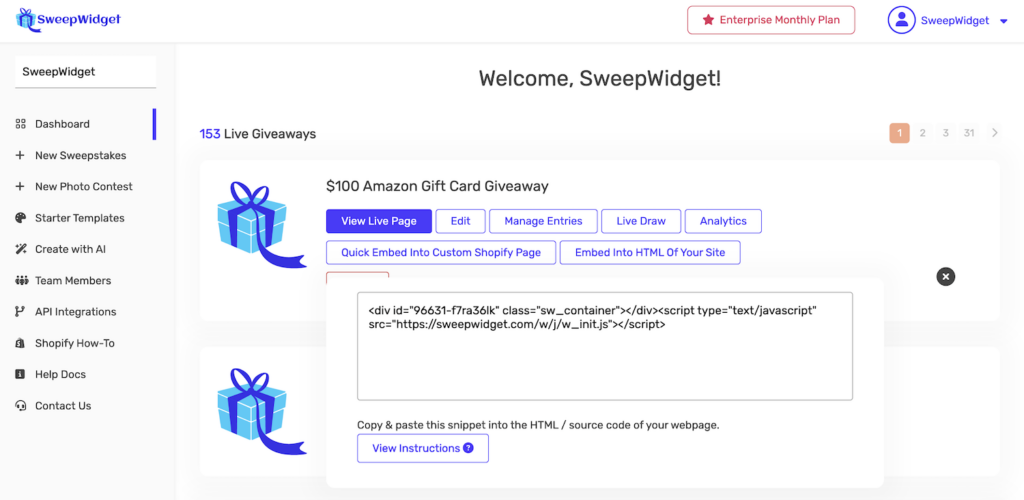
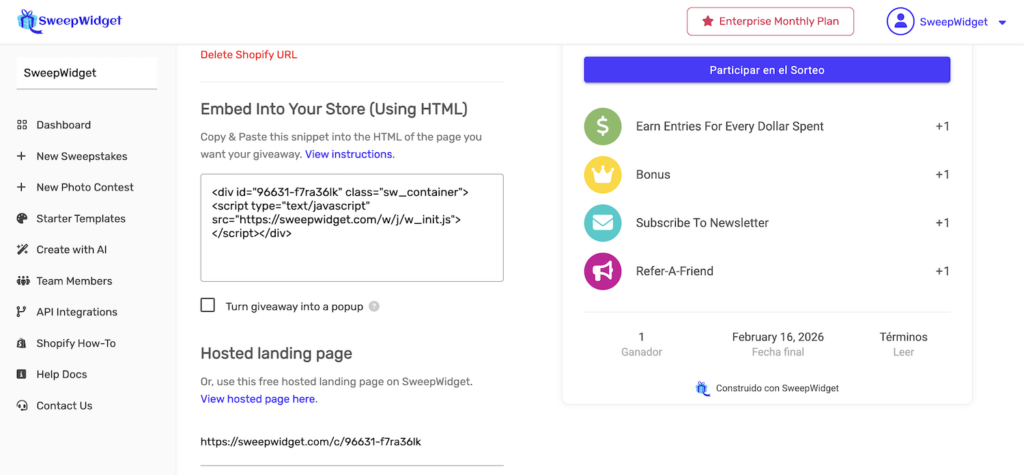
The popup has the plain embed code only. To add popup mode, use the “Your Giveaway is Ready!” page.
The embed code
<div id="12345-abc123" class="sw_container">
  <script type="text/javascript" src="https://sweepwidget.com/w/j/w_init.js"></script>
</div>| Component | Description |
|---|---|
id="12345-abc123" |
Your unique giveaway ID |
class="sw_container" |
Required class |
w_init.js |
SweepWidget’s start-up script |
How to embed the code
- Copy the whole embed code.
- Open the page editor on your website.
- Switch to HTML or code view (not the visual editor).
- Paste the code where you want the giveaway.
- Save and publish the page.
Platform-specific instructions
WordPress
Option 1: shortcode. On the “Your Giveaway is Ready!” page, open the Embed Into WordPress Site box and copy the shortcode, for example [sweepwidget id="12345" url="abc123"]. Paste it into any post or page.
Option 2: embed code.
- Edit the page or post.
- Add a Custom HTML block (click + and search for “Custom HTML”).
- Paste the embed code into the block.
- Click Update or Publish.
Shopify
SweepWidget has two options for Shopify.
Option 1: Quick-embed into your Shopify store. On the “Your Giveaway is Ready!” page, enter a page name (the end of the address) and click Create Page & Embed. SweepWidget creates a page in your store with the giveaway on it. If a page with that address already exists, it is overwritten.
Option 2: paste the embed code by hand.
- Go to Online Store > Pages.
- Create a page or edit an existing one.
- Click the <> (Show HTML) button in the editor.
- Paste the embed code.
- Save the page.
Wix
- Open the Wix Editor.
- Click Add (+) > Embed Code > Embed HTML.
- Paste the embed code.
- Resize and position the element.
- Publish your site.
Squarespace
- Edit the page.
- Add a Code Block.
- Paste the embed code.
- Save and publish.
Webflow
- Add an Embed element to your page.
- Paste the embed code.
- Publish your site.
Custom HTML website
- Open your HTML file in a code editor.
- Paste the embed code inside the
<body>tag where you want the giveaway. - Save and upload the file to your server.
Turn the giveaway into a popup
Plan required: Pro or higher.
On the “Your Giveaway is Ready!” page, tick Turn giveaway into a popup and set the delay in seconds (1 to 600). The embed code changes; copy the new code into your page. See Turn Widget Into a Modal Popup In Embedded Pages.
Hosted landing page alternative
If you do not want to embed the giveaway, share SweepWidget’s free hosted landing page instead. The address looks like:
https://sweepwidget.com/c/12345-abc123
Share the link directly. No embedding is needed. A custom URL (Premium and above) lets you change the part after /c/. The page always stays on sweepwidget.com.
Optional embed attributes
You can add these attributes to the sw_container div.
| Attribute | Example | Description |
|---|---|---|
data-if-widget-popup and data-widget-popup-delay |
data-if-widget-popup="1" data-widget-popup-delay="3" |
Popup mode (Pro and above). Easier to set with the checkbox |
data-name-prefill, data-email-prefill, data-auto-login-prefill |
data-email-prefill="[email protected]" |
Pre-fill the form for logged-in users (Premium and above). See Auto-Enter User From Your Website’s Logged In User Session |
To change the language of an embedded giveaway, set the Language on the giveaway’s Basic Info tab (Pro and above). The data-language attribute works only on the hosted landing page (?data-language=Spanish).
Best practices
- Use HTML mode. Paste the code in code view, not the visual editor.
- Test after embedding. Visit the page to check the giveaway loads.
- Check the mobile display. The widget is responsive.
- Put the giveaway where visitors see it.
- Do not change the code. Copy and paste it as provided.
Troubleshooting
Giveaway not appearing
- Make sure you pasted the code in HTML mode.
- Check that you copied all of it, including the opening and closing tags.
- Clear your browser cache and reload.
- Check that the giveaway is published and active.
Widget looks broken or unstyled
- Look for CSS conflicts with your theme.
- Make sure no part of the embed code was changed.
- Try a simple test page to isolate the problem.
Multiple giveaways on one page
You can embed several giveaways on one page. Paste each embed code where you want it. Each giveaway has its own ID, so they do not conflict.