
How to Use Redemption Codes
Redemption codes allow you to automatically distribute unique codes (like gift card codes, license keys, discount codes, or access tokens) to your giveaway winners. Each winner receives their own unique code via email, and they can claim it through a dedicated landing page.
How Redemption Codes Work
Here’s the complete flow:
- You add codes – Enter your redemption codes (one per line) when setting up the prize
- You pick winners – Select winners using the random picker, by votes, or manually
- You send emails – Contact winners with a single click to send them their unique code
- Winners claim codes – Each winner receives a unique link to a landing page where they can view and copy their code
- You track redemptions – See how many codes have been claimed in real-time
Setting Up Redemption Codes
Step 1: Create or Edit Your Giveaway
Go to the Entry Form Info tab when creating or editing your giveaway. Scroll down to the Prizes section.
Step 2: Switch to Redemption Codes
For each prize, you’ll see a toggle labeled “What kind of prize are you giving away?” with options:
- Regular prize – Standard prize where you contact winners manually
- Redemption codes – Unique codes distributed automatically to each winner
Toggle the switch to Redemption codes.
Step 3: Enter Your Codes
A text area will appear where you can enter your redemption codes. Enter one code per line.
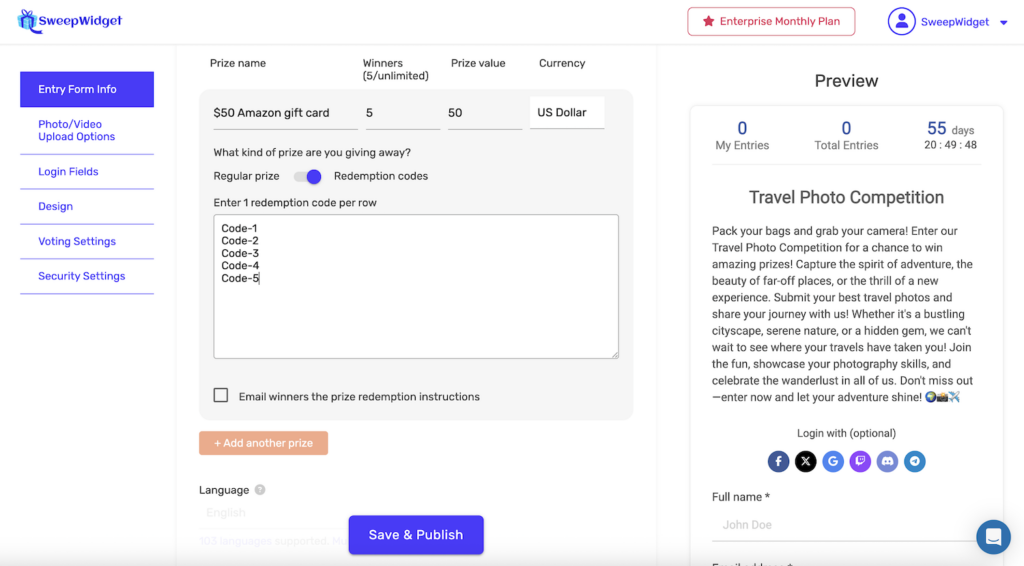
Important: The number of winners will automatically update to match the number of codes you enter. If you enter 5 codes, you’ll have 5 winners for that prize.
Step 4: Configure the Winner Email
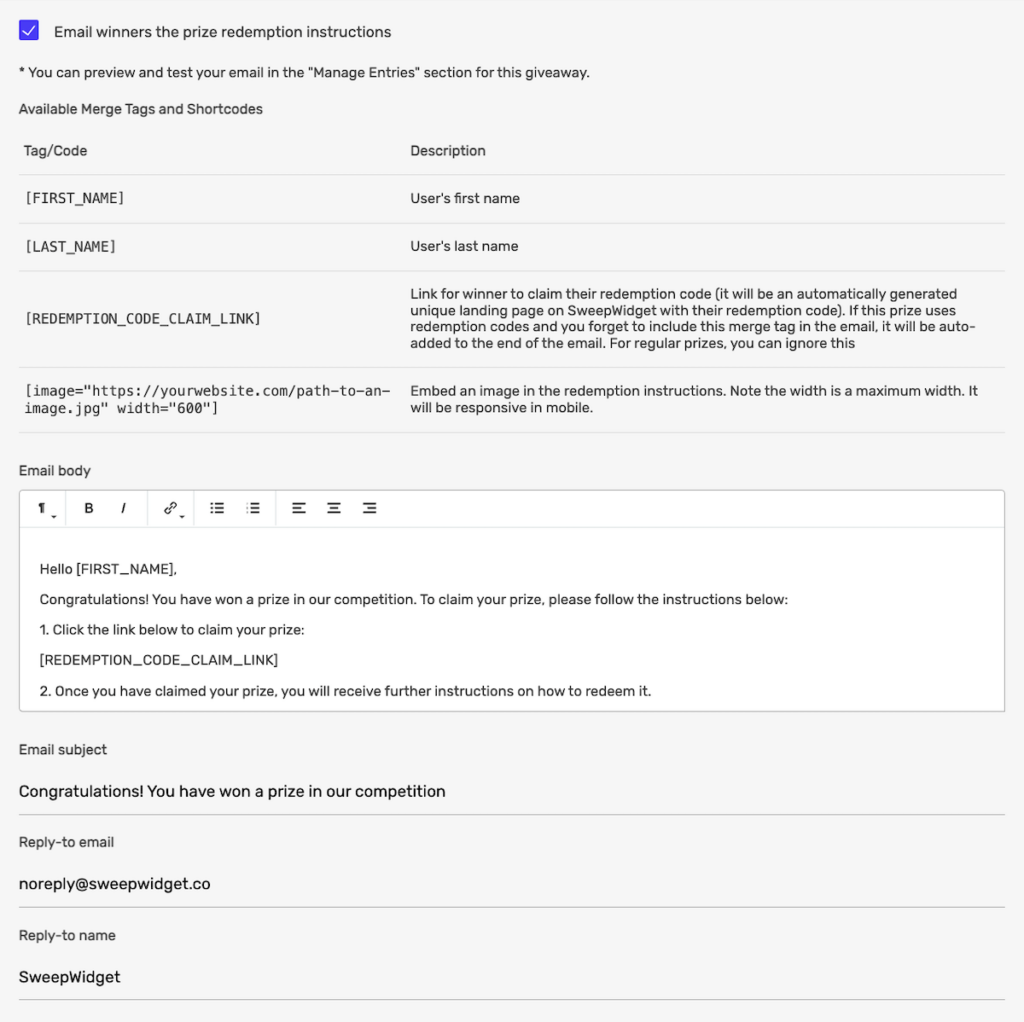
Check the box “Email winners the prize redemption instructions” to configure the email that will be sent to winners.
You can customize:
- Email body – The main content of the email (rich text editor with formatting options)
- Email subject – The subject line winners will see
- Reply-to email – Where replies from winners will be sent
- Reply-to name – The name shown as the sender
Available Merge Tags
Use these merge tags in your email to personalize it:
| Tag | Description |
|---|---|
[FIRST_NAME] | The winner’s first name |
[LAST_NAME] | The winner’s last name |
[REDEMPTION_CODE_CLAIM_LINK] | A unique link where the winner can claim their code. This will be rendered as a clickable “Redeem Prize” link. |
[image="URL" width="600"] | Embed an image in the email. The width is a maximum width and will be responsive on mobile. |
Note: If you’re using redemption codes and forget to include [REDEMPTION_CODE_CLAIM_LINK] in your email, it will be automatically added to the end of the message.
Custom Email Domain (Enterprise)
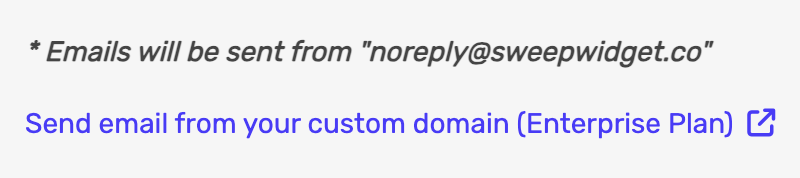
By default, emails are sent from [email protected]. Enterprise plan users can send from their own custom domain for better deliverability and branding. Learn how to set up Custom SMTP.
Sending Codes to Winners
After your giveaway ends and you’ve selected winners:
- Go to Manage Entries for your giveaway
- Click the View Winners button
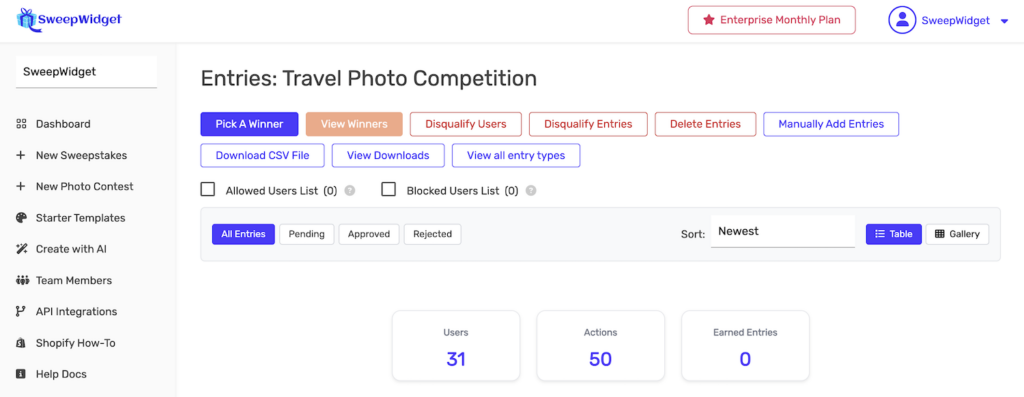
- You’ll see the Contact Winners section
- Use the dropdown to select a prize that has redemption codes enabled
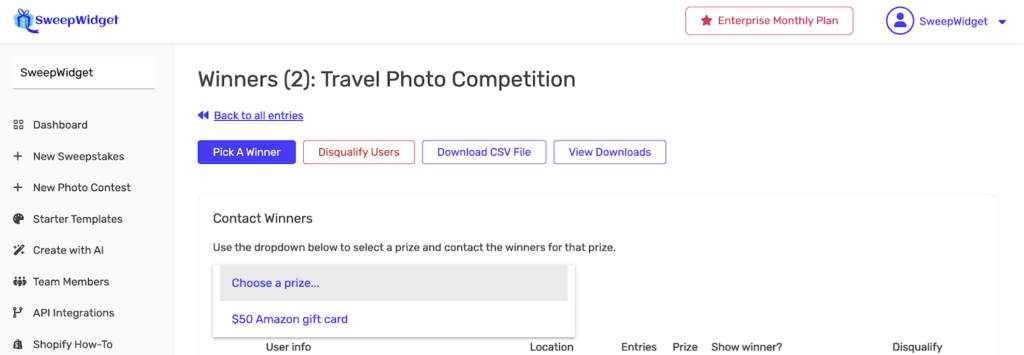
Contact Winners Panel
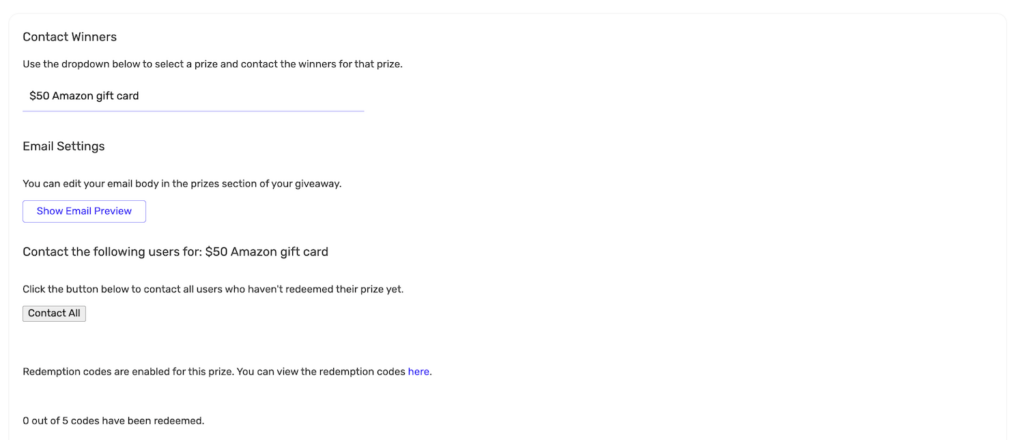
After selecting a prize, you’ll see:
- Email Settings – Link to edit your email template
- Show Email Preview – Preview exactly what winners will receive
- Contact All – Send emails to all winners who haven’t redeemed their code yet
- Redemption status – Shows “X out of Y codes have been redeemed” with a link to view all codes
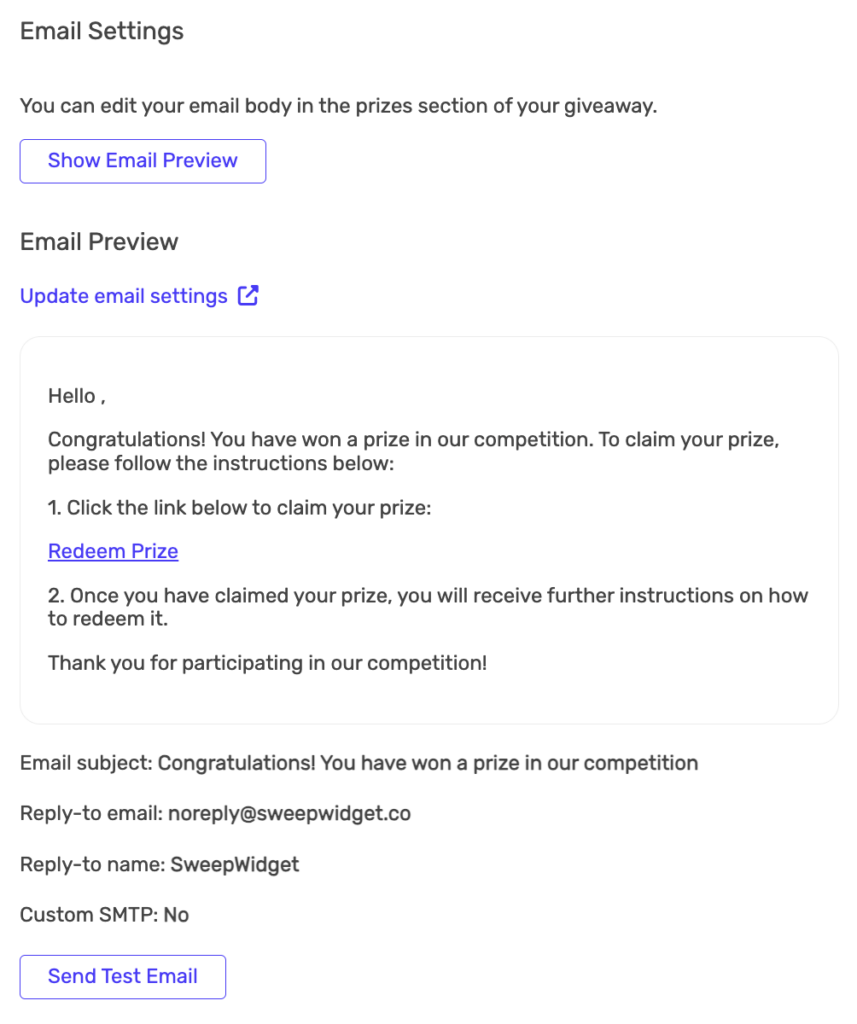
Preview and Test Your Email
Click Show Email Preview to see exactly what the email will look like. You can also:
- Update email settings – Link to edit the email template
- Send Test Email – Send a test to yourself to verify everything works
Send to All Winners
Click the Contact All button to send emails to all winners who haven’t redeemed their prize yet. Each winner will receive:
- A personalized email with your custom message
- A unique link to claim their specific redemption code
How Winners Claim Their Code
When a winner clicks the [REDEMPTION_CODE_CLAIM_LINK] in their email:
- They’re taken to a branded landing page on SweepWidget
- The page displays your giveaway title and image
- Their unique redemption code is shown in a text field
- They can click Copy Code to copy it to their clipboard
- The code is automatically marked as “redeemed” in your dashboard
The landing page matches your giveaway’s branding (colors, background, etc.) for a consistent experience.
Tracking Redemptions
In the Contact Winners section, you can see the redemption status:
“X out of Y codes have been redeemed”
This updates in real-time as winners claim their codes. You can also click the link to view the redemption codes to see which specific codes have been claimed.
Use Cases for Redemption Codes
Redemption codes are perfect for distributing:
- Gift cards – Amazon, Visa, store-specific gift cards
- Discount codes – Percentage or fixed amount discounts for your store
- License keys – Software licenses, game keys, subscription codes
- Access tokens – Exclusive content, membership access, course enrollments
- Event tickets – Ticket codes or QR codes for events
- Digital downloads – Unique download links or access codes
Best Practices
- Test before sending – Always send a test email to yourself first
- Use clear instructions – Tell winners exactly how to use their code
- Include expiration dates – If codes expire, mention this in the email
- Keep codes secure – Don’t share your codes publicly until winners are selected
- Match code count to winners – Ensure you have at least as many codes as winners
- Follow up – Send reminder emails to winners who haven’t claimed their codes
Plan Limits
The number of redemption codes you can distribute depends on your plan’s winner limit:
- Free – 1 winner/code
- Pro – Up to 50 winners/codes
- Business – Up to 250 winners/codes
- Premium – Up to 1,000 winners/codes
- Enterprise – Unlimited winners/codes
If you try to add more codes than your plan allows, excess codes will be automatically removed with a warning message.