
How To Download User Data From SweepWidget Giveaway
SweepWidget makes it easy to export all participant data from your giveaways to CSV files. You can download user information, entry details, and winner lists for use in your CRM, email marketing tools, or for record-keeping.
How to Download CSV Data
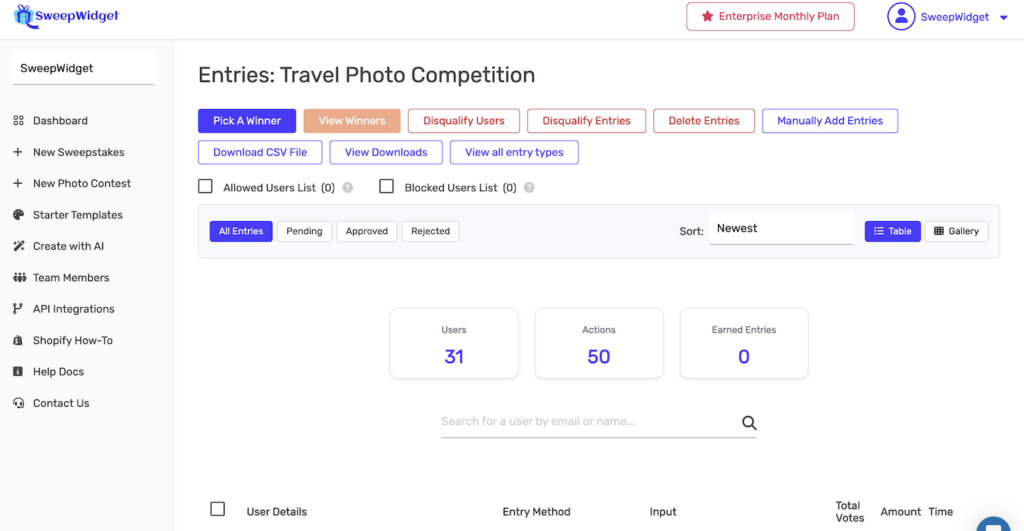
- Go to Manage Entries for your giveaway
- Click the Download CSV File button
- Choose which type of data you want to download
- Your CSV file will be generated and queued for download
- Click View Downloads to access your file when ready
Types of CSV Downloads
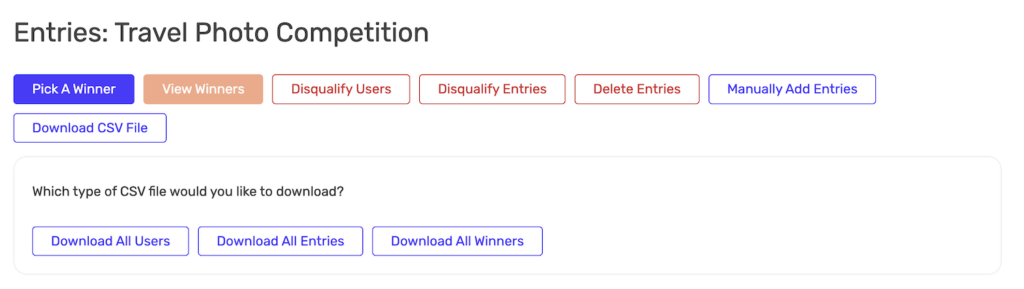
When you click Download CSV File, you’ll see three options:
Download All Users
Exports one row per unique participant with their profile information:
- Full name
- Email address
- Phone number (if collected)
- Country/location
- Total entries earned
- Login method used (Google, Facebook, email, etc.)
- Custom login field responses (address, age, etc.)
- First entry timestamp
Best for: Building email lists, importing into your CRM, or analyzing your participant demographics.
Download All Entries
Exports one row per action/entry with detailed entry method data:
- User name and email
- Entry method type (e.g., “Follow on Instagram”, “Visit Website”, “Answer Question”)
- Entry method response (username, URL, answer text, uploaded file URL, etc.)
- Entries earned for that action
- Timestamp when the action was completed
- Verification status
Best for: Analyzing which entry methods are most popular, verifying social follows, reviewing quiz answers, or auditing uploaded content.
Download All Winners
Exports data specifically for selected winners:
- Winner name and email
- Prize won
- Total entries at time of selection
- Contact information
- Winner selection date
- Redemption status (for redemption code prizes)
Best for: Contacting winners, fulfilling prizes, or maintaining winner records for legal compliance.
Accessing Your Downloads
After requesting a CSV download:
- Click the View Downloads button in Manage Entries
- You’ll see a list of all your CSV downloads with:
- Title – The giveaway name
- Type – Users, Entries, or Winners
- Download Link – Click to download the file
- Date Created – When the export was generated
- Click Download CSV File to save the file to your computer
Note: Download links are valid for 7 days. After that, you’ll need to generate a new export.
Data Included in Exports
Here’s a comprehensive list of data fields you can export:
| Data Field | Description |
|---|---|
| Name | Participant’s full name |
| Participant’s email address | |
| Phone | Phone number (if phone login was enabled) |
| Entry Method | The specific action completed (e.g., “Follow @brand on Instagram”) |
| Response | User’s response (username, answer, uploaded file URL, etc.) |
| Country | Participant’s country based on IP geolocation |
| Entries | Number of entries earned for that action |
| Timestamp | Date and time the action was completed |
| Login Method | How the user authenticated (Google, Facebook, X, email, etc.) |
| Custom Fields | Any custom login field data (address, birthday, etc.) |
| Referral Code | User’s unique referral code (if viral sharing enabled) |
| Referred By | Who referred this participant (if applicable) |
Plan Limitations
CSV export capabilities depend on your plan:
| Plan | CSV Export Capability |
|---|---|
| Free | Limited to 10 rows of data |
| Pro | Unlimited data export |
| Business | Unlimited data export |
| Premium | Unlimited data export |
| Enterprise | Unlimited data export |
On the Free plan, you can view participant data in the dashboard, but CSV exports are limited to the first 10 rows. Upgrade to Pro or higher for unlimited exports.
Uploading Entries via CSV
You can also import entries using CSV files. This is useful for:
- Adding entries from offline events
- Importing participants from other platforms
- Bulk adding manual entries
To upload entries:
- Go to Manage Entries
- Click Manually Add Entries
- Select the Upload CSV option
- Download the template CSV file as a starting point
- Fill in the data (name and email are required)
- Upload your completed CSV file
Tips for Working with CSV Files
- Use Excel or Google Sheets – Both handle CSV files well for viewing and editing
- Check encoding – If you see strange characters, ensure your spreadsheet app is using UTF-8 encoding
- Large exports may take time – For giveaways with thousands of entries, the CSV generation may take a few minutes
- Download before 7 days – Links expire after a week, so download promptly
- Filter in your spreadsheet – Use Excel/Sheets filtering to analyze specific segments of your data
Common Use Cases
- Email marketing – Export users and import into Mailchimp, Klaviyo, or your email platform
- CRM import – Add participants to your customer relationship management system
- Social verification – Review Instagram/Twitter usernames to verify follows
- Contest auditing – Keep records of all entries for legal compliance
- Winner fulfillment – Export winner data to manage prize shipping or code distribution
- Analytics – Analyze participation patterns, popular entry methods, and geographic distribution