
How to Use Redemption Codes
Redemption codes let you give each winner their own unique code (gift card code, license key, discount code, access token). You email each winner a link; they open it and see their code.
How Redemption Codes Work
- You add codes – one per line, in the prize settings
- You pick winners – randomly or manually, and allocate this prize to them
- You send emails – click Send Email next to each winner on the Winners page
- Winners claim codes – each email has a unique link to a page showing their code
- You track redemptions – see how many codes have been claimed
Setting Up Redemption Codes
Step 1: Create or Edit Your Giveaway
Go to the Basic Info tab (the Entry Form Info tab for photo contests) and scroll to Prizes.
Step 2: Switch to Redemption Codes
Under What kind of prize are you giving away?, move the switch from Regular prize to Redemption codes.
Step 3: Enter Your Codes
In Enter 1 redemption code per row, add one code per line.
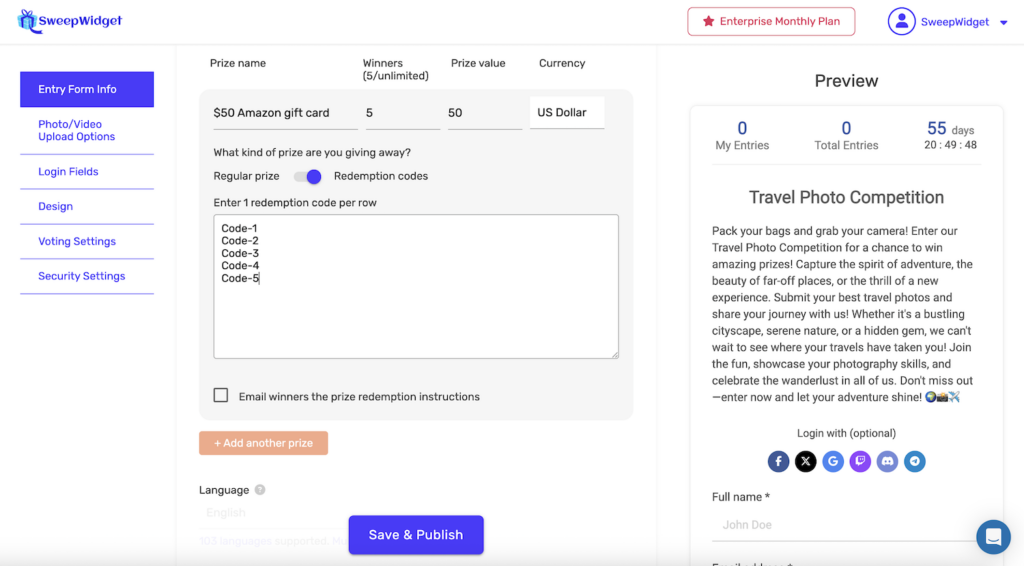
Set # of Winners to the number of codes you want to give out. SweepWidget does not change it for you. If the two don’t match, a warning shows how many winners won’t get a code or how many codes won’t be used.
Step 4: Configure the Winner Email
Tick Email winners the prize redemption instructions. You can edit:
- Email body
- Email subject
- Reply-to email
- Reply-to name
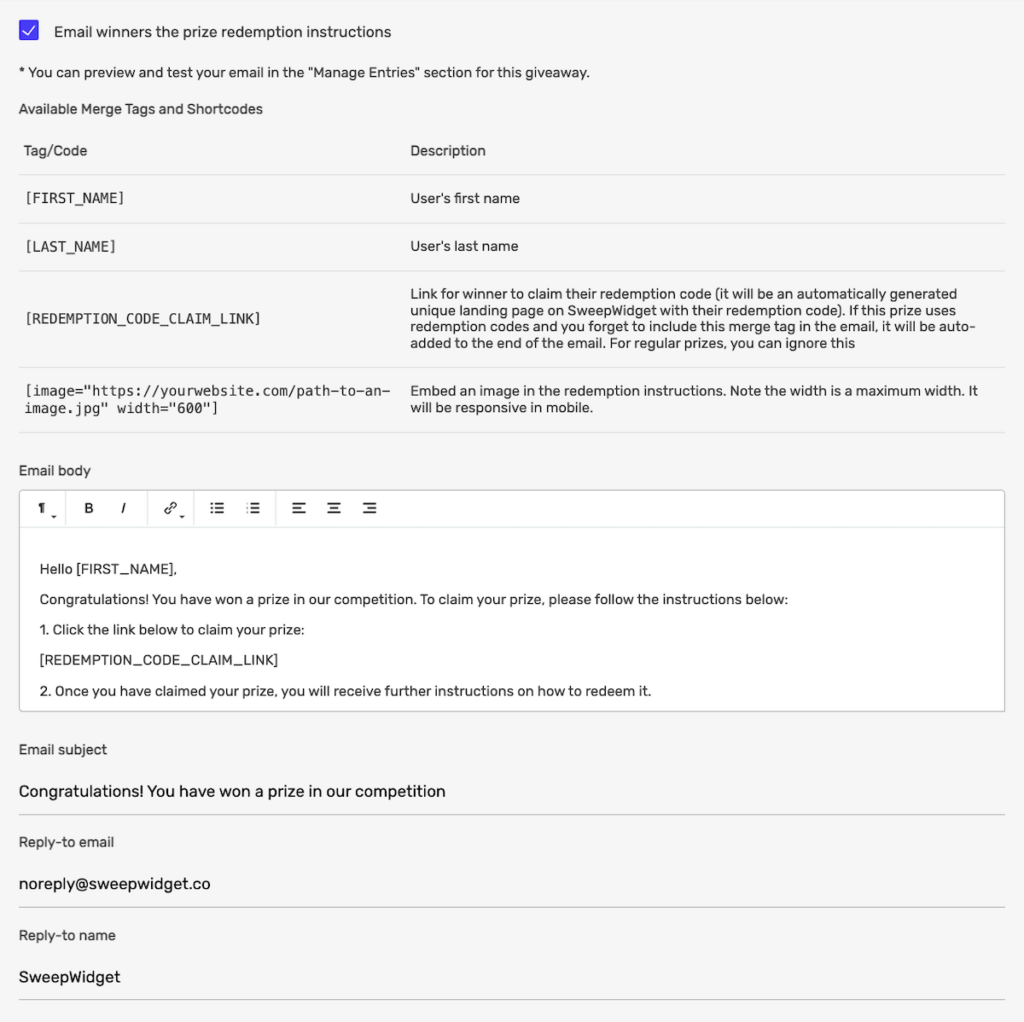
Available Merge Tags
| Tag | Description |
|---|---|
| [FIRST_NAME] | The winner’s first name |
| [LAST_NAME] | The winner’s last name |
| [REDEMPTION_CODE_CLAIM_LINK] | A unique “Redeem Prize” link where the winner sees their code |
| [image=”URL” width=”600″] | Embed an image. Width is a maximum and is responsive on mobile. |
If you leave out [REDEMPTION_CODE_CLAIM_LINK], it is added to the end of the email.
Custom Email Domain (Enterprise)
Emails are sent from [email protected]. Enterprise users can send from their own domain. See Add Custom SMTP To Your SweepWidget Emails.
Sending Codes to Winners
When you pick winners, choose this prize under What prize would you like to allocate to the winner/s?. Only winners allocated to the prize appear in its contact list.
Then:
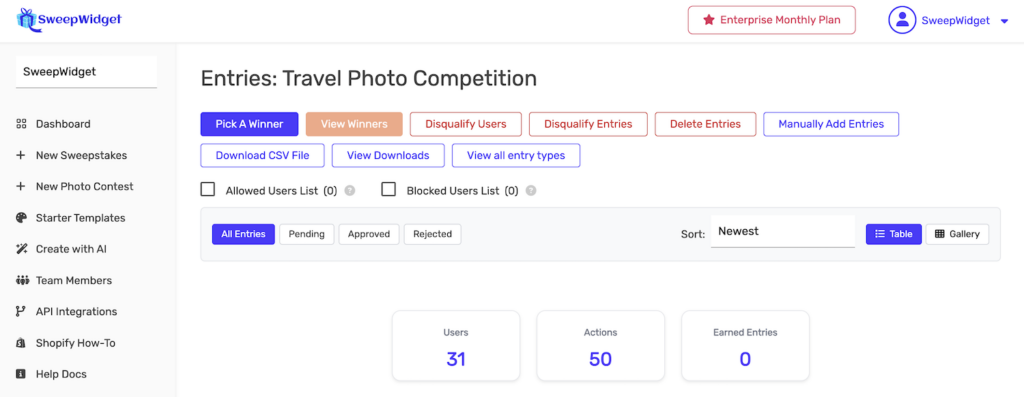
- Go to Manage Entries and click View Winners
- Find the Contact Winners section
- In Choose a prize…, select your redemption-code prize
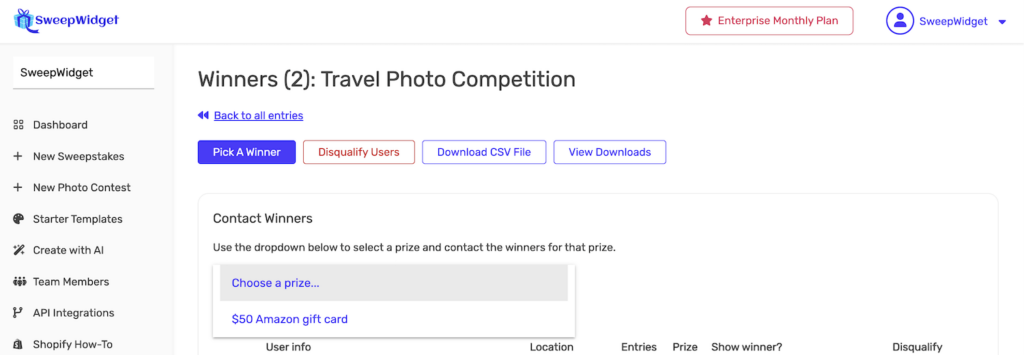
Contact Winners Panel
After choosing a prize, you’ll see:
- Email Settings and an Update email settings link to edit the email in the prize settings
- Email Preview – exactly what winners will receive
- Send test email to: with a Send Test Email button
- “X out of Y codes have been redeemed”, with a link to your codes
- A list of winners with Redeemed, Contacted and a Send Email button for each winner
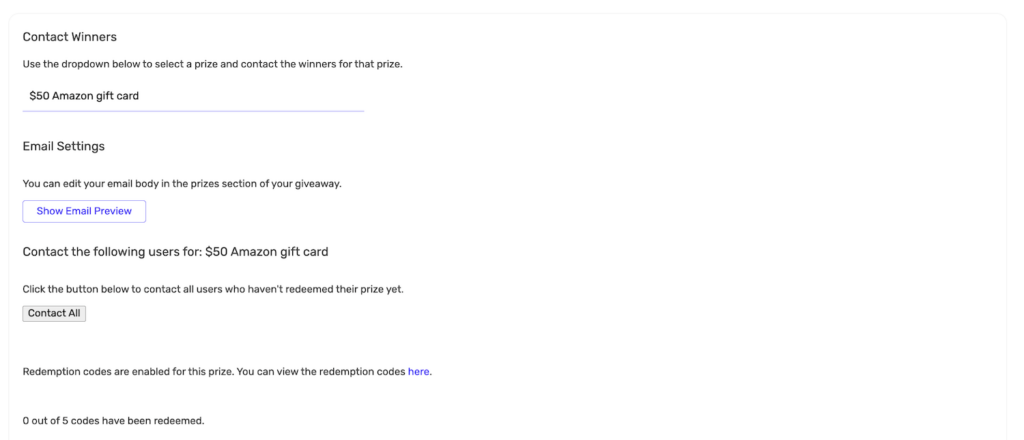
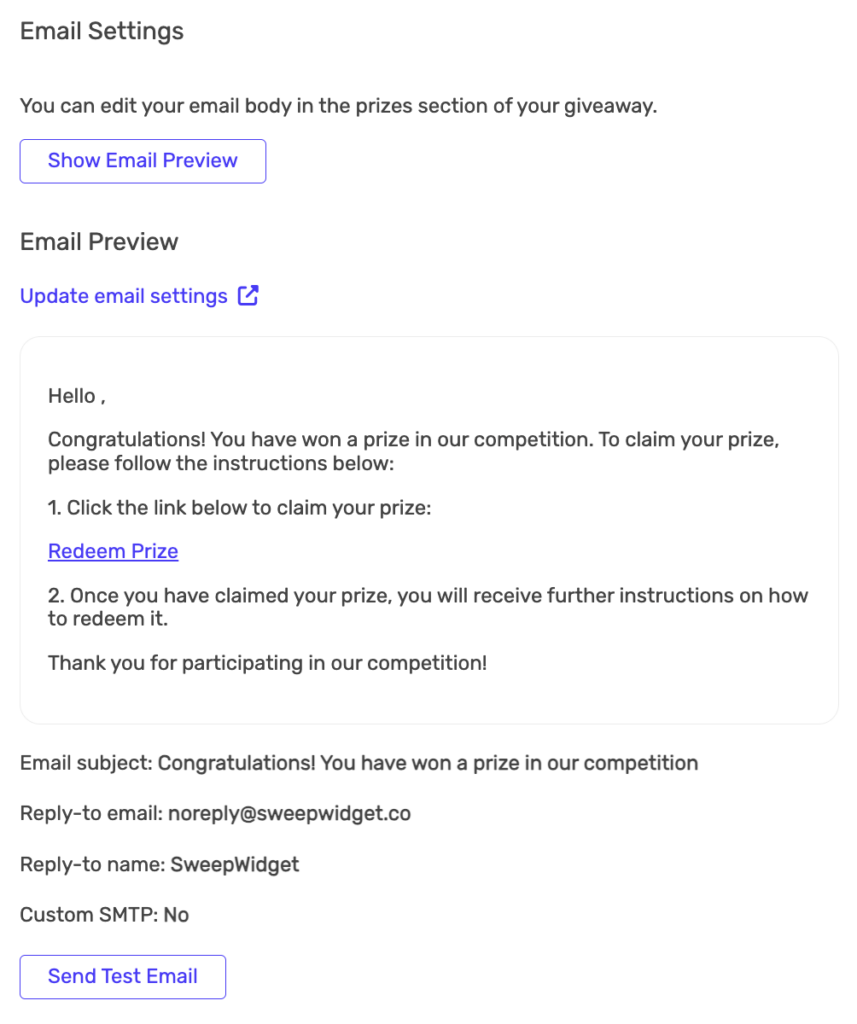
Send the emails
Click Send Email next to each winner. Each winner gets your email with a unique claim link. A code from your list is reserved for that winner when you send. If you send again, the same code is re-sent as a reminder.
If you run out of codes, you’ll see “The max amount of codes have been redeemed for this prize.”
How Winners Claim Their Code
When a winner clicks the link in their email:
- They see a page with your giveaway title and image
- Their code is shown under Redemption Code
- They can click Copy Code to copy it
- The code is marked as redeemed in your dashboard as soon as the page opens
The page uses your giveaway’s branding (colors, background).
Tracking Redemptions
In the Contact Winners section:
“X out of Y codes have been redeemed”
The Redeemed column shows each winner’s status. Winners who have redeemed show “Redeemed” instead of a Send Email button.
Use Cases
- Gift cards – Amazon, Visa or store gift cards
- Discount codes
- License keys – Software licenses, game keys
- Access tokens – Exclusive content, memberships, courses
- Event tickets
- Digital downloads
Best Practices
- Send a test email to yourself first
- Tell winners exactly how to use their code
- Mention expiration dates if your codes expire
- Keep codes private until winners are selected
- Add at least as many codes as winners
- Follow up – Send Email again to winners who haven’t redeemed
Plan Limits
The number of codes you can give out follows your plan’s winner limit:
- Free – 1 winner/code
- Pro – Up to 50 winners/codes
- Business – Up to 250 winners/codes
- Premium – Up to 1,000 winners/codes
- Enterprise – Unlimited winners/codes
If you add more codes than your plan allows, the extra codes are removed and a message tells you how many.