
How Can I Manually Upload Entries Into My Contest Using A CSV File?
With a Premium plan or higher, you can upload entries into your contest from a CSV file. Use it to import entries from other sources, add people from offline events, or move entries from another platform.
Plan required: Premium or higher
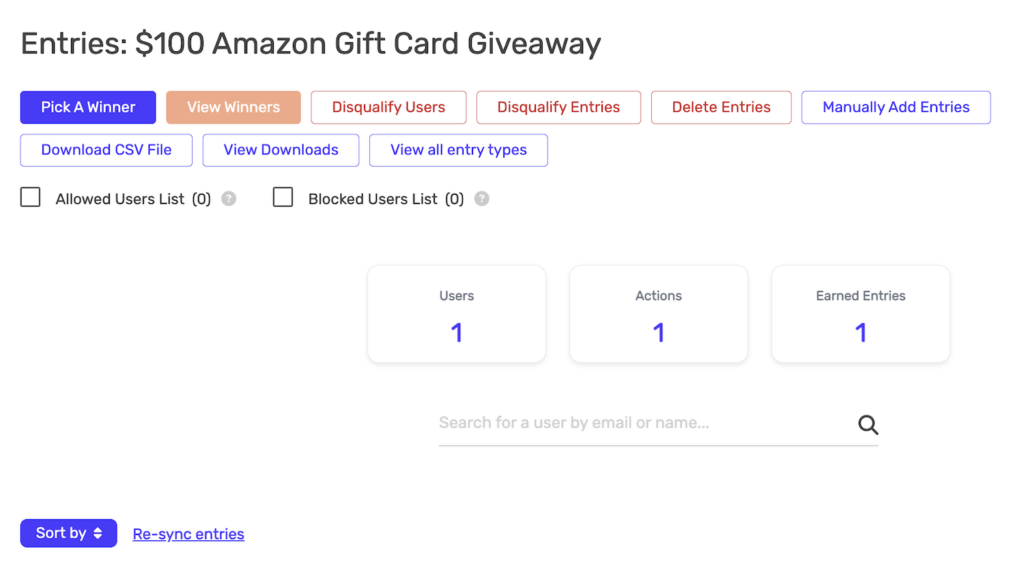
How to Access the Upload Feature
- Go to your Dashboard
- Find the giveaway
- Click Manage Entries
- Click Upload Entries
Guidelines for Uploading Entries
- Each uploaded user receives a login entry. You can also credit entry methods (see below).
- Duplicate email addresses don’t get a second login entry. If you tick entry methods to credit, an existing user still gets the ones they don’t have yet.
- Upload up to 1,000 rows at a time. Split larger files into several uploads.
How to Format Your CSV File
Only Full Name and Email Address columns are required. You may add any of the other 4 columns below. Don’t add any other columns; a file with unknown column headers is rejected.
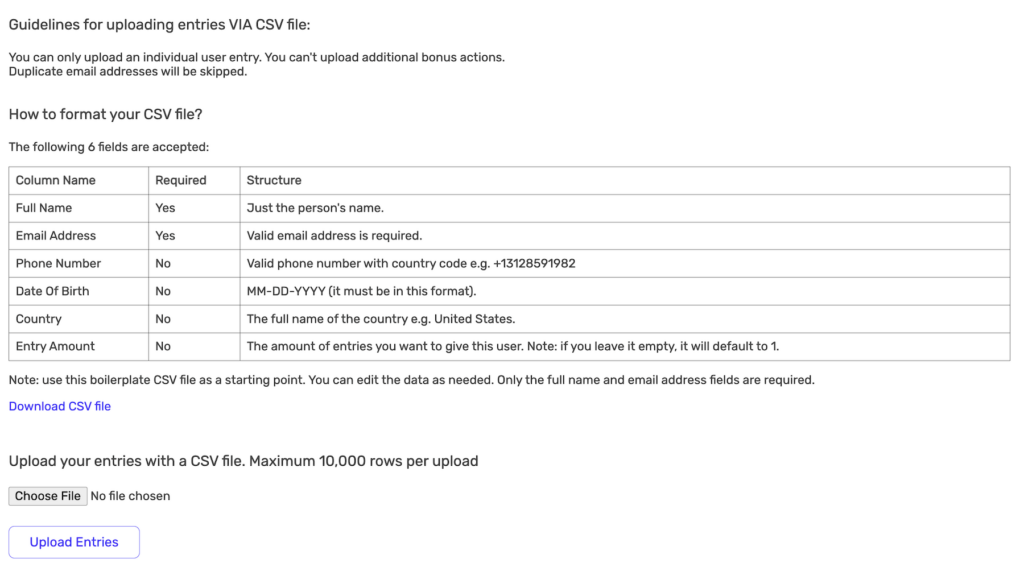
Accepted Fields
| Column Name | Required | Format / Notes |
|---|---|---|
| Full Name | Yes | The person’s name |
| Email Address | Yes | Must be a valid email address |
| Phone Number | No | Include country code (e.g., +13128591982) |
| Date Of Birth | No | Must be in MM-DD-YYYY format |
| Country | No | Full country name (e.g., United States) |
| Entry Amount | No | Entries for the login entry. Blank = your contest’s login entry amount. 0 = no login entries. |
Download the Template
Click Download CSV template in the upload panel to get a file with the correct headers.
Example CSV Format
Full Name,Email Address,Phone Number,Date Of Birth,Country,Entry Amount
John Smith,[email protected],+15551234567,01-15-1990,United States,1
Jane Doe,[email protected],,,Canada,5
Bob Johnson,[email protected],,03-22-1985,,1
Optional fields can be left empty; keep the commas in place.
How to Upload Your CSV
- Prepare your CSV file
- Click Click to choose a CSV file and select your file (only .csv files are accepted)
- Optional: under Credit entry methods, tick any entry methods every uploaded user should get. Each one awards its configured entry amount. Methods linked to an email integration (e.g. Mailchimp) also add the user to that list.
- Click Upload Entries
- Wait for the confirmation message
Entry Amount Field
The Entry Amount column sets how many entries each user’s login entry is worth. Use it when:
- Importing from another platform – match the entry count users had before
- Rewarding VIPs – give certain users more entries
- Offline events – award different amounts by participation level
If you leave it empty, the user gets your contest’s normal login entry amount.
Common Use Cases
Importing from Another Giveaway Platform
Export your entries from the old platform, reformat the CSV to match the columns above and upload.
Adding Entries from an Offline Event
Compile paper forms or another system’s data into a CSV and upload it to combine with your online entries.
Pre-Loading Contest Participants
Format an existing customer list as a CSV and upload it. They appear as entries without visiting the giveaway.
Troubleshooting
Upload fails or shows errors
- Make sure the file has Full Name and Email Address headers
- Remove any column that is not one of the 6 accepted columns
- Check that dates use MM-DD-YYYY
- Make sure email addresses are valid; rows with an empty name, empty email or invalid email are skipped
- Keep each upload to 1,000 rows or fewer
Entries not appearing after upload
- Existing emails don’t get a second login entry
- Refresh the page
- Click Re-sync entries on the Entries page if counts look wrong
Phone number format issues
Include the country code with a + sign (e.g., +13128591982).
Important Notes
- Uploaded entries count toward winner selection, like regular entries
- Users can still earn more entries by visiting the giveaway and completing entry methods
- SweepWidget does not email uploaded users
- To add entries for one existing user, see Manually Add Entries For A User