Live Event Giveaway Picker: How to Draw Winners on Stage
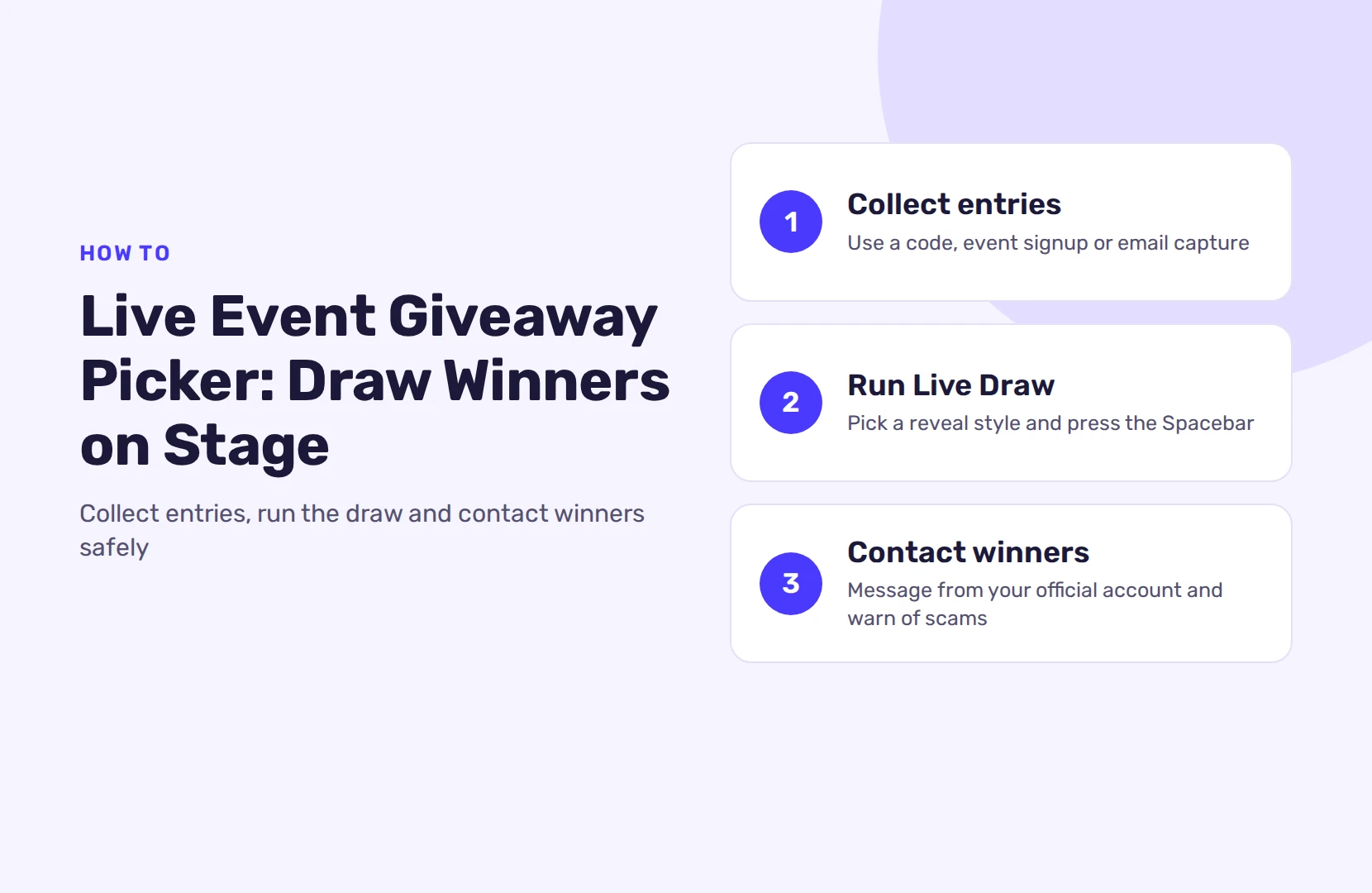
SweepWidget’s Live Draw is a live event giveaway picker. It picks winners in real time on a screen your audience can see, at events, webinars and live streams. It needs Pro or above, so Free accounts can’t use it. This guide shows how to collect entries, run the draw, and what to do when the draw is over.
If you’re running an in-person contest and want the full on-site setup, read our live event contest help guide too. This post focuses on the draw itself. Running a stand at a trade show? See our trade show contest winner picker guide.
What is Live Draw?
Live Draw is a real-time winner picker built into SweepWidget. You open it during your event, and it draws from your entries while people watch.
Here’s what it does:
- Reveal style. Choose Instant, Countdown or Spin Wheel.
- Entry filter. Set a minimum and maximum number of entries per person to be eligible.
- Privacy. The screen shows only the winner’s name and the prize. No emails or other details.
- Present mode. Press the Spacebar to draw the next winner.
- Multiple winners. You can set up to 250 winners per draw, but your plan’s winner limit still applies.
Which plan do you need?
Live Draw needs Pro or above. On Free, you’ll see the message “Please upgrade to a paid plan to do live draws.”
Your plan also caps the winners per giveaway, and that count includes winners you’ve already picked:
| Plan | Monthly | Yearly | Winners per giveaway |
| Free | $0 | – | 1 |
| Pro | $29/mo | $290/yr | 50 |
| Business | $59/mo | $590/yr | 250 |
| Premium | $119/mo | $1,190/yr | 1,000 |
| Enterprise | $249/mo | $2,490/yr | Unlimited |
These are list prices. Yearly billing saves 17% against paying monthly (2 months free). See the full pricing page for what else each plan includes. SweepWidget has unlimited campaigns and unlimited entries on every plan, and 120+ entry methods.
Step 1: Set up the giveaway and entry methods
Create your giveaway in SweepWidget first. The draw can only pick from entries you’ve collected, so decide how people will enter before the event.
Three options work well at live events:
- Attendance code. Use the Create Your Own Entry method (Pro) and ask people to enter a code you reveal during the session. Only people who are there can earn those points. Set it to daily re-entry if your event runs several sessions.
- Event registration. If you host on Eventbrite, the Attend Event entry (Pro) sends people to your event page to register.
- Email signup. Capture emails so you can follow up with everyone, not just the winner. The newsletter entry and the email integrations need Pro. On Free, entrants’ emails are still collected in your SweepWidget dashboard, but you can see only the first 10.
On Free you can use the visit-type entries for Instagram, Facebook, YouTube, TikTok and Pinterest, the X follow, post and repost entries, plus Visit a page and Bonus. Follow, like and comment entries for Instagram, YouTube and TikTok are Pro. Refer-a-friend, secret code, file upload and purchase entries are locked on Free, and photo and video contests need Pro.
Add social follows if you like, but be careful with platform rules. Instagram, TikTok, X, Facebook and YouTube subscribe entries are taken on trust, so if you pick a winner who claimed one, check their account by hand before you announce them. Meta’s rules say a promotion on a Page, group or event must not require or incentivize people to share, repost, tag others or otherwise publicize it, so don’t reward shares or tags there. See our Facebook giveaway guide.
Step 2: Decide who can enter
For an in-person event, you may want only people in the room to enter. SweepWidget’s Security tab has an option for this: Only allow specific IP Addresses to enter (good for live events). It needs the Premium plan.
- Open your giveaway and go to the Security tab.
- Tick Only allow specific IP Addresses to enter.
- On the device at the event, search “what is my IP” and note the address.
- Enter it in the text area, one IP per line.
- Save the giveaway.
Now only entries from the listed IP addresses can enter. It suits a kiosk or a tablet at your booth. It won’t suit a crowd entering from their own phones, so for that case use the attendance code instead.
If you embed the giveaway on your own site, copy the embed code into your site’s HTML, or share the free hosted page. Turning the giveaway into a popup needs Pro.
Step 3: Publish your official rules
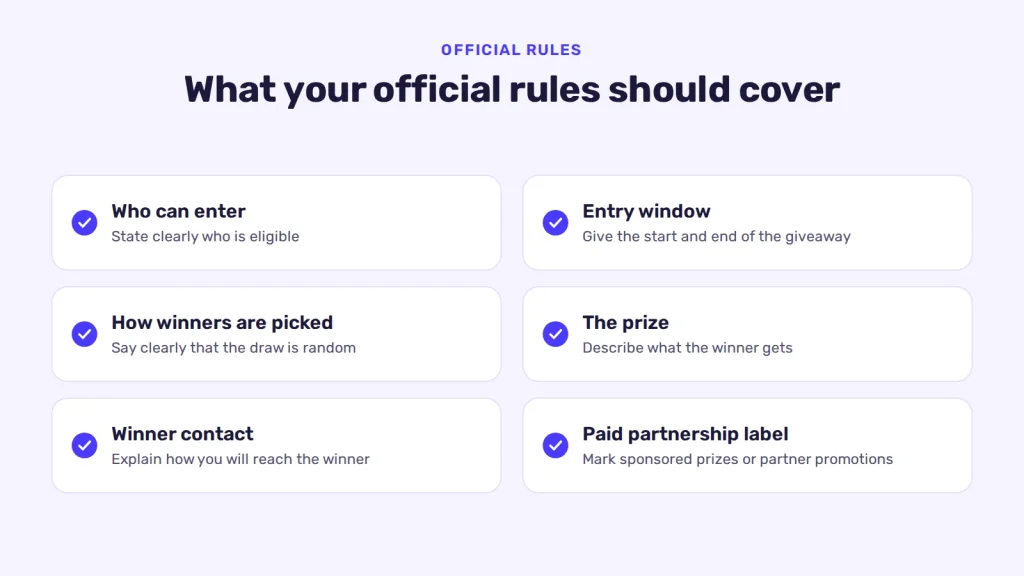
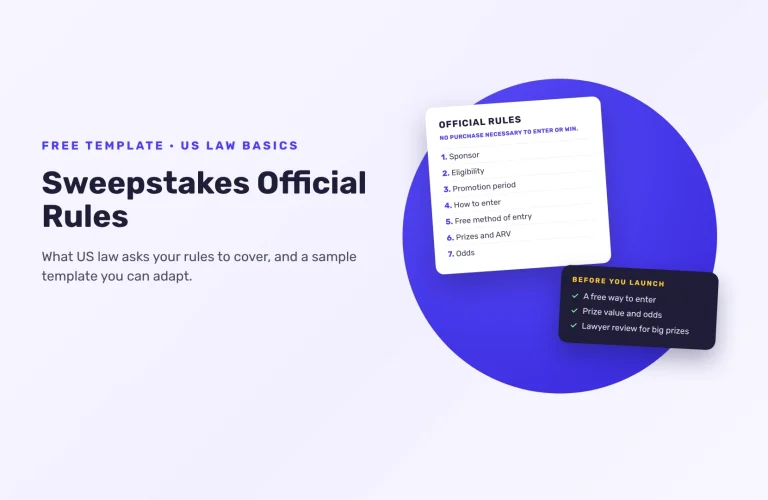
Before you collect a single entry, publish official rules. They should cover who can enter, the entry window, how winners are picked, the prize, and how you’ll contact the winner. Say clearly that the draw is random. Our official rules template is a good start, and the Terms and conditions generator in the giveaway builder is on every plan.
Don’t require a purchase to enter: in the US, the FTC says a sweepstakes that requires a purchase to enter is illegal. See No Purchase Necessary and Sweepstakes vs contest vs lottery. If the prizes total more than $5,000 and the promotion is tied to consumer products or services, you may have to register ahead of time with New York and Florida, and may need a bond or deposit. More in Is my giveaway legal? On Facebook or Instagram, entrants must release Meta and hold it harmless, and acknowledge that Meta doesn’t sponsor or run the promotion.
If your prize is a sponsor’s product, or an influencer or partner is promoting the giveaway, label it as a paid partnership or sponsored. The FTC publishes guidance on disclosures.
This is general information, not legal advice. Rules for giveaways vary by country and state, so check the official sources, and ask a lawyer if the prize is large.
Step 4: Set up your Live Draw
Once entries are in, set up the draw.
- Open Live Draw for your giveaway.
- Set the number of winners. Remember your plan’s limit.
- Add a minimum or maximum entry filter if you want one.
- Pick your reveal: Instant, Countdown or Spin Wheel.
- Test it on the screen you’ll use at the event.
Spin Wheel and Countdown add suspense on a big screen. Instant suits a quick draw between talks or on a live stream with chat moving fast.
Step 5: Run the draw live
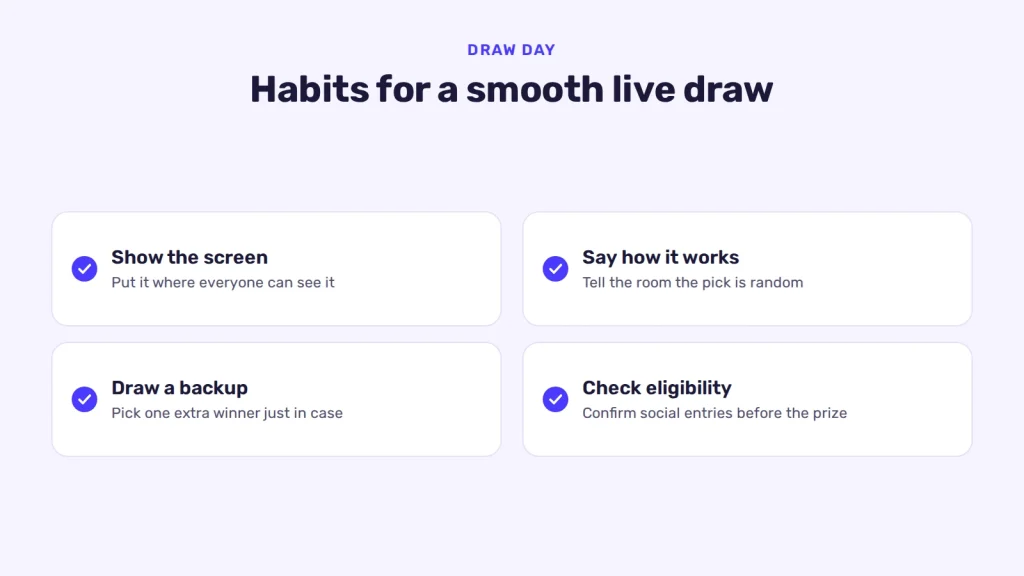
Put the screen where everyone can see it. Switch to Present mode and press the Spacebar to draw the next winner. The screen shows only the winner’s name and the prize.
A few habits help:
- Say how it works. Tell the room the pick is random from all entries.
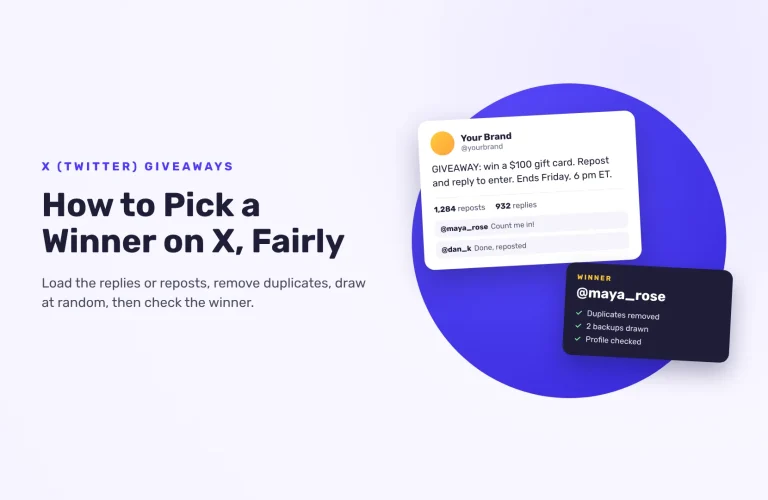
- Draw a backup. Pick one extra winner in case the first isn’t there or doesn’t qualify.
- Check eligibility. If you need to confirm a social entry, do it before you hand over the prize.
- Announce late. Drawing near the end gives people a reason to stay. This works well when you launch a product.
- Record the draw. SweepWidget keeps only the current winners list, with no draw log, so screenshot or screen-record the result.
Step 6: Contact the winners safely
For anyone not in the room, message the winner from your official account and tell them how to claim the prize. Warn everyone that you’ll never ask for payment, card details or a “fee” to release a prize. Fake winner scams are common, and scammers copy real giveaways. Post the winner’s first name or handle on your official page so people can check the result.
When a live picker isn’t enough
A spin wheel on a screen is fine for a small room. But if you’re running a larger event, you’ll likely want more than a draw:
- Fraud controls. The Premium plan adds email verification code, geo-blocking and email and IP whitelists. Enterprise adds phone (SMS) verification.
- All entrant emails. Free lets you view or download up to 10 entrants’ emails. Pro and above give you all of them.
- More winners. Free allows 1 winner. Pro allows 50, Business 250, Premium 1,000 and Enterprise unlimited.
To pick a winner without the live reveal, see our trade show contest winner picker guide.
Ready to run your first giveaway?
Start free on SweepWidget and move to Pro when you want to view and download all your entrants’ emails and use Live Draw. Fraud controls such as email verification and geo-blocking are on Premium.
No credit card required
FAQ
No. Free users see “Please upgrade to a paid plan to do live draws.” Free does include unlimited campaigns and unlimited entries, and you can view or download up to 10 entrants’ emails.
Up to 250 per draw, but your plan’s winner limit still applies: Pro 50, Business 250, Premium 1,000, Enterprise unlimited. Winners you’ve already picked count toward the limit.
No. It shows only the winner’s name and the prize.
Use an attendance code through Create Your Own Entry, revealed during the session. For a single kiosk or tablet, the IP restriction in the Security tab works too, and it needs the Premium plan.
Yes. Live Draw is built for live streams, webinars and events. Share your screen, switch to Present mode and press the Spacebar to draw. Live Draw needs Pro or above.