How To Cancel An Upgraded SweepWidget Plan
In this article, we will learn how to cancel an upgraded SweepWidget plan.
First, log in to your SweepWidget account.
Click the profile icon in the top right corner and click Billing.
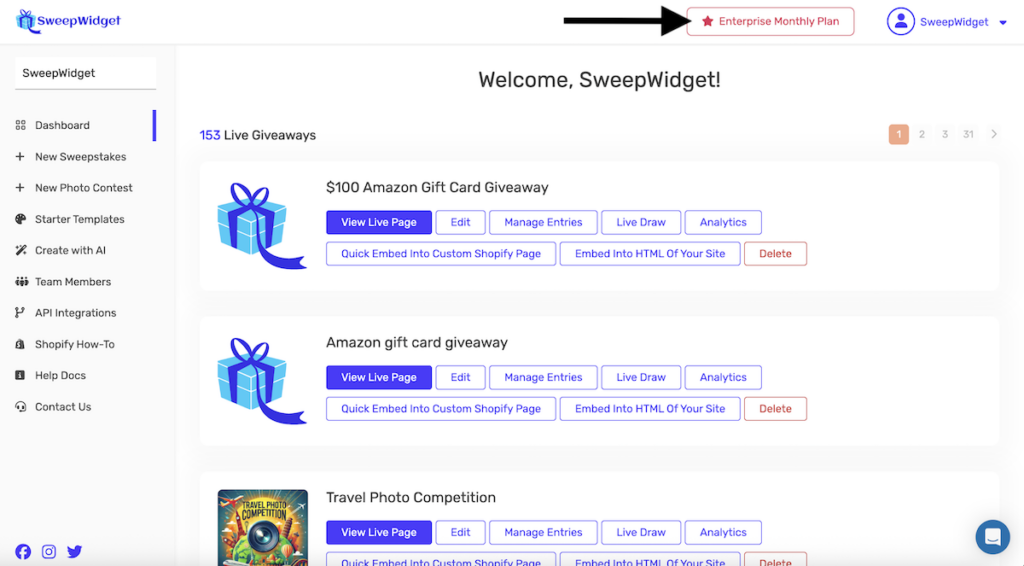
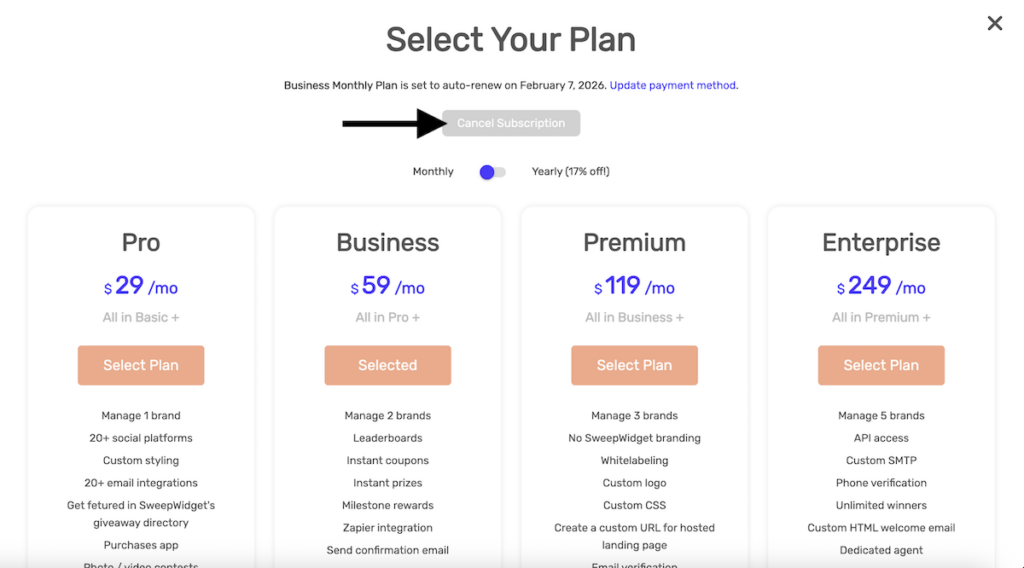
Click the Cancel Subscription button under Current Plan.
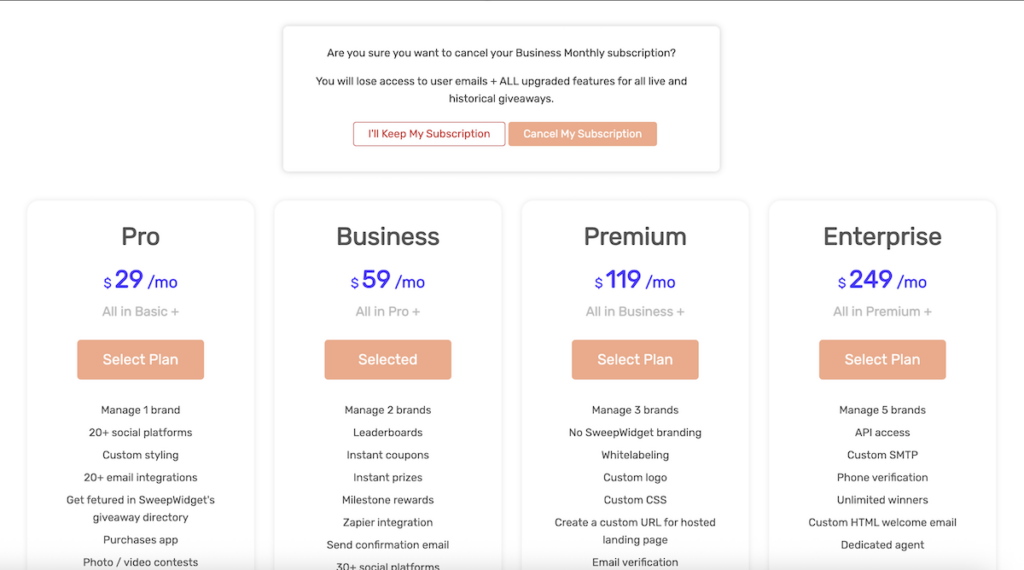
Choose a reason for cancelling and click Cancel My Subscription.
The Billing page now shows “Your plan will cancel on [date]. You keep full access until then.”
What happens next
- You keep your paid plan until the end of the billing period you already paid for.
- On that date all your brands move to the Free plan. Your giveaways and entries are not deleted.
- Extra brand slots and team member seats end with the subscription.
- Changed your mind before that date? Click Resume Subscription on the Billing page.
Cancelling does not refund the current period. See the Refund Policy in our Terms of Use.
If you use SweepWidget through the Shopify or Wix app, the profile menu shows Manage Subscription instead of Billing, and your plan is billed through that platform.