
CRM & Email Integration Setup Guide
Pro Plan Required
SweepWidget integrates with 35+ email marketing platforms and CRMs. When a user subscribes to your newsletter through a giveaway entry method, their information is automatically added to your email list.
This guide covers how to set up each integration, including where to find your API credentials.
Quick Reference: Authentication Types
Our CRM integrations use two authentication methods:
- OAuth (One-Click Connect): Click a button to authorize SweepWidget with your account. No API key needed.
- API Key: Copy your API key from your CRM’s settings and paste it into SweepWidget.
| Platform | Auth Type | Additional Info Needed |
|---|---|---|
| ActiveCampaign | API Key | API URL |
| Aweber | OAuth | — |
| Braze | API Key | — |
| Campaign Monitor | API Key | Client ID |
| Constant Contact | OAuth | — |
| ConvertKit | API Key | — |
| Drip | API Key | Account ID |
| EmailOctopus | API Key | — |
| GetResponse | API Key | — |
| HubSpot | OAuth (Connect Account) | Contact list selection |
| Iterable | API Key | — |
| Klaviyo | API Key | — |
| Mailchimp | API Key | — |
| MailerLite | API Key | — |
| MailJet | API Key | Secret Key |
| OmniSend | API Key | — |
| Pabbly | API Key | — |
| SendFox | API Key | — |
| Sendgrid | API Key | — |
| Sendy | API Key | Installation URL, List ID |
| Beehiiv | API Key | — |
| Benchmark Email | API Key | — |
| Brevo (Sendinblue) | API Key | — |
| Campaigner | API Key | — |
| Cordial | API Key | — |
| Customer.io | API Key | Site ID, Tracking API Key |
| E-goi | API Key | — |
| Emma | API Key | Public Key, Private Key, Account ID |
| Listrak | API Key | Client ID, Client Secret |
| Maropost | API Key | Account ID |
| Ontraport | API Key | App ID |
| Ortto (Autopilot) | API Key | — |
| Sailthru | API Key | API Secret, List Name (manual) |
| Selligent | API Key | API Secret, Organization Name |
| Sendlane | API Key | Hash Key, Subdomain |
| Vero | API Key | Auth Token |
| Vision6 | API Key | API Endpoint URL |
How to Set Up a CRM Integration
Follow these steps to connect your email platform:
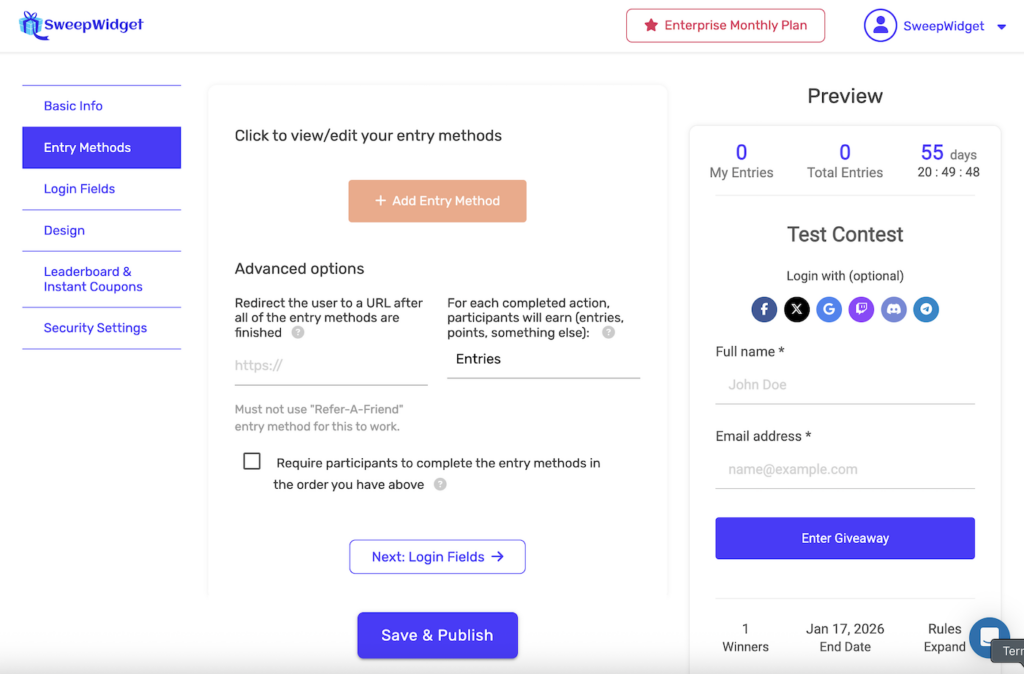
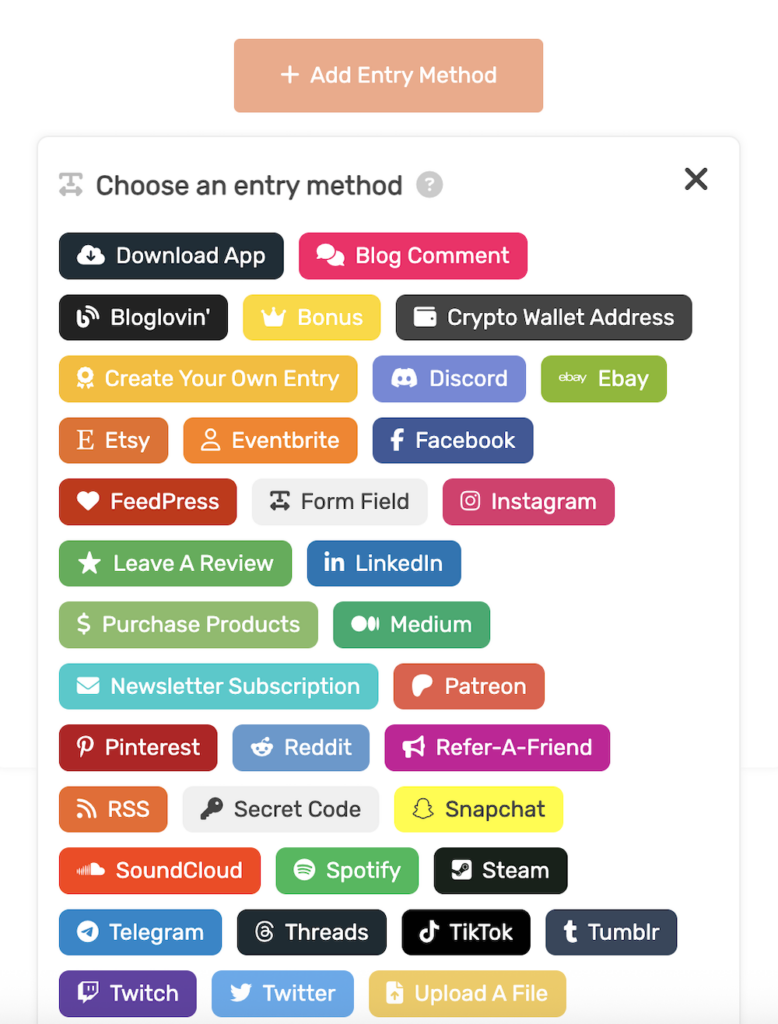
- In your giveaway editor, go to Entry Methods
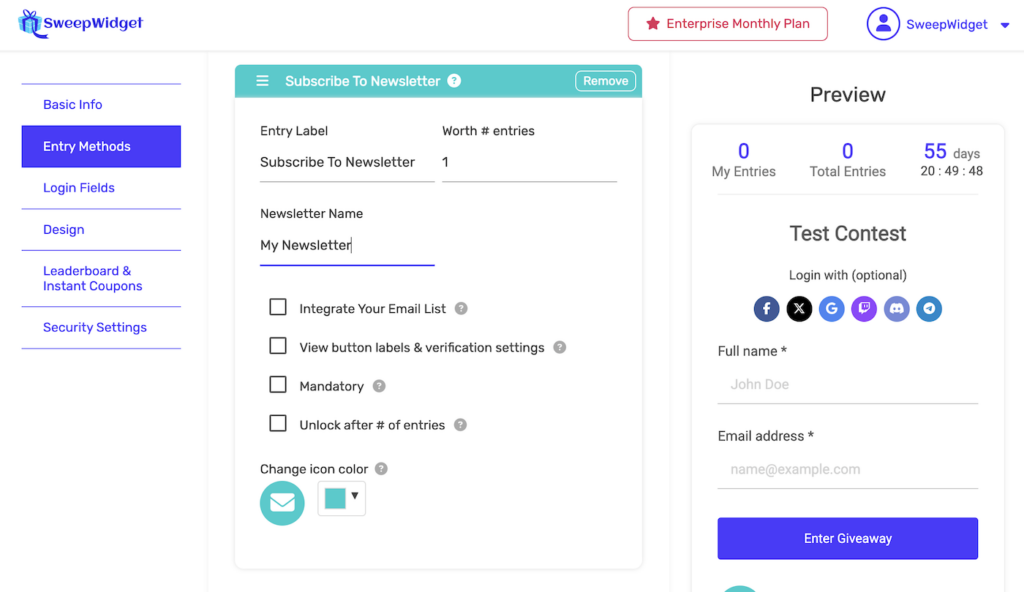
- Add a Subscribe To Newsletter entry method
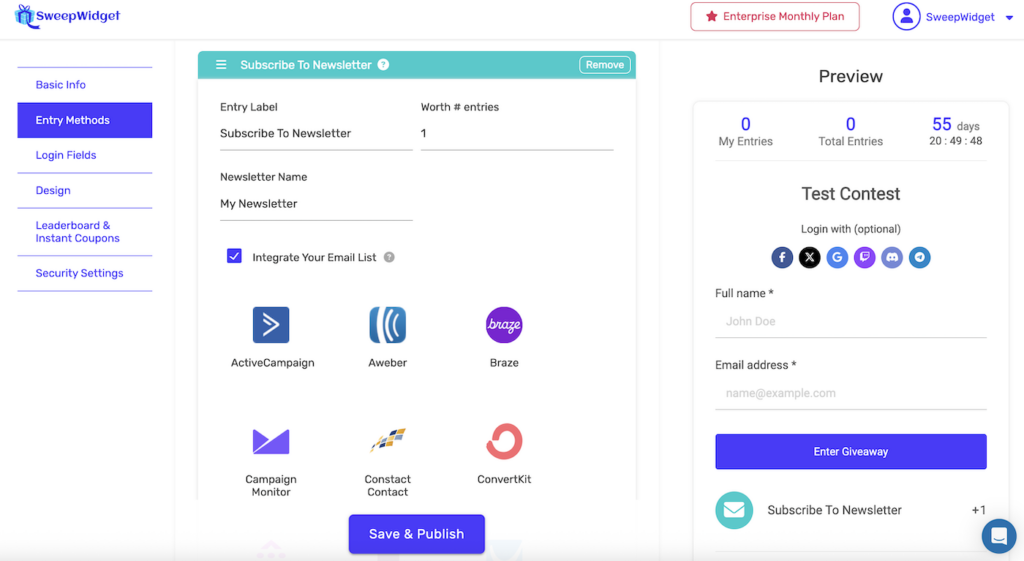
- Check Integrate Your Email List
- Select your email platform from the grid
- Enter your credentials (see platform-specific instructions below)
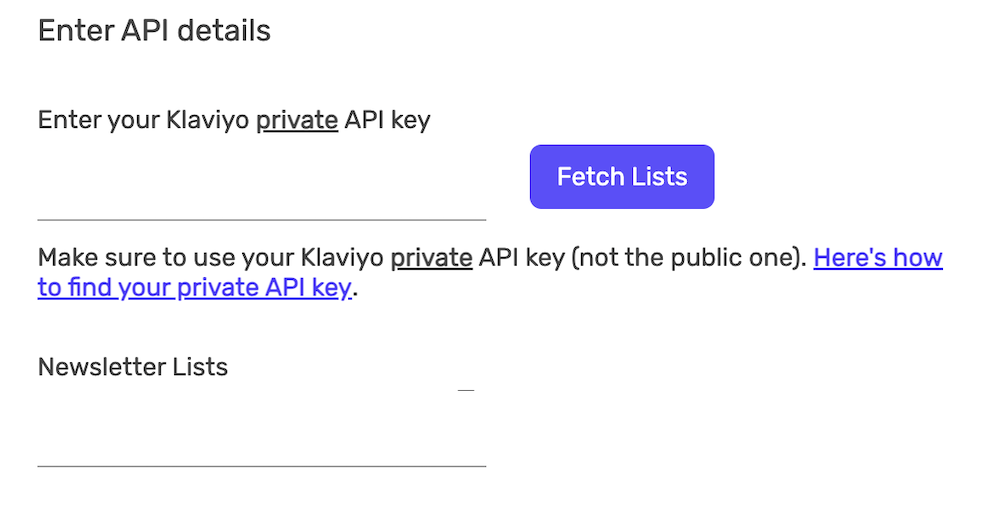
- Click Fetch Lists to load your email lists
- Select the list you want subscribers added to
OAuth Integrations (One-Click)
Aweber
- Select Aweber from the integration grid
- Click Connect Your Aweber Account
- Log in to Aweber and authorize SweepWidget
- You’ll be redirected back—click Fetch Lists
- Select your list
Constant Contact
- Select Constant Contact from the integration grid
- Click Connect Your Constant Contact Account
- Log in to Constant Contact and authorize SweepWidget
- You’ll be redirected back—click Fetch Lists
- Select your list
HubSpot
Authentication: OAuth 2.0 (Connect Your Account)
- In the giveaway builder, add a “Subscribe to Newsletter” entry method
- Select HubSpot from the provider grid
- Click Connect Your HubSpot Account – a popup will open
- Log in to your HubSpot account and authorize SweepWidget
- Once connected, click Fetch Lists to load your contact lists
- Select the contact list where new entrants should be added
- Save your giveaway
Note: Only static (manual) contact lists are available for selection. Dynamic/smart lists cannot have members added via API.
Data sent to HubSpot: Email address, first name, last name, and phone number (if collected).
API Key Integrations
Mailchimp
Where to find your API key:
- Log in to Mailchimp
- Click your profile icon → Account & billing
- Go to Extras → API keys
- Click Create A Key (or copy an existing one)
Mailchimp API key documentation
ActiveCampaign
Where to find your API key and URL:
- Log in to ActiveCampaign
- Go to Settings → Developer
- Copy your API URL (e.g., https://yourname.api-us1.com)
- Copy your API Key
ActiveCampaign API documentation
Klaviyo
Where to find your API key:
- Log in to Klaviyo
- Click Settings (gear icon) → API Keys
- Create a new Private API Key or copy an existing one
ConvertKit
Where to find your API key:
- Log in to ConvertKit
- Go to Settings → Advanced
- Copy your API Key
MailerLite
Where to find your API key:
- Log in to MailerLite
- Go to Integrations → Developer API
- Click Generate new token or copy an existing one
GetResponse
Where to find your API key:
- Log in to GetResponse
- Go to Menu → Integrations and API → API
- Click Generate API key
Drip
Where to find your API key and Account ID:
- Log in to Drip
- Go to Settings → User Settings → API Token
- Copy your API Token
- Your Account ID is in your Drip URL (e.g., app.drip.com/12345678/)
Sendgrid
Where to find your API key:
- Log in to Sendgrid
- Go to Settings → API Keys
- Click Create API Key
- Give it Full Access or at minimum Marketing → Contacts permissions
Braze
Where to find your API key:
- Log in to Braze
- Go to Settings → APIs and Identifiers
- Copy your REST API Key
Campaign Monitor
Where to find your API key and Client ID:
- Log in to Campaign Monitor
- Click your profile → Account settings
- Go to API keys → Show API Key
- Your Client ID is also on this page
Iterable
Where to find your API key:
- Log in to Iterable
- Go to Integrations → API Keys
- Create a new key with appropriate permissions
MailJet
Where to find your API key and Secret key:
- Log in to MailJet
- Go to Account Settings → API Key Management
- Copy both your API Key and Secret Key
Sendy
Sendy is self-hosted, so you need:
- API Key: Found in Sendy → Settings → API key
- Installation URL: Your Sendy installation URL (e.g., https://yourdomain.com/sendy)
- List ID: Found in Sendy → Your List → List ID
Other Platforms
For EmailOctopus, OmniSend, Pabbly, and SendFox, check your platform’s settings or developer section for API credentials. Most have an “API” or “Integrations” section in account settings.
Additional Integrations
The following integrations are also available. Setup is similar to the platforms above. Select the provider from the integration grid, enter your credentials, and click Fetch Lists (where applicable).
| Platform | Credentials Needed | List Behavior |
|---|---|---|
| Beehiiv | API Key | Fetches publications |
| Brevo (Sendinblue) | API Key | Fetches lists |
| Benchmark Email | API Key | Fetches lists |
| Sendlane | API Key + Hash Key + Subdomain | Fetches lists |
| Ontraport | API Key + App ID | Fetches tags |
| Vero | Auth Token | Event-based (no list selection) |
| Customer.io | Site ID + Tracking API Key | Event-based (no list selection) |
| E-goi | API Key | Fetches lists |
| Emma | Public Key + Private Key + Account ID | Fetches groups |
| Ortto (Autopilot) | API Key | Fetches audiences |
| Sailthru | API Key + API Secret + List Name (manual entry) | Manual list name entry |
| Campaigner | API Key | Fetches lists |
| Maropost | API Key + Account ID | Fetches lists |
| Cordial | API Key | Adds contacts directly (no list selection) |
| Vision6 | API Key + API Endpoint URL | Fetches lists |
| Selligent | API Key + API Secret + Organization Name | No list selection |
| Listrak | Client ID + Client Secret | Fetches lists |
Troubleshooting
“Fetch Lists” not working
- Verify your API key is correct (no extra spaces)
- Check that your API key has the necessary permissions
- For ActiveCampaign: ensure the API URL matches your account
- For OAuth integrations: try disconnecting and reconnecting
Subscribers not appearing in my CRM
- Check that you selected the correct list
- Some CRMs have a delay before new contacts appear
- Verify the entry method is set to “Mandatory” if you want all users added
Need a different CRM?
If your email platform isn’t listed, you have two options:
- Use our Zapier integration to connect to 5,000+ apps