
SweepWidget Google Fonts Integration
SweepWidget integrates with Google Fonts, giving you access to over 900 font families to customize your giveaway widget. You can change fonts for both the body text and title, plus adjust colors and sizes.
How to Access Font Settings
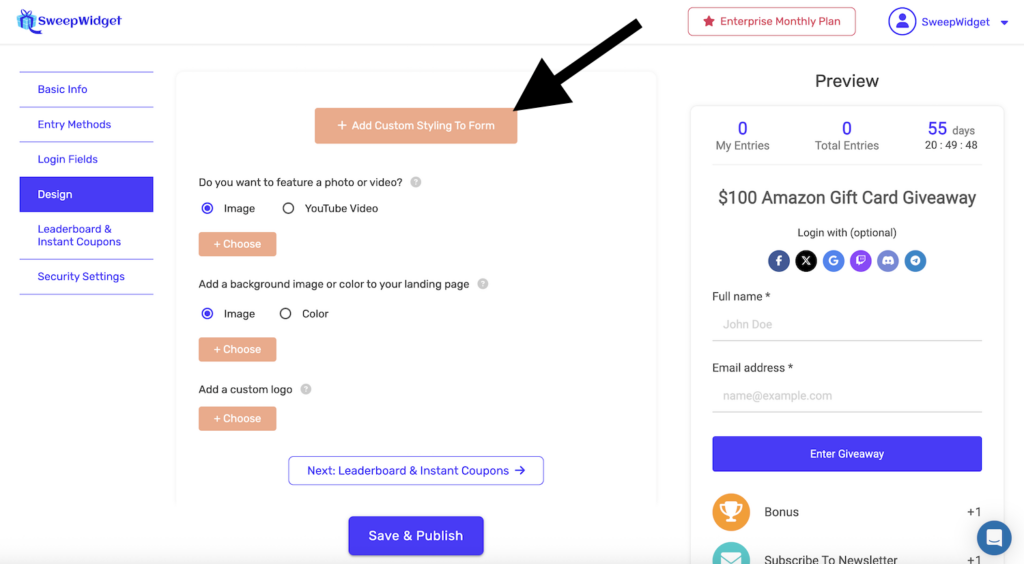
Step 1: Go to the Design Tab
- Create or edit a giveaway
- Click on the Design tab in the left sidebar
Step 2: Open the Style Editor
Click the + Add Custom Styling To Form button to expand the style editor options.
Font Settings Overview
The style editor provides the following font customization options:
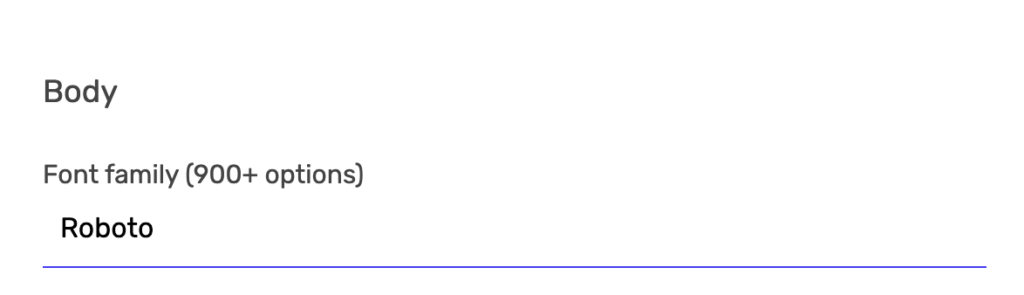
Body Settings
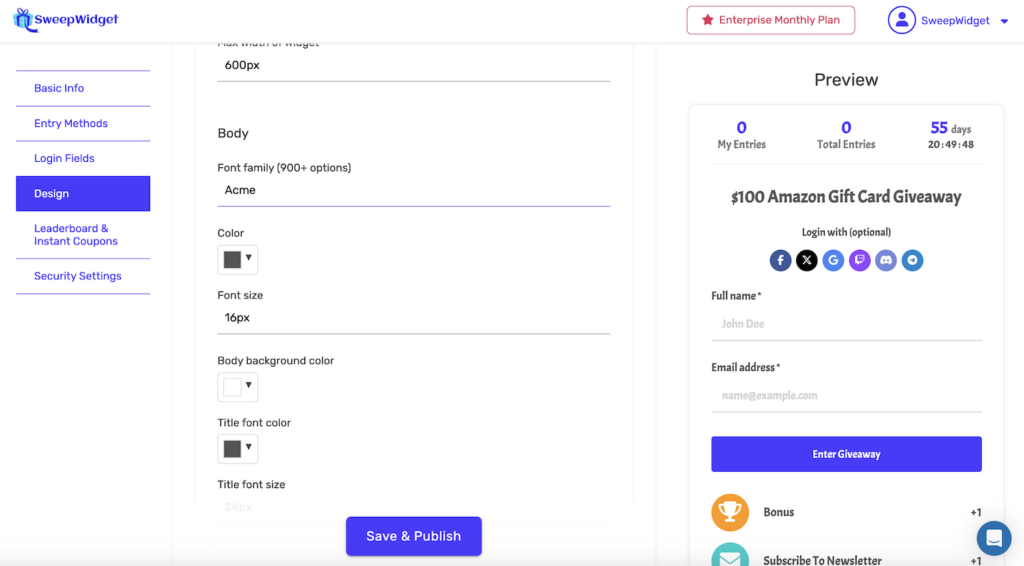
These settings control the main text throughout your widget (entry methods, descriptions, labels, etc.):
| Setting | Description | Default |
|---|---|---|
| Font family (900+ options) | Choose from over 900 Google Fonts | Roboto |
| Color | Text color for body content | Black |
| Font size | Size of body text in pixels | 16px |
| Body background color | Background color of the widget body | White |
Title Settings
These settings control your giveaway title:
| Setting | Description | Default |
|---|---|---|
| Title font color | Color of the giveaway title | Black |
| Title font size | Size of the title in pixels | 24px |
Widget Width
| Setting | Description | Default |
|---|---|---|
| Max width of widget | Maximum width of the widget in pixels | 600px |
How to Change the Font
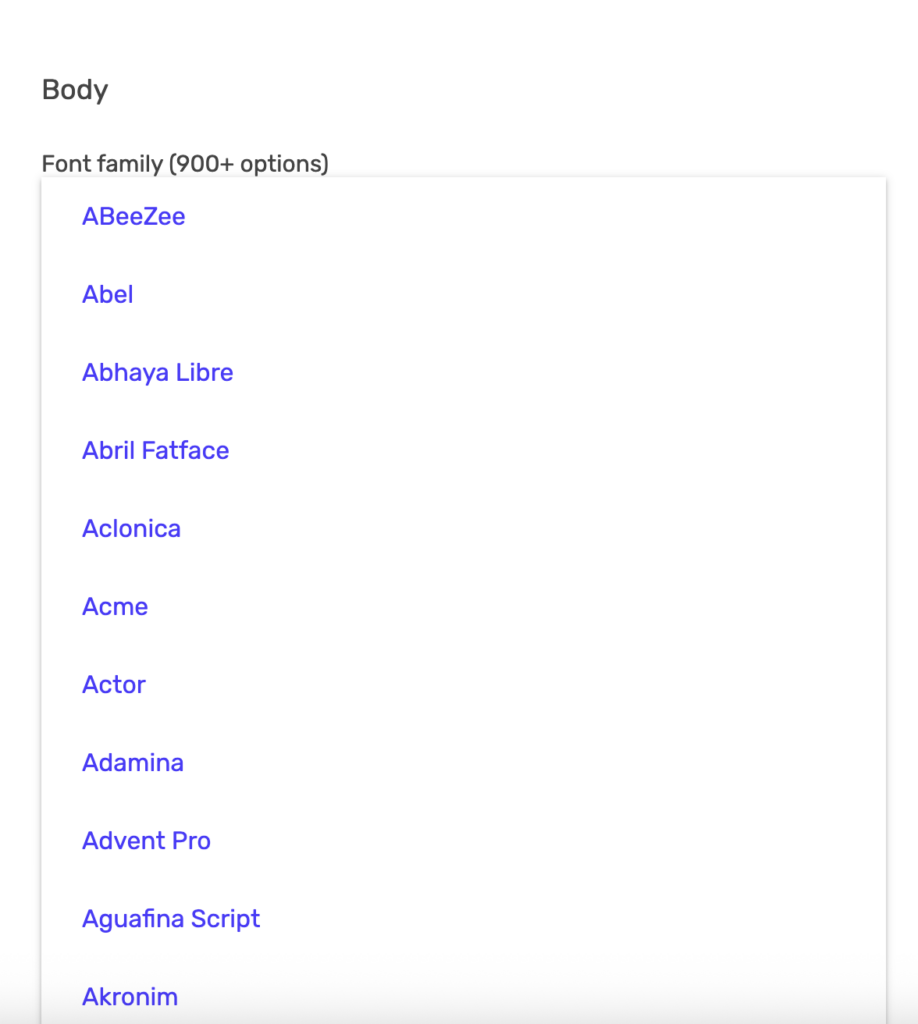
- In the Body section, click on the Font family dropdown (shows “Roboto” by default)
- A list of 900+ Google Fonts will appear, displayed in their actual font style
- Scroll through the list or start typing to search for a specific font
- Click on a font name to select it
- The preview on the right will update to show your selected font
Popular Google Fonts
Here are some popular font choices for giveaway widgets:
Clean & Modern
| Font | Style | Best For |
|---|---|---|
| Roboto | Sans-serif, neutral | General use, tech brands |
| Open Sans | Sans-serif, friendly | Easy readability |
| Lato | Sans-serif, warm | Professional look |
| Montserrat | Sans-serif, geometric | Bold headers, modern brands |
| Poppins | Sans-serif, rounded | Friendly, approachable |
Bold & Impactful
| Font | Style | Best For |
|---|---|---|
| Oswald | Sans-serif, condensed | Headlines, promotions |
| Bebas Neue | Sans-serif, all caps | Bold statements |
| Acme | Sans-serif, playful | Fun giveaways |
| Anton | Sans-serif, heavy | Strong headers |
Elegant & Sophisticated
| Font | Style | Best For |
|---|---|---|
| Playfair Display | Serif, classic | Luxury brands, elegant giveaways |
| Merriweather | Serif, readable | Long descriptions |
| Lora | Serif, balanced | Traditional look |
| Cormorant Garamond | Serif, refined | High-end products |
Fun & Creative
| Font | Style | Best For |
|---|---|---|
| Pacifico | Script, casual | Playful brands |
| Lobster | Script, bold | Eye-catching titles |
| Permanent Marker | Handwritten | Casual, fun giveaways |
| Comic Neue | Comic style | Kid-friendly contests |
Best Practices
- Match your brand – Use the same font as your website or marketing materials for consistency
- Prioritize readability – Choose fonts that are easy to read, especially for body text. Save decorative fonts for titles only.
- Test on mobile – Make sure your chosen font looks good on smaller screens
- Consider font size – If using a thin or light font, you may need to increase the font size for readability
- Limit font variety – Stick to 1-2 fonts maximum. Use the same font for body with different sizes for hierarchy.
- Check the preview – Always check the live preview on the right side before saving
Recommended Font Pairings
Since the body font applies to all widget text, here are some well-balanced choices:
| Font | Why It Works |
|---|---|
| Roboto (default) | Clean, professional, excellent readability at all sizes |
| Open Sans | Friendly and neutral, works with any brand |
| Lato | Warm yet professional, great for body text |
| Poppins | Modern and geometric, popular choice |
| Nunito | Rounded and friendly, approachable feel |
| Source Sans Pro | Clean and readable, designed for user interfaces |
Color Settings
Along with fonts, you can customize colors:
- Body text color – Click the color dropdown next to “Color” to change the main text color
- Body background color – Change the background color of the widget content area
- Title font color – Set a different color for your giveaway title
Each color picker allows you to:
- Select from preset colors
- Use the color gradient picker
- Enter a specific hex code (e.g., #FF5733)
Saving Your Changes
After customizing your fonts and colors:
- Review the preview on the right side of the screen
- Click Save & Publish to apply your changes
- View your live giveaway to confirm the styling looks correct
Troubleshooting
Font not displaying correctly
- Clear your browser cache and refresh the page
- Some fonts may not support all characters (especially non-Latin alphabets)
- Try a different font if the issue persists
Font looks different in preview vs. live
- Make sure you clicked Save & Publish
- Clear your browser cache on the live page
- If using custom CSS, it may be overriding your font settings