Pick a Winner – Live Draw (For Live Streams)
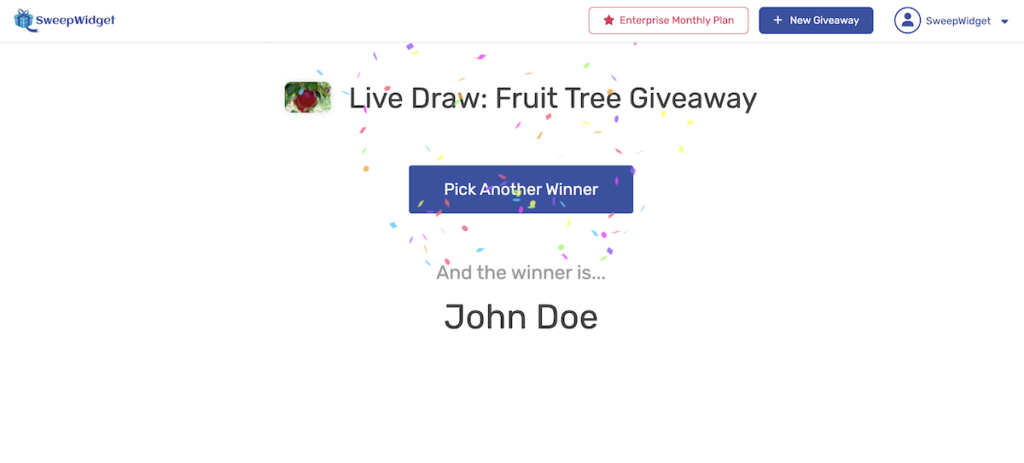
SweepWidget’s Live Draw lets you pick giveaway winners in real time, making it perfect for live streams, webinars, in-person events, and community giveaways. It only displays the winner’s name and prize, keeping email addresses and other sensitive information hidden from your audience.
How to Access Live Draw
From your SweepWidget dashboard, find the giveaway you want to draw winners for and click the “Live Draw” button.

Note: Live Draw requires a paid plan. Free plan users will see a message to upgrade.
Draw Settings
Once on the Live Draw page, you will see a settings panel on the left where you can configure your draw before picking winners.
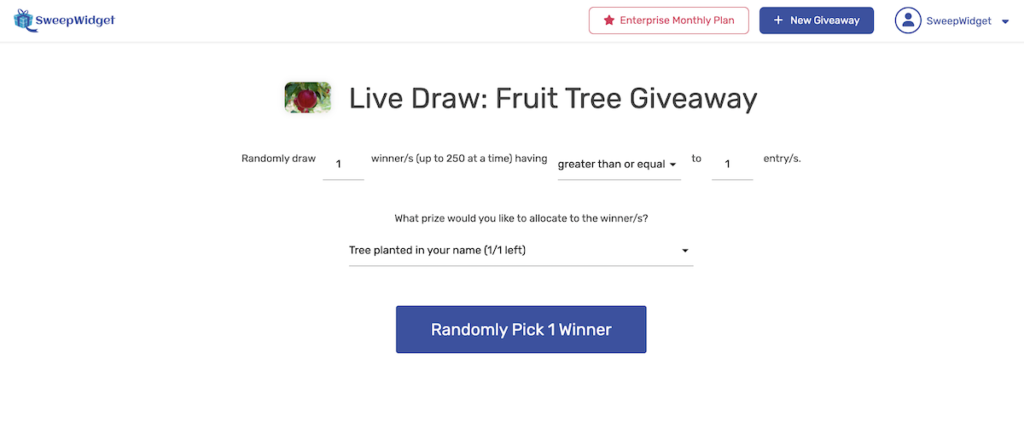
Number of Winners
Choose how many winners to draw at once (up to 250). If you are doing a live stream, drawing one at a time creates the most suspense for your audience.
Entry Filter
Set a minimum or maximum entry requirement for eligibility. For example, you can require participants to have greater than or equal to 5 entries to be included in the draw, which rewards your most engaged participants.
Unlimited Draws Mode
Enable the Unlimited draws checkbox to keep drawing winners continuously without being blocked by prize slot limits. This is especially useful for live events where you are giving away prizes on the spot and do not need the system to track prize inventory.
When unlimited mode is enabled:
- Draws are never blocked by prize limits. If a prize has no remaining slots, the winner is still recorded but without a prize assignment.
- If a prize is selected and slots are available, the prize is assigned as normal.
- All winners are still saved to the database for your records.
- The same person will not be drawn twice – each entrant can only win once.
When disabled (the default), the current behavior is preserved: draws will fail with an error if the selected prize has no remaining slots.
Reveal Styles
The Live Draw offers three different ways to reveal your winner. All three are purely visual presentations of a result that has already been determined by the server. No animation or user interaction can change the outcome.
Instant
Shows the winner’s name immediately with a confetti celebration. This is the fastest option and works well when you want to pick winners quickly without extra buildup.
Countdown
Builds suspense with a full-screen 3… 2… 1… countdown before revealing the winner’s name on a dramatic dark backdrop with confetti. This is ideal for live streams where you want to create excitement and give your audience time to react.
When drawing multiple winners, each winner is revealed one at a time with their own countdown sequence. The overlay automatically advances to the next winner after a few seconds, or you can click anywhere on the screen or the X button to skip ahead.
Spin Wheel
Displays a full-screen spinning wheel with real entrant names on it. The wheel shows a representative sample of your entrants (up to 36 names), with each segment sized proportionally to their entry count. After the wheel slows to a stop, the winner’s name is revealed with confetti.
Like the countdown, when drawing multiple winners the wheel spins once per winner. Click anywhere on the screen or the X button to skip the animation at any time.
Important: The winner is determined the moment you click “Randomly Pick Winners.” The reveal animations exist solely to make the experience more engaging. The spin wheel’s segments and landing position are engineered to present the pre-selected winner.
Sound Effects
Toggle sound on or off using the Sound button below the reveal style selector. When enabled, you will hear countdown beeps and a winner fanfare. If you are on a live stream with your own music or audio, you may want to turn this off.
Presentation Mode (Full Screen)
Click the Present button to enter a full-screen presentation mode. This mode hides the rest of the dashboard and shows only the draw interface, making it perfect for screen sharing during a live stream or displaying on a large screen at an in-person event.
Press Escape or click the exit button in the top-right corner to return to the normal view.
Spacebar to Draw
While in presentation mode, press the Spacebar to draw the next winner. This lets you trigger draws without moving your mouse, which is ideal for stage presentations and live streams. The flow works like this:
- Enter presentation mode by clicking the Present button.
- Press Spacebar (or click the Draw Winner button) to start a draw.
- The winner is revealed with your chosen animation style (instant, countdown, or spin wheel).
- Press Spacebar again to immediately draw the next winner.
- Repeat as many times as needed. Press Escape to exit.
The spacebar only works while in presentation mode, so it will not interfere with typing in input fields on the normal draw page. During a reveal animation, additional spacebar presses are ignored to prevent accidental double-draws.
Presentation Mode Settings
Click the Present Mode Settings section below the draw controls to expand a panel with options for customizing the look of your presentation screen. All settings are saved automatically and persist across sessions.
Background
Choose from three background types:
- Default – A dark purple gradient, the standard look.
- Color – A solid color of your choice. Use the color picker or enter a hex code.
- Image – Upload a custom background image (JPG, PNG, GIF, or WebP, up to 10MB). The image is displayed full-screen and scaled to cover the entire display. This is great for branding your presentation with a company logo or event graphic on a large LED wall or projector.
When using a background image, you can adjust the Overlay darkness slider (0-80%) to darken the image so that winner names and other text remain easy to read.
Title and Subtitle
By default, presentation mode shows your giveaway title and “Live Draw” as the subtitle. You can override both with custom text (up to 200 characters each). Leave them blank to use the defaults.
Colors
Set custom colors for the title/subtitle text and the winner name text independently. Both default to white, which works well on dark backgrounds. If you are using a light background image or color, you can change these to a darker color for better contrast.
Show/Hide Elements
- Show logo – Toggle the giveaway logo image on or off. Uncheck this if your background image already includes your branding.
- Show stats – Toggle the stats bar (participants, entries, actions) on or off. Uncheck this if you prefer a cleaner look without numbers.
Prize Allocation
If your giveaway has prizes configured, a prize dropdown will appear in the draw settings. Select which prize to allocate to the winner(s) before drawing. The dropdown shows how many prize slots remain (e.g., “Grand Prize (2/3 left)”), so you always know what is available.
Winners Panel
The right side of the Live Draw page shows a running list of all winners. Each time you draw a new winner, they are added to this panel with their name and the prize they received. This panel persists across draws, so you can keep picking winners throughout your live stream.
After drawing, a Draw Next Winner button appears so you can do additional rounds without leaving the page.
Tips for Live Events and Streaming
- Use Presentation Mode for a clean, professional look when screen sharing or displaying on a large screen.
- Use the Spacebar in presentation mode to draw winners hands-free, perfect for stage presentations.
- Enable Unlimited Draws for in-person events where you want to keep drawing winners without worrying about prize slot limits.
- Upload a custom background to brand the presentation screen with your company or event graphics.
- Draw one winner at a time with the Countdown or Spin Wheel reveal style to maximize suspense.
- Turn sound off if you have your own stream audio to avoid overlap.
- Set entry requirements to reward participants who completed the most actions in your giveaway.
- The Live Draw never shows email addresses or sensitive data, so it is safe to share your screen with your audience.