
Add A Background Color To Your Hosted Landing Page
Customize your hosted landing page by adding a background color that matches your brand. This simple change can make your giveaway look more professional and visually appealing to participants.
Why Add a Background Color?
- Brand consistency – Match your giveaway to your brand colors
- Visual appeal – Create a more polished, professional appearance
- Stand out – Differentiate your giveaway from the default white background
- Complement your design – Coordinate with your header image and widget colors
Note: The background color applies to hosted landing pages (sweepwidget.com/c/your-giveaway). If you embed the widget on your own website, your site’s background will be used instead.
How to Add a Background Color
Step 1: Go to Design Settings
- Create or edit a giveaway
- Click on the Design tab in the left sidebar
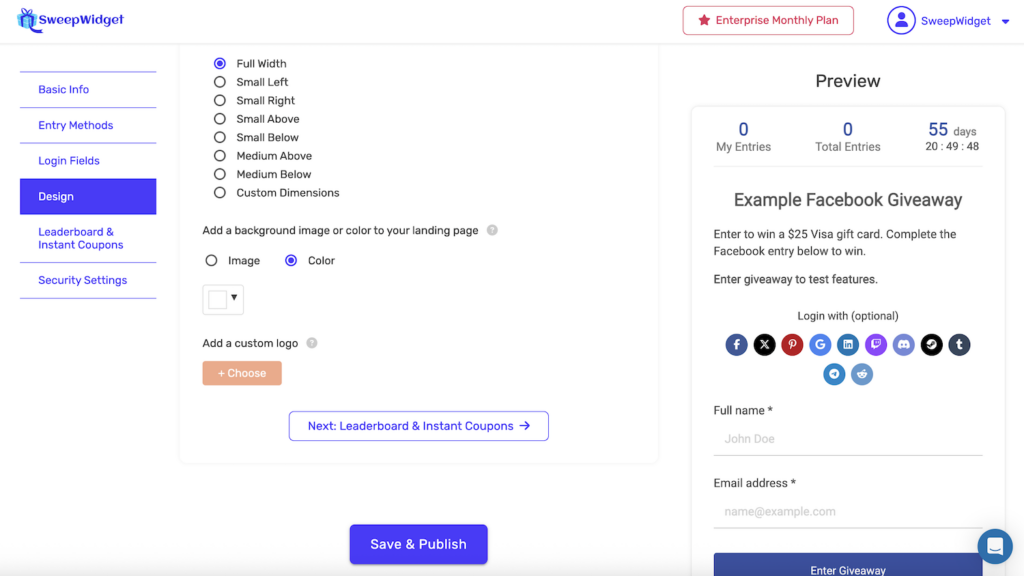
- Find the Add a background image or color to your landing page section
Step 2: Select the Color Option
You’ll see two options:
- Image – Upload a background image
- Color – Set a solid background color
Select Color to enable the background color option.
Step 3: Choose Your Color
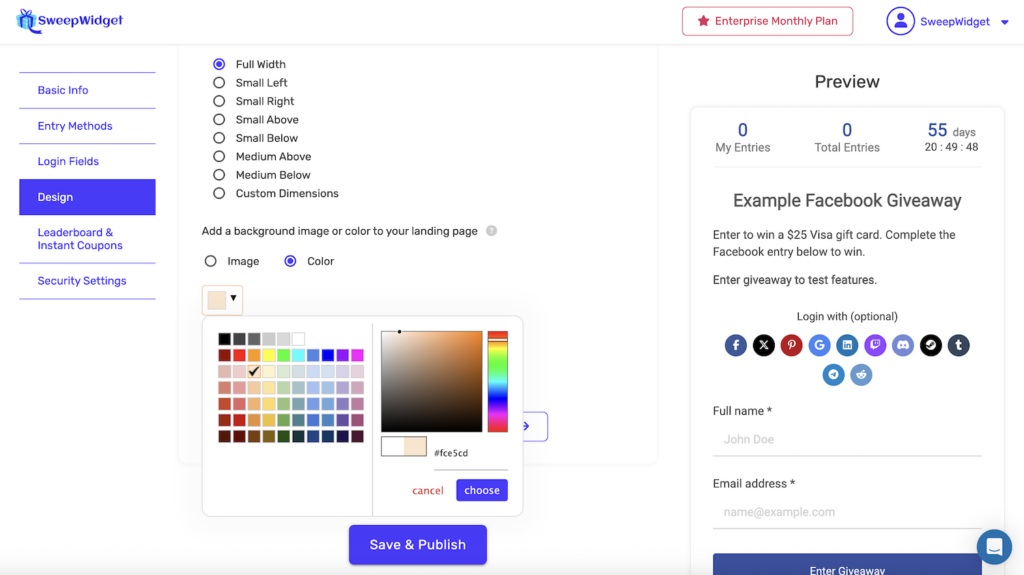
Click on the color swatch dropdown to open the color picker.
Color Picker Features
The color picker provides multiple ways to select your perfect color:
Preset Color Swatches
On the left side of the color picker, you’ll find a grid of preset colors. These include:
- Basic colors (black, white, grays)
- Primary colors (red, blue, yellow, green)
- Pastel shades
- Bold and vibrant options
Click any swatch to instantly select that color.
Gradient Color Picker
On the right side, you’ll find an advanced color selector with:
- Color gradient area – Click anywhere to select a specific shade and saturation
- Hue slider – The vertical rainbow bar lets you change the base color
- Preview swatch – Shows your currently selected color
Hex Color Input
Below the gradient picker, you can enter a specific hex color code (e.g., #fce5cd). This is useful when you need to match an exact brand color.
Confirming Your Selection
After selecting your color:
- Click choose to apply the color
- Click cancel to close without changes
What Participants See
On your hosted landing page, the background color fills the entire page behind the giveaway widget.
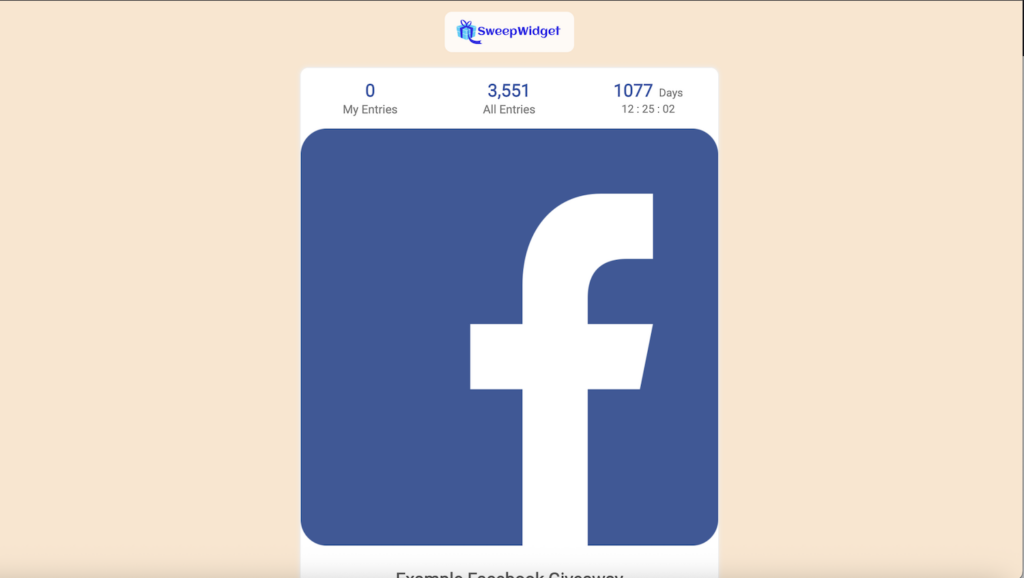
The widget itself remains white (or your customized widget colors), creating contrast against your chosen background.
Background Color vs. Background Image
| Option | Best For | Considerations |
|---|---|---|
| Color | Clean, simple designs; fast loading | Solid color only; no patterns or gradients |
| Image | Rich visuals; promotional graphics | Larger file size; may affect load time |
You can only choose one – either a background color OR a background image, not both.
Color Recommendations
Popular Background Color Choices
| Color Type | Example Hex Codes | Best For |
|---|---|---|
| Light neutrals | #f5f5f5, #fafafa, #f0f0f0 | Clean, professional look |
| Soft pastels | #fce5cd, #d9ead3, #cfe2f3 | Friendly, approachable feel |
| Brand colors | Your brand’s primary color | Strong brand recognition |
| Dark colors | #333333, #2c3e50, #1a1a2e | Bold, dramatic effect |
Tips for Choosing Colors
- Ensure readability – The widget has a white background, so most colors work well
- Match your brand – Use your brand’s secondary or accent colors
- Consider contrast – Your custom logo should be visible against the background
- Test on mobile – Preview how the color looks on smaller screens
- Avoid overly bright colors – Neon or extremely saturated colors can be hard on the eyes
Best Practices
- Use hex codes for precision – If you have specific brand colors, enter the exact hex code
- Coordinate with other design elements – Consider your header image, button colors, and logo
- Keep it subtle – Soft, muted colors often look more professional than bold, bright ones
- Preview before publishing – Check the live preview to see how your color looks
- Consider accessibility – Ensure sufficient contrast for users with visual impairments
Combining with Other Design Features
Background colors work well when combined with other design customizations:
- Custom logo – Add your brand logo above the widget
- Header image – Include a promotional image inside the widget
- Widget colors – Customize button colors and fonts to match
- Custom CSS – Advanced users can add additional styling