Image Display Options
Plan required: Pro or higher.
Add a featured image or YouTube video to your giveaway to make it more engaging. You can choose how the image appears in the widget.
Why add featured media?
- Showcase your prize with a product photo.
- Visual content attracts more participants.
- Reinforce your brand with branded imagery.
- Explain the giveaway with a YouTube video.
- Build excitement by showing what people can win.
How to add featured media
- Create or edit a giveaway.
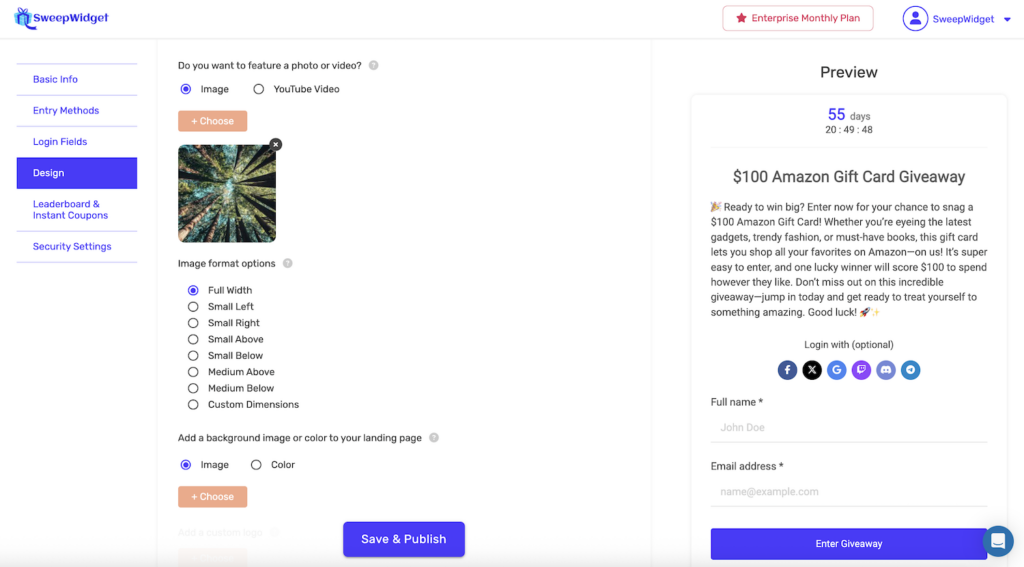
- Click the Design tab in the left sidebar.
- Find the Featured media section.
- Choose Image or YouTube Video.
Adding an image
- Select Image.
- Click Upload image and choose a file. Only JPG, JPEG and PNG files are accepted, up to 10 MB.
- A thumbnail preview appears. To remove it, click the X on the thumbnail.
- Choose an Image format (below).
- Click Publish (new giveaway) or Save Changes (existing giveaway).
Image format
| Format | Description | Best for |
|---|---|---|
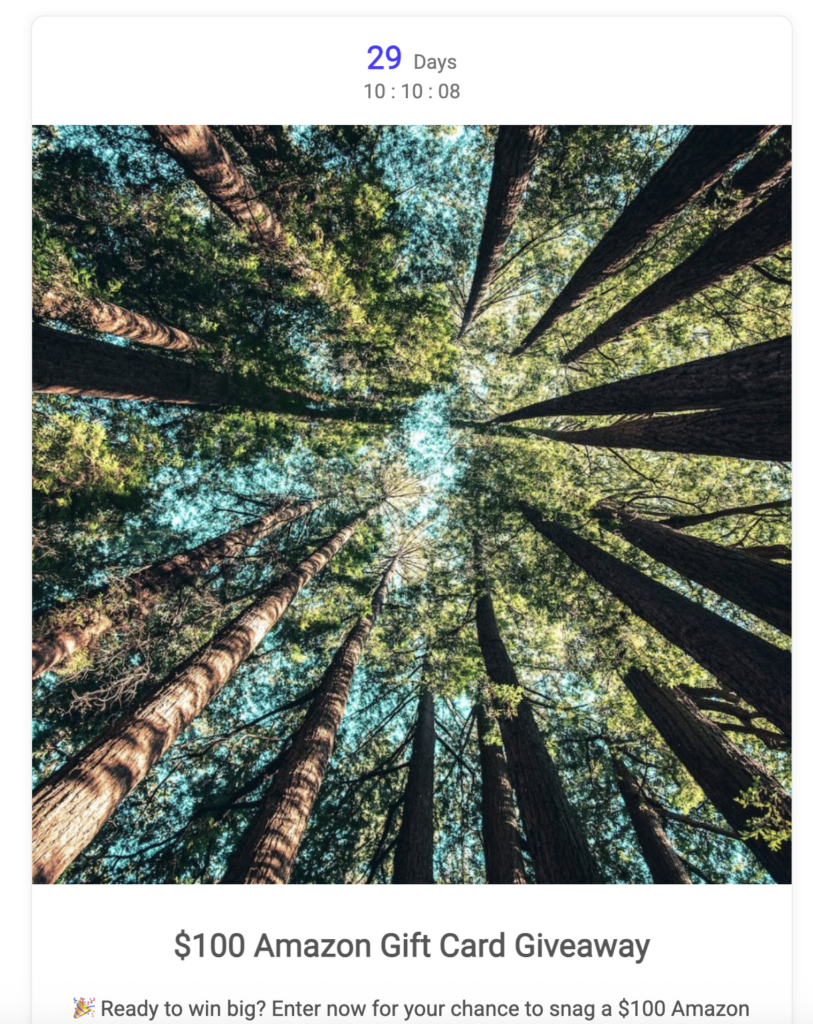
| Full Width | Large image across the full width of the widget, at the top | Hero images, banners |
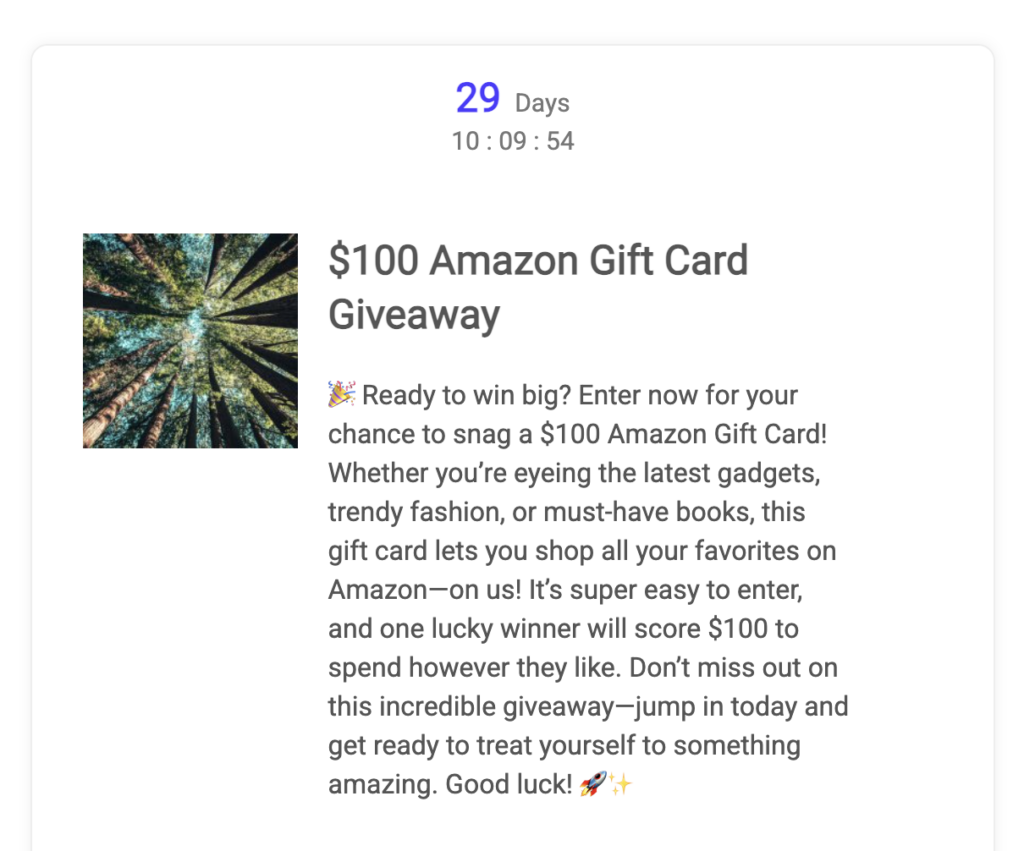
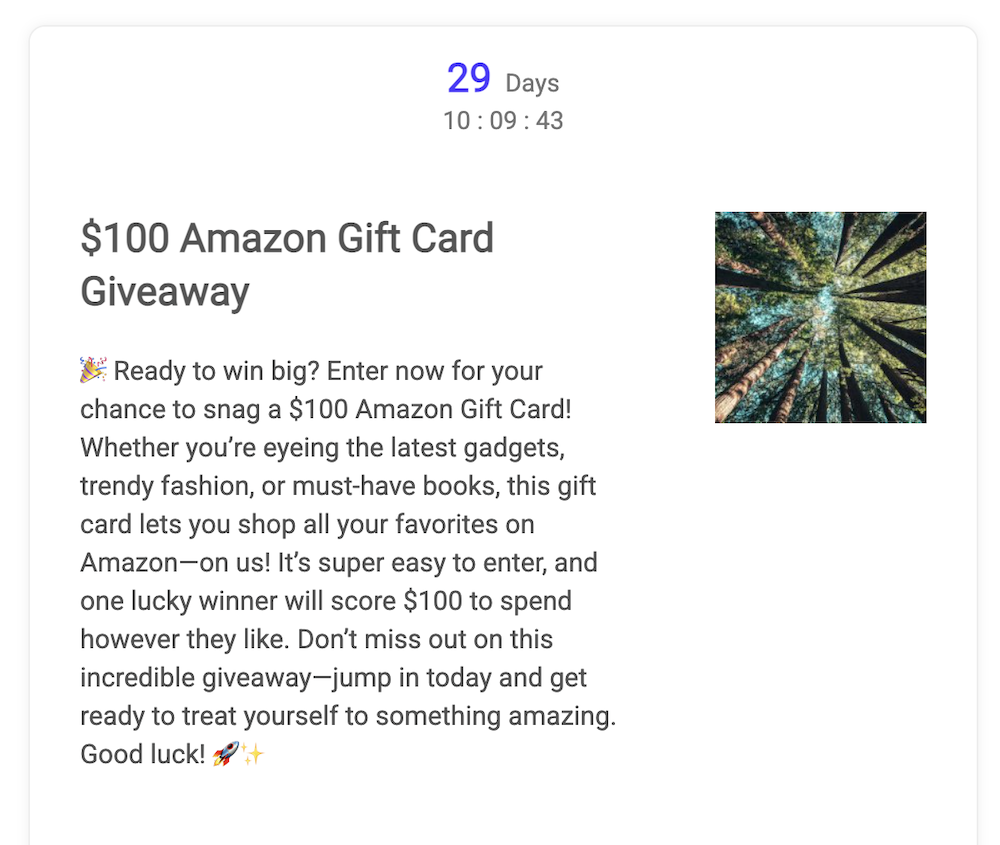
| Small Left | Small image on the left, title and description wrap on the right | Product thumbnails, logos |
| Small Right | Small image on the right, title and description on the left | Product thumbnails, logos |
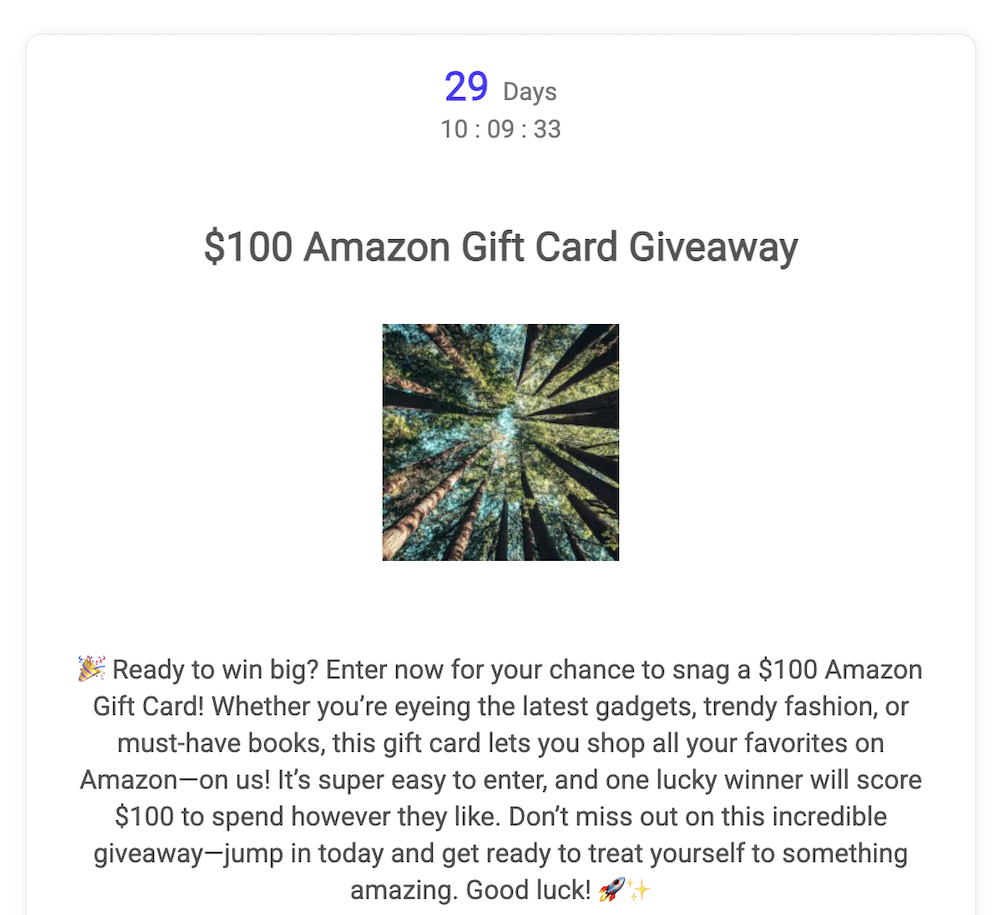
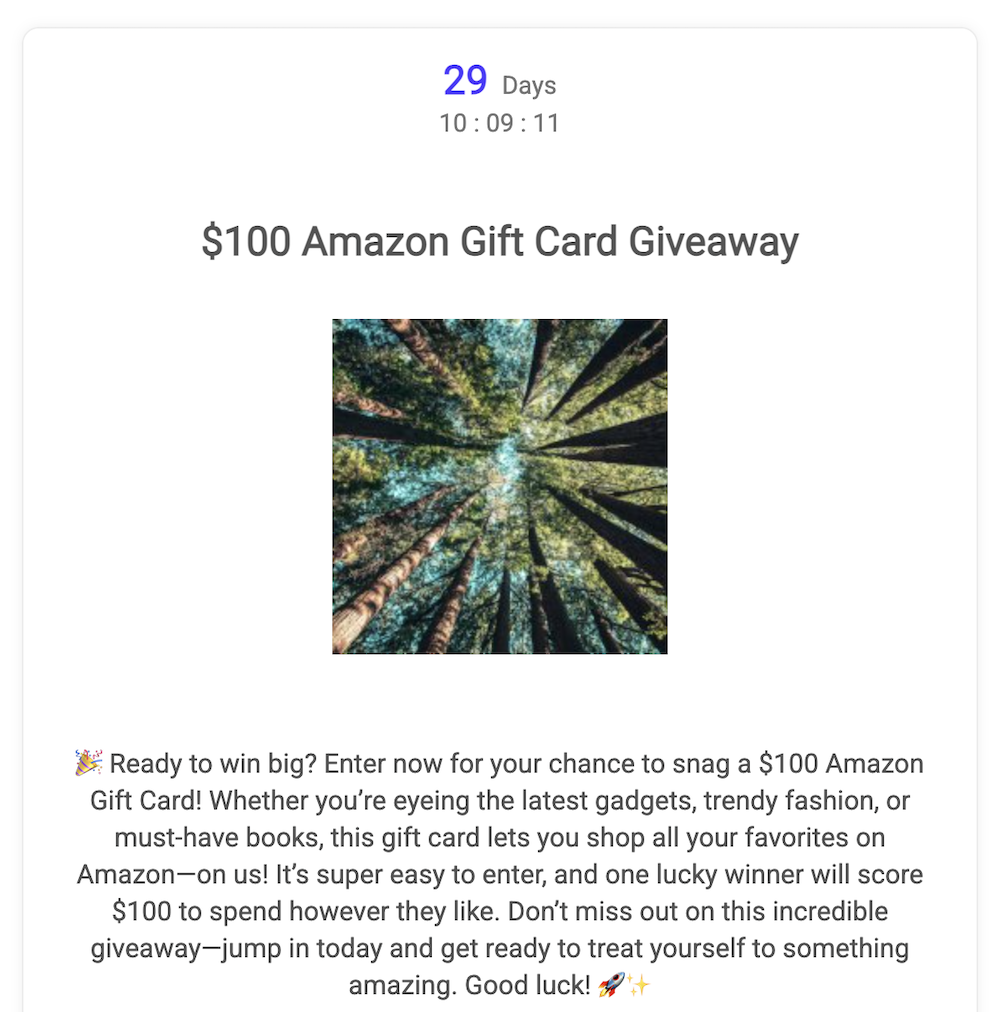
| Small Above | Small centered image between the title and description | Product shots, icons |
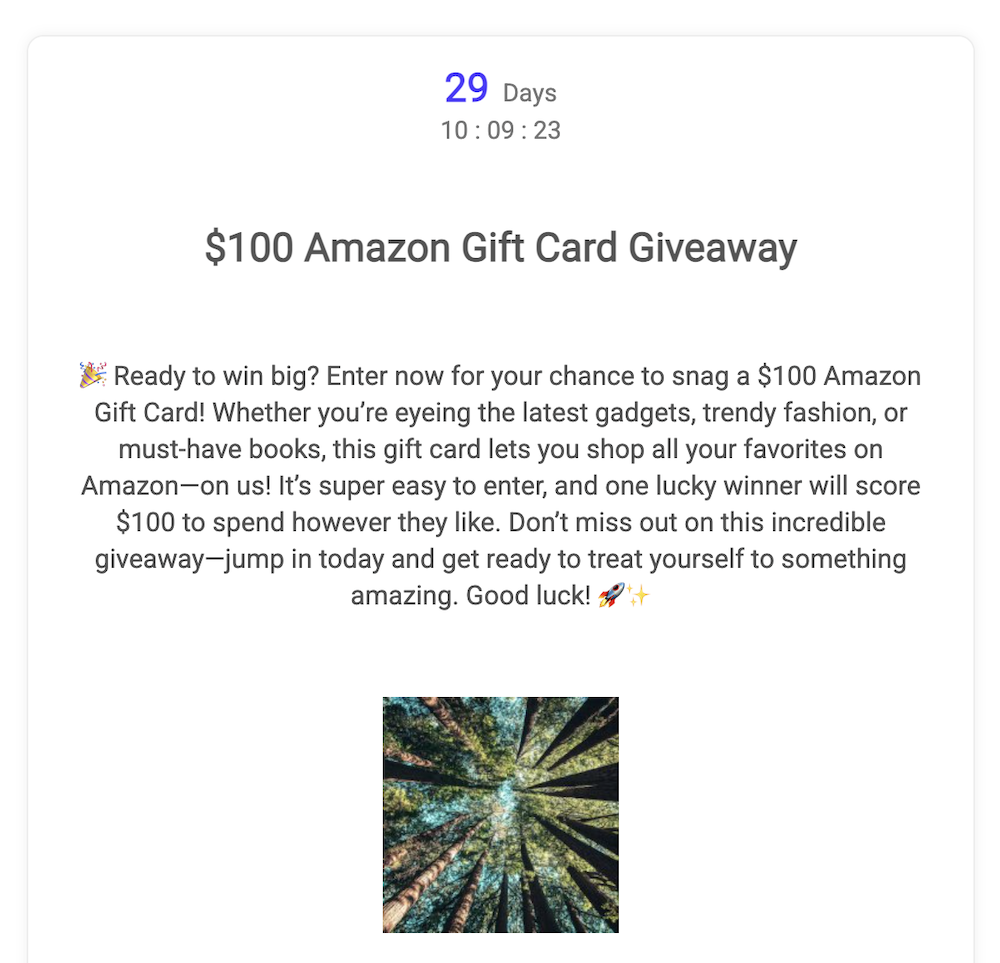
| Small Below | Small centered image below the description | Secondary visuals |
| Medium Above | Medium centered image between the title and description | Product photos, prize images |
| Medium Below | Medium centered image below the description | Product photos, prize images |
| Custom Dimensions | Exact width and/or height in pixels | Precise sizing |
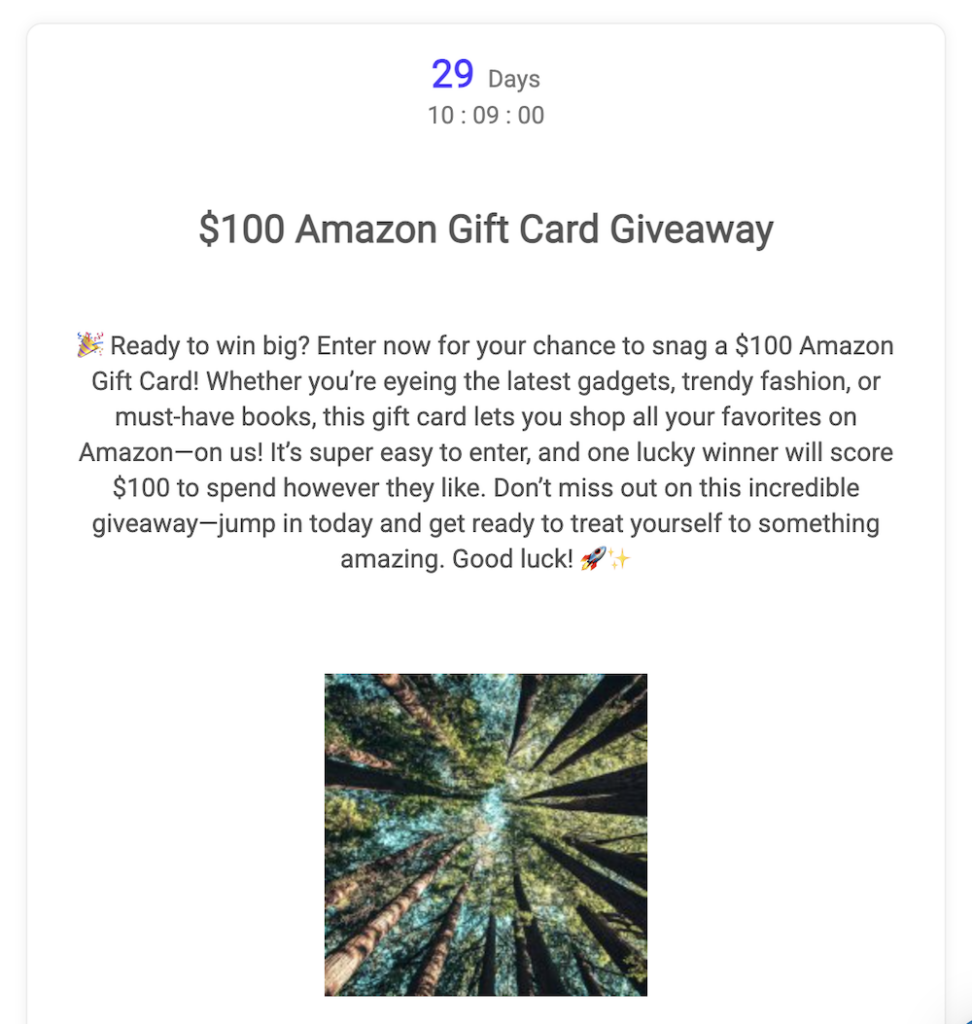
Custom dimensions
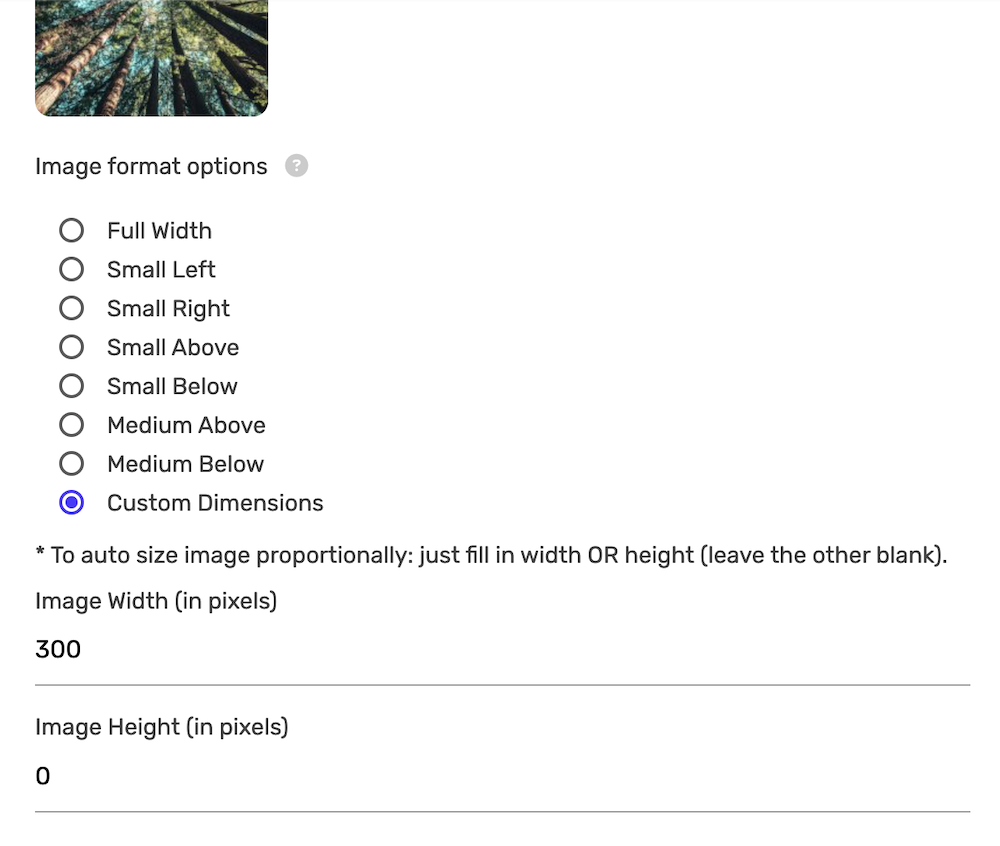
Select Custom Dimensions, then fill in Image Width (in pixels) and Image Height (in pixels). Fill in at least one.
To size the image proportionally, fill in only the width or only the height and leave the other blank.
Examples:
- Width 300, height blank: 300 pixels wide, height adjusts to keep the proportions.
- Width blank, height 200: 200 pixels tall, width adjusts.
- Width 300, height 200: forced to exactly 300 x 200 (the image may be distorted).
Featured YouTube Video
- Select YouTube Video.
- Paste the video link in YouTube video link.
- Click Publish or Save Changes.
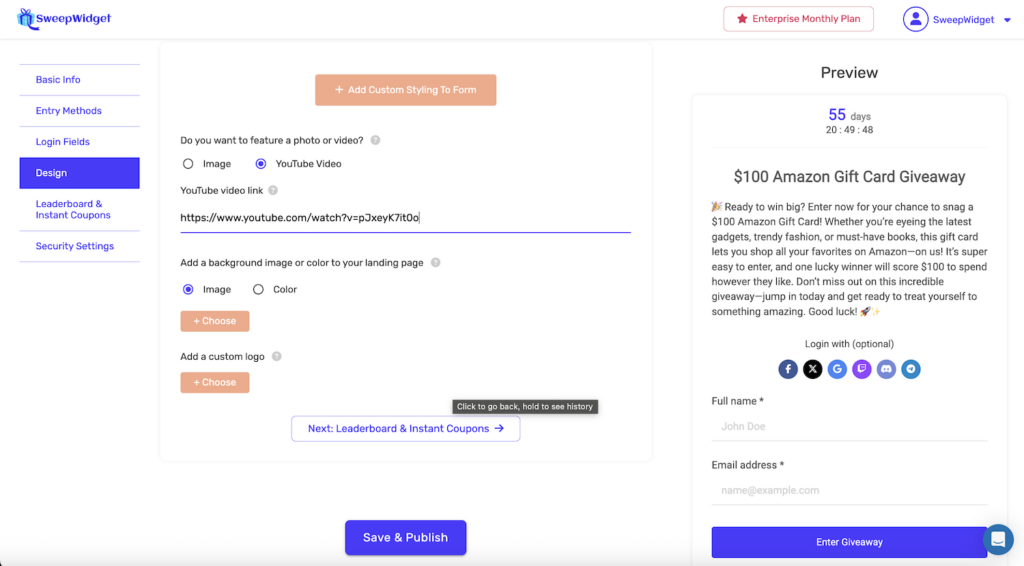
Accepted links: youtube.com/watch?v=…, youtu.be/…, youtube.com/shorts/…, youtube.com/embed/…, youtube.com/live/…, youtube-nocookie.com links, or just the 11-character video ID.
A video always displays at full width at the top of the widget. Participants can play it inside the widget.
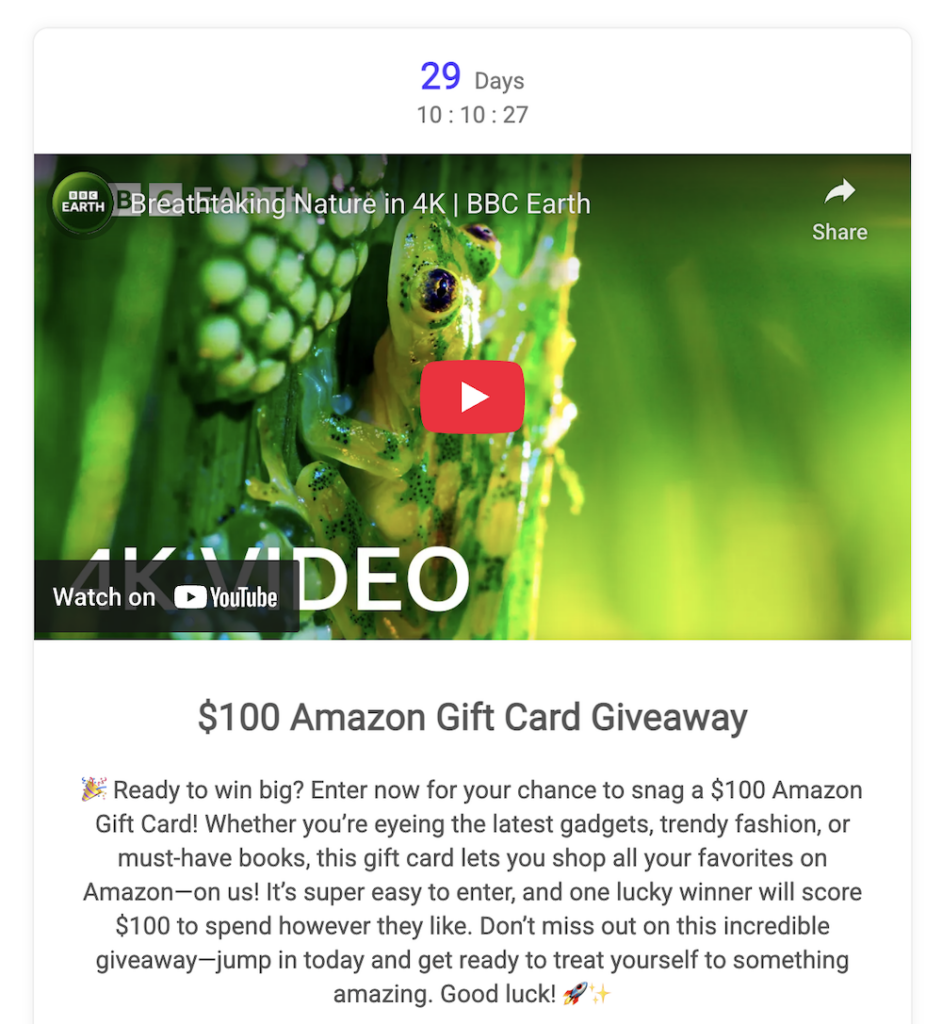
Image recommendations
| Aspect | Recommendation |
|---|---|
| File formats | JPG, JPEG, PNG |
| Maximum file size | 10 MB (under 2 MB loads faster) |
| Full Width size | At least 800 px wide |
| Small / Medium size | 300-500 px wide |
| Aspect ratio | Depends on the format; square works well for Small Left/Right |
Format comparison
| Format | Position | Size | Text wraps |
|---|---|---|---|
| Full Width | Top of widget | 100% width | No |
| Small Left | Left side | Small | Yes, text on the right |
| Small Right | Right side | Small | Yes, text on the left |
| Small Above | Between title and description | Small | No, centered |
| Small Below | Below description | Small | No, centered |
| Medium Above | Between title and description | Medium | No, centered |
| Medium Below | Below description | Medium | No, centered |
| Custom | Above the description | You set it | No, centered |
Best practices
- Use high-quality images. Blurry images look unprofessional.
- Show the prize.
- Match your brand.
- Compress images for faster loading.
- Check how it looks on mobile.
- Keep videos short.
- Use Full Width for impact and Small Left/Right for subtlety.
Use cases
| Scenario | Recommended format |
|---|---|
| Product giveaway | Full Width or Medium Above with a product photo |
| Gift card giveaway | Small Above with a gift card image |
| Brand awareness | Full Width with a branded banner |
| Tutorial or explanation | YouTube Video explaining the giveaway |
| Minimal design | Small Left/Right or no image |
| Multiple prizes | Full Width collage image |
Notes
- Featured media is optional.
- You can have one featured item: an image or a video, not both.
- Images are responsive and adjust to screen size.
- The preview panel updates as you make changes.